
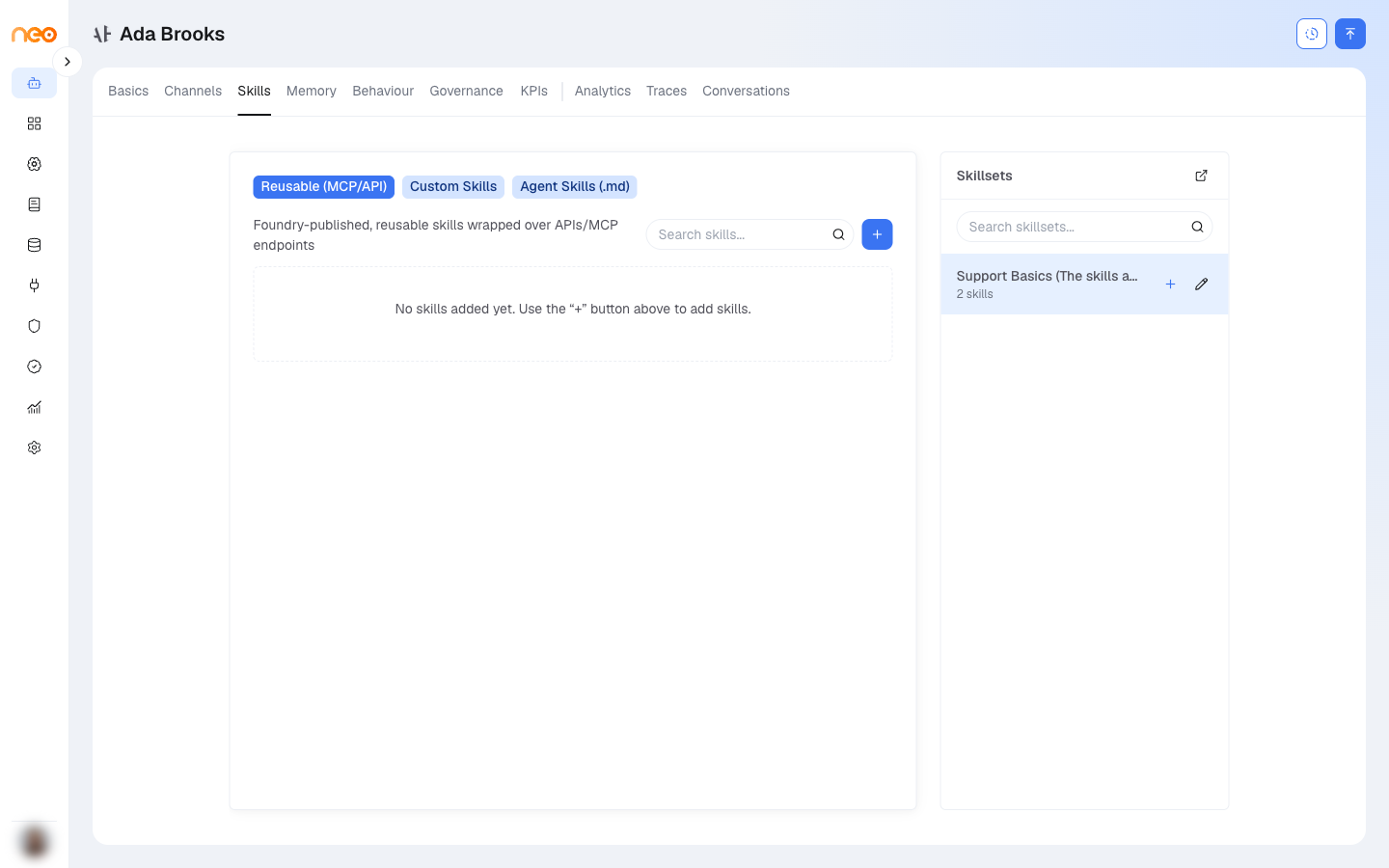
The Skills tab assigns capabilities to the Coworker. Skills are organised into sub-tabs by type. On each sub-tab, click + (Add skills) to pick skills to add, and remove a skill from its card to detach it.
Skill Types
| Sub-tab | What it holds |
|---|---|
| Reusable (MCP/API) | Reusable skills wrapped over MCP endpoints, in-house tools, and API tools. They appear automatically when the underlying tool is enabled in your workspace. |
| Custom Skills | Agentic Flow and Voice agents exposed as skills. The + button creates a new Voice or Flow agent. |
| Coworker-as-Skill | Other Coworkers in the workspace that this Coworker can call as skills. |
| Agent Skills (.md) | Markdown (SKILL.md) skills from the workspace Skills area. See Skills for creating and managing these. |
Note
Which sub-tabs you see depends on the capabilities enabled for your deployment. Coworker-as-Skill and Agent Skills (.md) are off unless your platform administrator turns them on. Creating a Chat agent from the Custom Skills + menu is being rolled out and may not yet be available.
How Skill Selection Works
You do not have to decide in advance which skill handles what. The Coworker reads each enabled skill’s description and picks the right one for each request. Clear, specific descriptions are what make it choose well — vague descriptions lead to the wrong skill being used.
When the Coworker loads an Agent Skills (.md) skill during a chat, NeoGPT shows Using skill followed by the skill’s name and a Loaded badge. Other skill types do not show this indicator — to see when they run, open the Traces tab.
Adding a Skill
- Reusable skills appear automatically once their underlying MCP, in-house, or API tool is enabled in the workspace — see Foundry → Integrations.
- To make an Agentic Flow or Voice agent available as a Custom skill, use the Expose as Skill action on that agent’s own Settings page. It then appears in the Custom Skills sub-tab of every Coworker in the workspace. (See Agentic Flow and Voice Agent.)
Each attached skill has an approval gate — Allow or Ask — set on the Governance tab. New skills default to Allow.
Skillsets
A Skillset is a named, reusable bundle of skills, carrying a name and description. Skillsets let you assign a whole group of skills in one action.
- Manage Skillsets from Integrations → Skillsets: create, rename, edit the description, add or remove skills, and delete.
- On a Coworker’s Skills tab, the Skillsets panel lists your skillsets. Click + (Assign skillset) on a set to copy all its skills onto the Coworker. The skills are then attached individually — remove any you do not need from their sub-tab.
- A skillset can hold Custom Skills and Agent Skills.
Sharing a SKILL.md Skill
Markdown skills are managed in the workspace Skills area, and each carries its own access policy — set from a Share dialog — that controls who can use and change the skill definition:
| Role | Permissions granted |
|---|---|
| Viewer | Read. |
| Executor | Read, Execute. |
| Editor | Read, Execute, Edit. |
| Owner | Read, Execute, Edit, Delete, Share. |
Note
These five permissions govern the skill definition in the Skills area — who can view, run, edit, delete, or share it. They are separate from the Coworker’s Allow / Ask gate: when a
SKILL.mdskill is attached to a Coworker, the Allow/Ask gate controls whether its use needs approval, and the skill’s own sharing policy is unchanged. Platform-wide skills are managed by a Super Admin under Control Center → Integrations → Skills.