
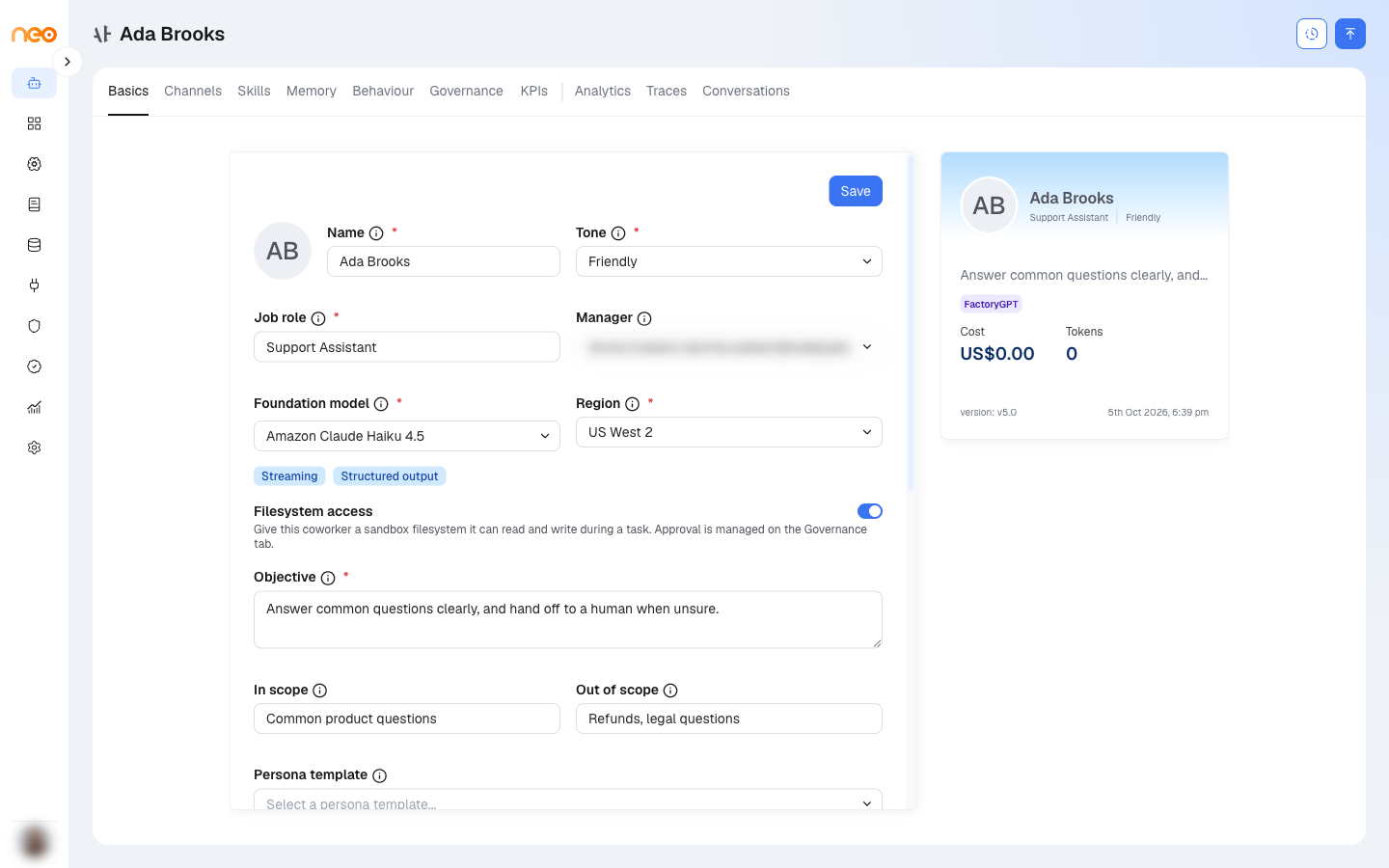
The Basics & Identity tab defines who the Coworker is. Everything you enter here shapes how it understands its job and talks to people, so it is worth being specific. Basics is the only tab available before the Coworker is saved, and it holds the five fields required to create one.
Steps
- Enter the Name, choose a Tone, and enter the Job role.
- Select a Foundation model (and a Region, if the model offers more than one).
- Write the Objective, then add Responsibilities, In / Out of scope, and Persona & principles.
- Save.
Fields
| Field | Required | What to enter |
|---|---|---|
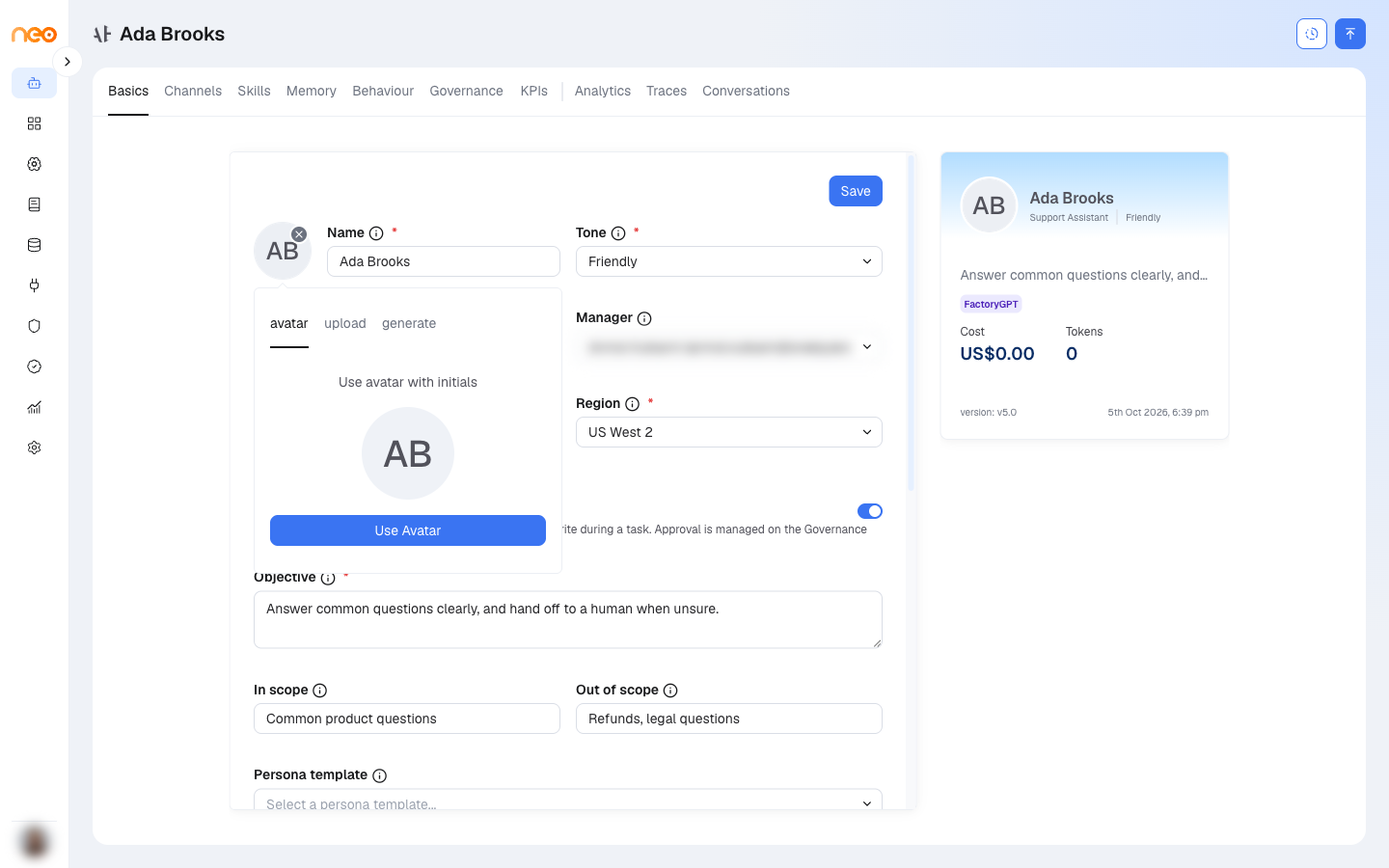
| Icon | No | The picture shown for the Coworker on its card and page header. Click the icon to use an avatar with the Coworker’s initials, upload an image (Choose an image), or generate one from a text prompt. Generating needs the image generation permission. |
| Name | Yes | The display name used across the builder, channels, and conversations. Must be unique within the workspace. |
| Tone | Yes | The Coworker’s communication style. One of: Empathetic · Firm, Professional, Friendly, Concise & direct, or Warm & reassuring. |
| Job role | Yes | A human job title — not a project or a technology. For example, “IT Helpdesk Specialist”. |
| Foundation model | Yes | The LLM the agent runs on, chosen from the models enabled in your workspace. A Region dropdown appears when the selected model is available in more than one region. Capability tags — Default, Streaming, Structured output — show what the model supports. |
| Objective | Yes | A one-line mission that anchors the instructions. For example, “Resolve common IT requests at first contact and escalate cleanly”. |
| Manager | No | A workspace member recorded as the Coworker’s owner. It is included in the Coworker’s instructions (“You report to …”). The manager does not receive escalations — approval requests go to the approvers set on the Governance tab. |
| Responsibilities | No | A list of what the Coworker owns. Use + to add each item. |
| In scope / Out of scope | No | Short statements of remit. For example, an out-of-scope entry such as “Hardware procurement, payroll” keeps the Coworker from straying into areas it should not handle. |
| Persona template | No | A preset that fills in Persona & principles for you. Your template choice is saved with the Coworker, so it is still selected when you come back. |
| Persona & principles | No | Voice traits and judgment rules expressed as instructions — for example, “Clear and patient. Never change access or security settings without explicit human approval.” |
Tip
The Objective, scope, and principles directly shape how the Coworker behaves. Clear, specific wording here makes more difference than anything else on this tab.
How These Fields Are Used
Each field plays its part: the objective sets the mission, responsibilities and scope define what the Coworker takes on, and persona and tone shape how it communicates. The do-and-don’t rules from the Behaviour tab act as firm limits on top.
Filesystem Access
Turn on Filesystem access to give the Coworker a sandbox filesystem it can read and write during a task. The Coworker must be published before you can change this setting. Approval is managed on the Governance tab.
Handles
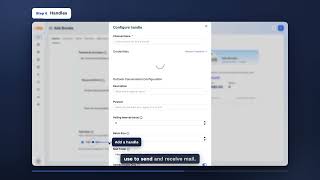
The Handles section lists the email identities the Coworker uses to send and receive messages. It is optional, and is available once the Coworker has been saved. Changes to handles apply straight away — they do not require publishing the Coworker.
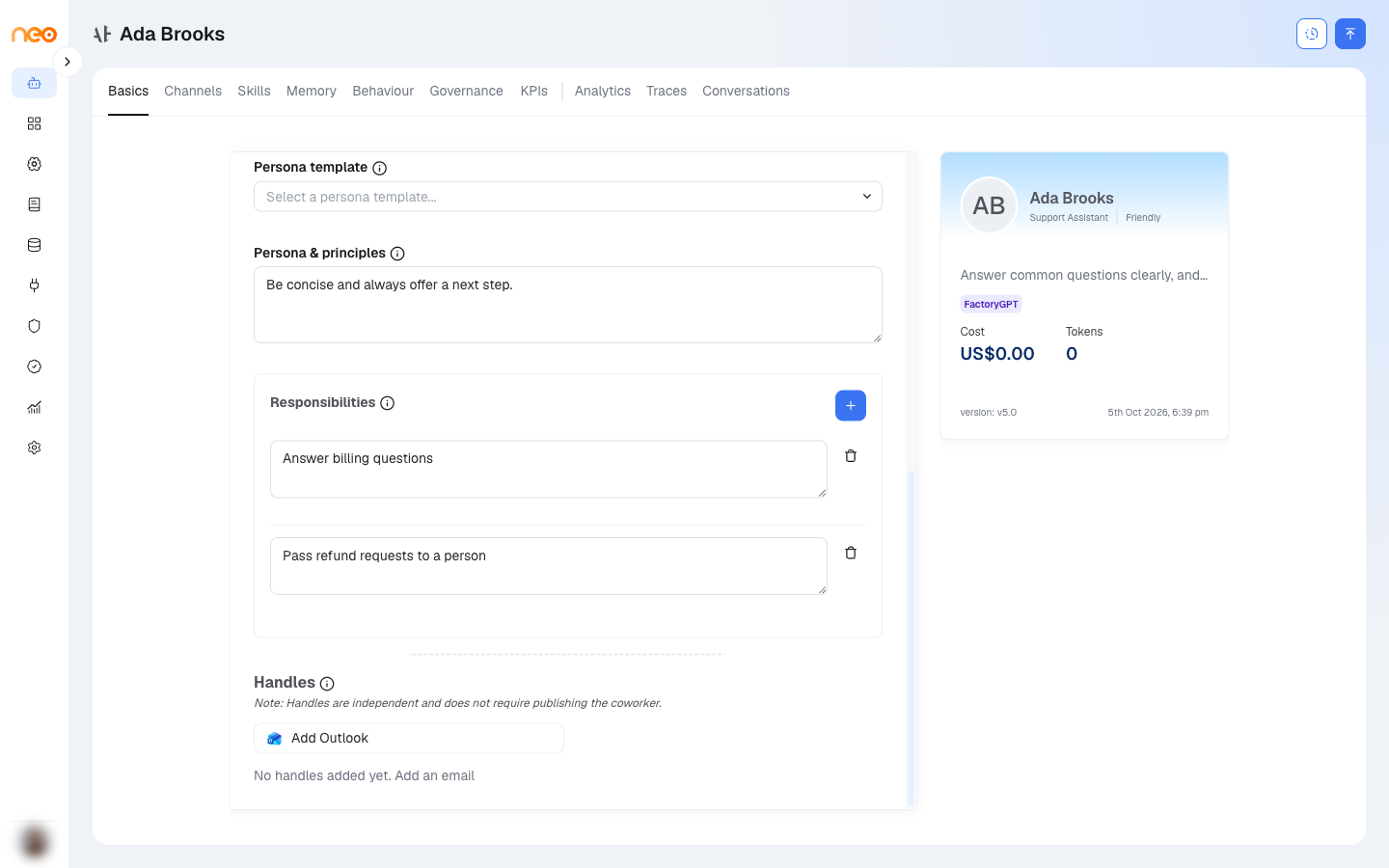
Click Add Outlook to add an Outlook mailbox as a handle. The Configure handle form asks for:
- Channel Name.
- A credential — choose an existing Outlook credential or create one, signing in with Microsoft (SSO) or supplying app credentials (Client ID, Client Secret, Tenant ID).
- Mailbox settings — Polling Interval (mins), Batch Size, Mail Folder, Unread Emails Only, optional From / Subject / Body filters, Process Full Thread, Reply All, Description, and Purpose.
A Coworker can have one Outlook handle. The Coworker polls the handle’s mailbox for new mail and replies from it. Replies are always delivered to handles — they appear under Handles (always delivered) in the Channel Delivery section of the Channels tab.