
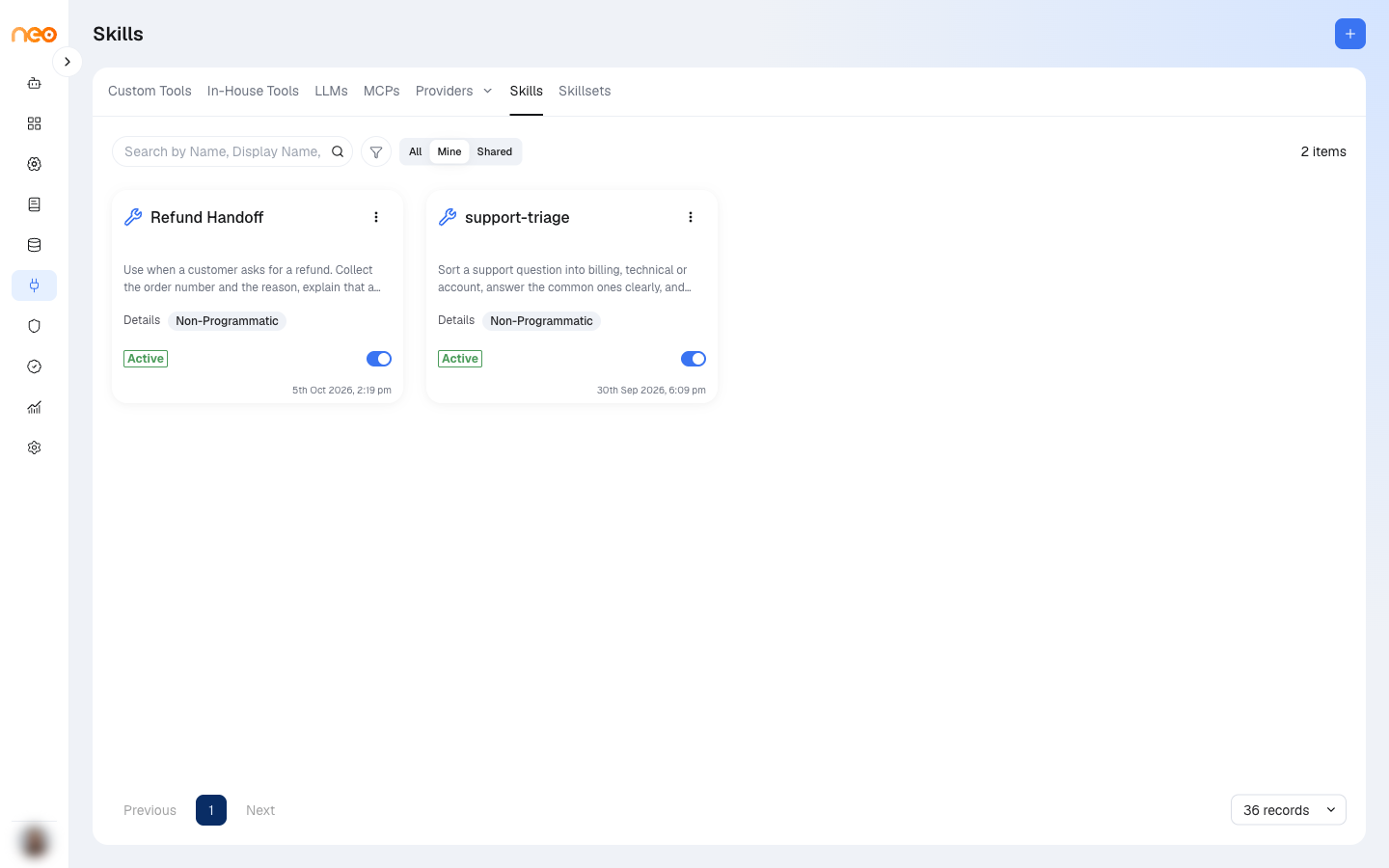
A Skill is a reusable instruction package that teaches an agent how to perform a specific task. You write the steps once, and any agent that has the skill can follow them whenever the task comes up.
| Use case | What the skill teaches the agent |
|---|---|
| Document generation | How to create a Word document or presentation following your format. |
| Brand guidelines | Tone, colours, and wording rules for customer-facing content. |
| Data analysis | How to read a CSV, run a script, and produce a summary report. |
| PDF handling | Steps to extract text, fill a template, and return a finished file. |
What Goes Inside a Skill
Every skill is a folder of files. The one file you must have is SKILL.md — the main instruction document the agent reads. You can also add templates, scripts (for example .py, .js, .sh) for programmatic skills, and supporting config or schema files.
When you create a skill manually, a starter SKILL.md is generated with these sections:
| Section | Purpose |
|---|---|
| When to Use | Tell the agent when this skill applies. |
| Instructions | Step-by-step what the agent should do. |
| Tools Used | The sandbox tools the skill relies on (for example read_file, write_file, bash). |
| Input Format | What input the agent should expect. |
| Output Format | What the agent should produce. |
| Examples | Sample input and output pairs. |
The file starts with a short description block. Keep it clear — the agent uses the description to decide whether to load the full skill. When you save SKILL.md, the skill’s description is updated from this block.
Where Skills Live
| Level | Who creates it | Where you manage it |
|---|---|---|
| Workspace skill | You or your workspace admin | Integrations → Skills |
| Platform skill | Super Admin | Control Center → Integrations → Skills |
When a Super Admin enables a platform skill, it is added to every workspace switched off. Platform skills appear alongside your own, but their files are read-only — you can turn them on or off for your workspace, but only a Super Admin can edit the content. If the editor shows no Save button and no New file option, the skill is platform-provisioned or has been shared with you view-only.
Creating a Skill
On the Skills tab of the Integrations page, click the + button (Add Skill) and choose Neo Skills. The Create New Skill dialog offers two paths.
Upload ZIP — you already have a skill folder packaged as a .zip.
| Rule | Detail |
|---|---|
SKILL.md required | SKILL.md must be at the root of the ZIP, or directly inside a single top-level folder. That folder is stripped when the skill is created. |
| Maximum size | 50 MB. |
| File type | Only .zip files are accepted. |
| Ignored files | __MACOSX, .DS_Store, and ._* files are removed. |
Enter a Skill Name (filled in from the ZIP filename if you leave it empty), choose the Skill Package (ZIP), and click Upload & Create. The description is taken from SKILL.md. The skill type is detected from the files in the package — any script file makes it Programmatic — and the packages your scripts import are checked against the approved list. An upload that imports an unsupported package is rejected.
Create Manually — start empty and add files in the editor. Fill in Name, Description, and Skill Type, then click Save Skill:
- Non-Programmatic — instructions only. The agent reads
SKILL.mdand uses the sandbox tools it already has. Choose this when the skill is mostly rules, steps, and templates. - Programmatic — includes executable scripts. A Dependencies section appears where you select the packages your scripts use, from the approved list. Common choices include
pandas,matplotlib,python-docx,pypdf,openpyxl(Python) andaxios,docx,sharp(Node). If a package you need is not in the list, contact your platform administrator.
The platform writes a dependencies.json file into the skill folder automatically. Skill names must be unique within the workspace.
Editing Skill Files
Click a skill card to open the skill detail page — an Explorer file tree on the left and an editor on the right. Create files and folders, edit content, and save with the save icon or Cmd+S / Ctrl+S. Markdown files offer Edit and Preview toggles. Each file can be up to 5 MB, and imports in script files are checked against the approved package list when you save.
Two files are protected and cannot be deleted: SKILL.md (required for every skill) and dependencies.json (declares the packages for programmatic skills).
To change a skill’s name, description, or dependencies, choose Edit from the card menu. The skill type cannot be changed after creation.
Tips for good SKILL.md content:
- Write instructions as steps the agent can follow literally.
- Reference file paths inside the skill (for example,
/skills/my-skill/templates/report.docx). - For programmatic skills, include the exact command to run your script.
- Keep several narrow skills rather than one oversized skill file.
Finding Skills
Use the search box to find a skill by name or description, the Skill Type filter to show Programmatic or Non-Programmatic skills, and the ownership toggle — All, Mine, or Shared — to show skills you own or skills shared with you.
Enabling and Sharing
Every skill card has an Active / Inactive toggle. Only active skills appear in the Skills node in the Agentic Flow builder — turn a skill on before wiring it into a flow.
Owners can use Share from the card menu to grant access to colleagues. Skill permissions (view, execute, edit, delete, share) control who can see, use, and change the skill. They are separate from the approval setting on the Skills node. At run time, an agent only uses the skills the person running it has permission to use.
Using Skills in an Agentic Flow
Skills are attached to an agent with the Skills node (component palette → Agents category):
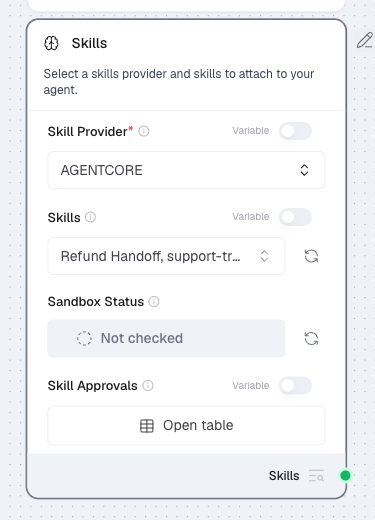
- Drag Skills onto the canvas.
- Set Skill Provider to AGENTCORE (the only provider available today).
- Click refresh next to Skills, then select one or more active skills. The Workspace ID field is filled automatically.
- Refresh Sandbox Status to check connectivity — it should show Connected.
- In Skill Approvals, set each skill to Allow or Ask. See Skill Approvals.
- Connect the Skills node’s Skills output to the Agent node’s Skills input.
- Publish the flow and test in the Playground with a question that matches a skill’s When to Use section.
You can connect multiple Skills nodes to one Agent. Skills do not replace the agent’s system instructions; they add task-specific guidance when relevant.
See the Skills component reference for the full parameter table.
Skill Approvals
The Skill Approvals table has one row for each skill you selected. Rows are added and removed automatically as you change the selection.
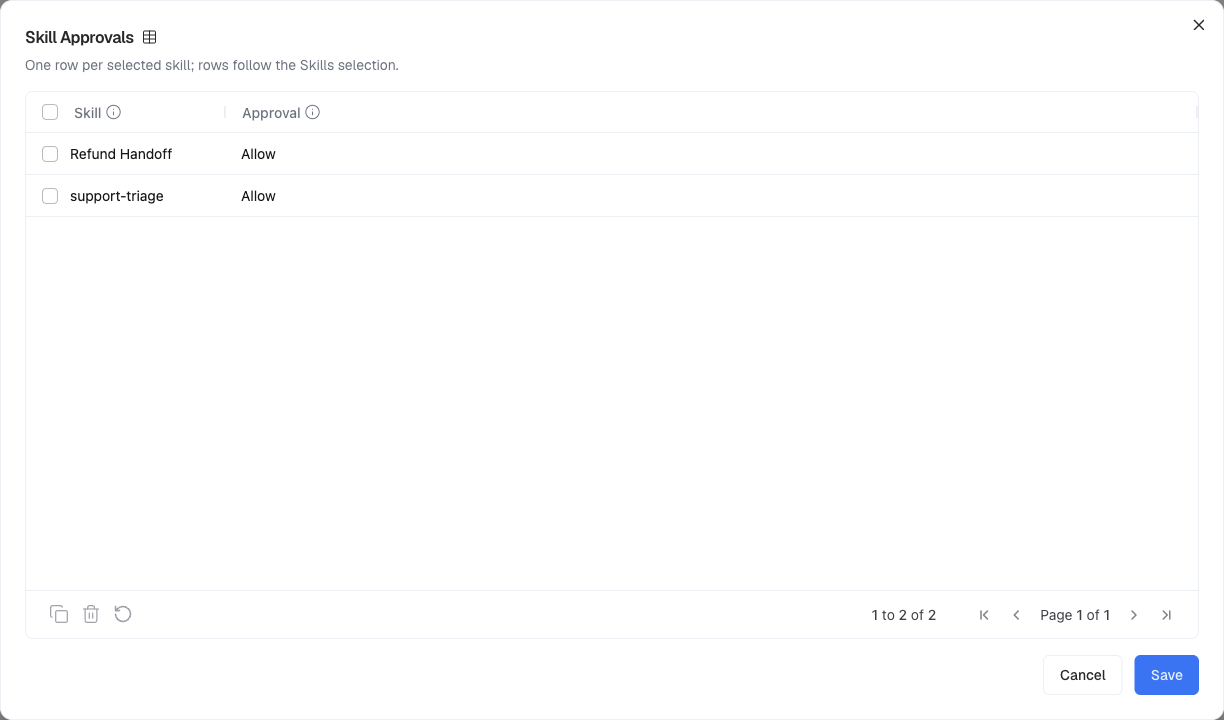
- Allow (default) — the agent uses the skill without pausing.
- Ask — the agent pauses for human approval before it starts using the skill. The reviewer can approve, or reject so the agent continues without the skill. Once approved, the skill stays available for the rest of the run.
Approval requests are sent to the delivery target of a Human In The Loop node in the same flow. Add one before you set any skill to Ask. See Human in the Loop.
Sandbox Status messages
| Message | Meaning |
|---|---|
Connected | The sandbox runtime is reachable. |
Not checked | You have not refreshed yet — click refresh. |
Connection failed | The runtime is not reachable — retry, then contact your administrator. |
Connection failed: invalid provider configuration | The skill provider is not set up correctly for this deployment — contact your platform administrator. |
Not configured (FILE_SYSTEM_MCP_URL missing) | The deployment is missing the sandbox runtime configuration — contact your platform administrator. Skills cannot run until this is set up. |
No provider selected | Choose AGENTCORE in Skill Provider. |
How Skills Work at Runtime
When a conversation starts, the agent receives a short list of its skills — the name, description, and location of each SKILL.md. It then reads skills only as it needs them:
- It reads each skill’s description from the list.
- If the request matches a skill’s When to Use section, it reads that
SKILL.mdin full. - It follows the instructions — reading templates, writing files, or running scripts as documented.
- It returns the answer, and any files it generated are offered for download.
Skills unrelated to the request are skipped.
Troubleshooting
| Symptom | Fix |
|---|---|
| Skills dropdown is empty in the Skills node | Create a skill, switch it to Active, click the refresh button, and confirm you are in the same workspace as the skill. |
| ZIP upload fails | Check the file is a .zip under 50 MB with SKILL.md at the root or in one top-level folder, and that scripts only use approved packages. |
| Editor is read-only, no Save button | The skill is from the platform catalog — ask a Super Admin to change it. If a colleague shared it view-only, ask the owner for edit access. |
| Agent does not follow the skill | Confirm the skill is active and selected in the node, the Skills → Agent connection exists, the When to Use text matches the request, and the flow has been published since the change. |
| Agent pauses but no approval request arrives | A skill is set to Ask but the flow has no Human In The Loop node with a delivery target. Add one, or set the skill to Allow. |
| Agent cannot run a script | Confirm the skill type is Programmatic, all imported packages are in its dependencies, and the command path in SKILL.md matches where the script lives. |