
Connects an agent to a Microsoft Teams workspace via the Bot Framework REST API. Supports two-way conversations with Teams users.
- Supported agents: Agentic Flow, Chatbot, Coworker
- Route type: Conversation
Before You Start
- In the Azure Portal (portal.azure.com), go to Azure Active Directory → App Registrations → New Registration.
- Name the app (e.g.
Neo-TeamsBot). Set supported account types to Multi-tenant. - Note the Application (client) ID — this is your Bot App ID.
- Under Certificates & Secrets, create a new Client Secret. Copy the value immediately.
- Note the Directory (tenant) ID from the app overview.
- Create a Bot Service in Azure Bot Services and set the Messaging Endpoint to the Neo webhook URL. The webhook URL is shown in Neo after you create the channel.
- In Azure Bot Services, under Channels, enable the Microsoft Teams channel.
Your agent must be published with an active version.
Conversation Route
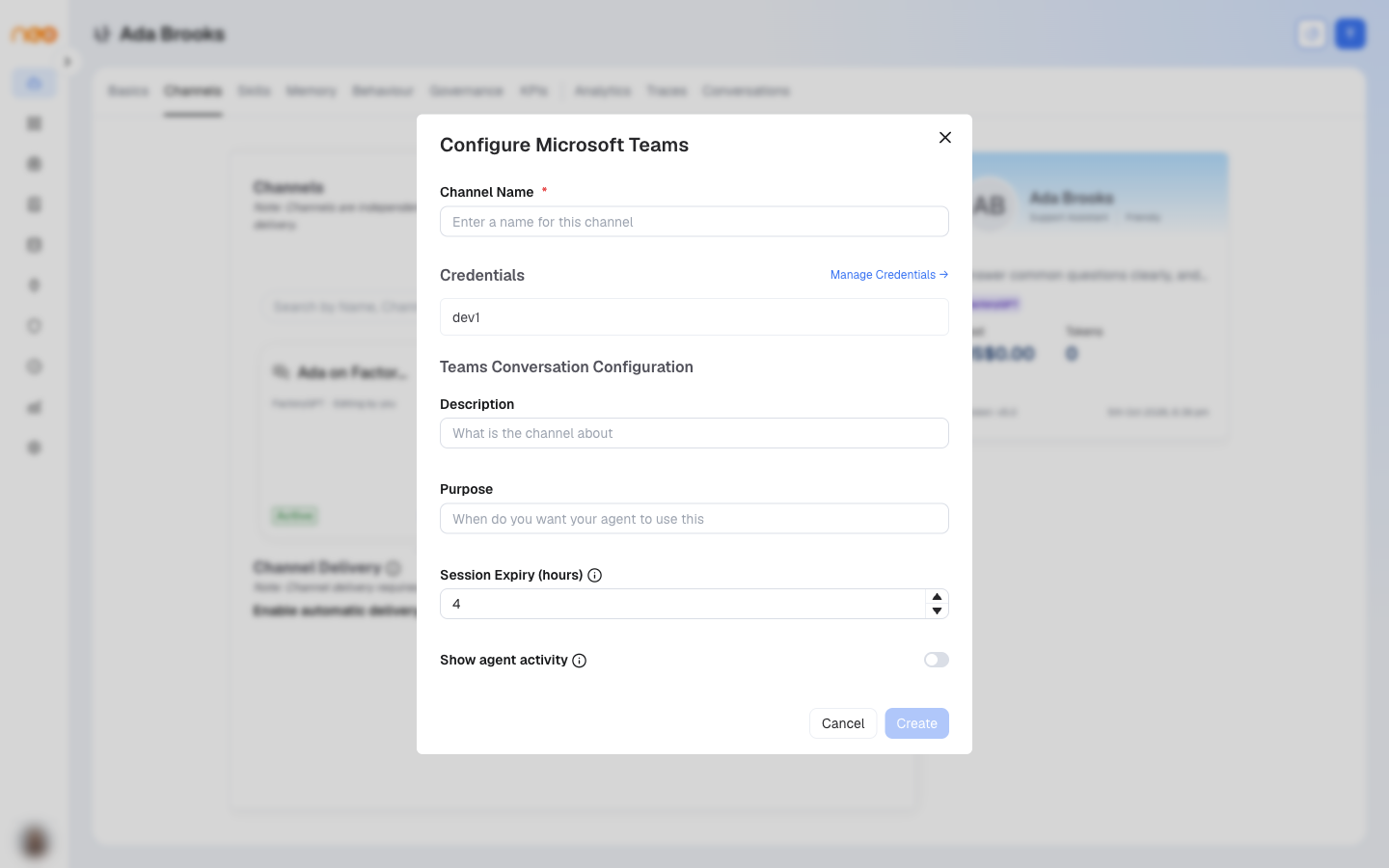
Credentials
- Credential Name — A unique name to identify this credential. Required.
- Bot App ID — Application (client) ID of the Azure App Registration. Required.
- Bot App Secret — Client secret for bot token acquisition. Required.
- Bot App Tenant ID — Directory (tenant) ID. Required.
Route Settings
- Description — Optional label for this channel instance.
- Purpose — Optional note on when the agent should use this channel.
- Session Expiry (hours) — Idle timeout before a session resets. Default: 4. Range: 0.01–48.
- Show agent activity — When on, replies include an Adaptive Card with the final answer plus collapsible reasoning, tool calls, skills, and files. Default: off.
Output Node (Agentic Flow)
For Agentic Flow agents using the Conversation route, select the Output node in the flow and turn on Channel Delivery. Configure the delivery_targets table to select the Teams route, event type (message or adaptive_card), recipients, and invocation mode (automatic or agentic).
See Component Types for details on the Output node.
Troubleshooting
- Bot not responding to messages — Verify the messaging endpoint in Azure Bot Services matches the Neo webhook URL. Confirm the Microsoft Teams channel is enabled in Azure Bot Services.
- Messages not reaching the agent — Confirm the agent is published and the channel toggle is ON.