
Templates let you start from a ready-made agent instead of a blank canvas. Pick a template on the Create page, fill in the few details that are specific to you — for example the model, the knowledge base, or an API key — and the agent is created in your workspace, ready to test.
- Faster to build — the workflow, prompts, and settings are already in place. You only fill in the fields the template asks for.
- Validated and built for a purpose — every template is validated and serves a specific use case, such as customer support, IT helpdesk, or claims servicing. Pick the one that matches your need and get started.
- Consistent across teams — every agent created from a template starts from the same design, in every workspace.
Creating an Agent from a Template
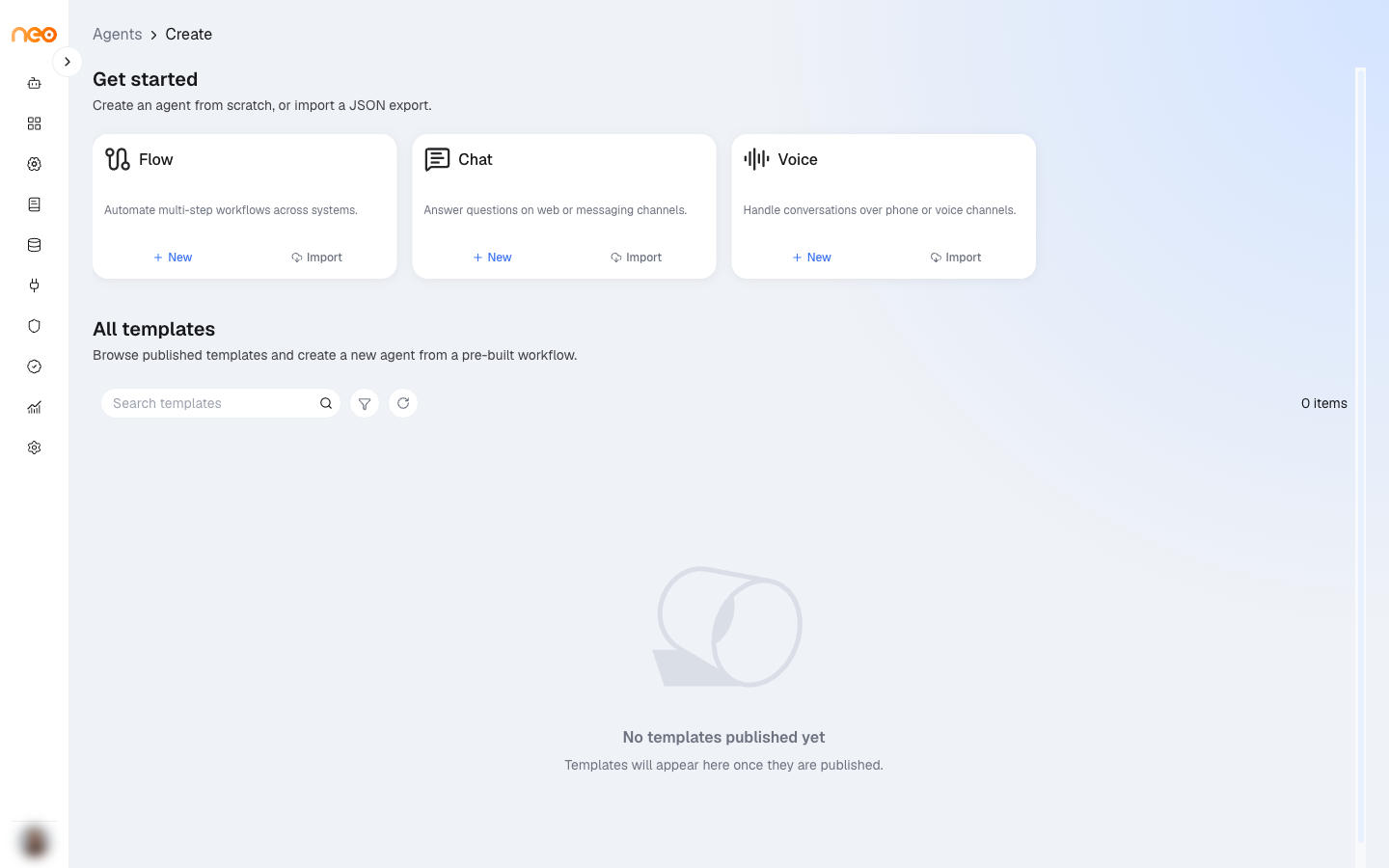
On the Agents page, click the + button. Below Get started, the All templates section lists every published template. Each card shows the template’s name, description, agent type, and category.
Use Search templates and the Agent Type, Category, and Tags filters to find a template, then click its card.
- Enter the Agent Name. It starts as the template’s name.
- Under Configure required fields, fill in the fields the template author left open. They are grouped by component; the workflow preview on the left highlights the component you are working on.
- Click Create Agent.
The new agent is created as a draft in your workspace and opens in the builder. If an agent with the same name already exists, a number is added to the new name — for example “Claims Assistant (2)”.
When something is not available in your workspace
- Skills — if the template uses skills that are not enabled in your workspace, a warning lists them before you create the agent. They are removed from the new agent.
- Knowledge bases, guardrails, models, and other resources — if a field’s default refers to something your workspace does not have, the field shows it as unavailable and asks you to pick a replacement.
Where Templates Come From
Templates are made from existing agents and published for the whole platform:
- A Workspace Admin exports an Agentic Flow agent as a template file.
- A Super Admin imports the file in the Control Center and enables it.
- The template appears on the Create page in every workspace.
Exporting an Agent as a Template
If you are a Workspace Admin and have built an agent that other teams could reuse, export it as a template.
-
On the Agents page, open the agent card’s menu and choose Export as Template.
-
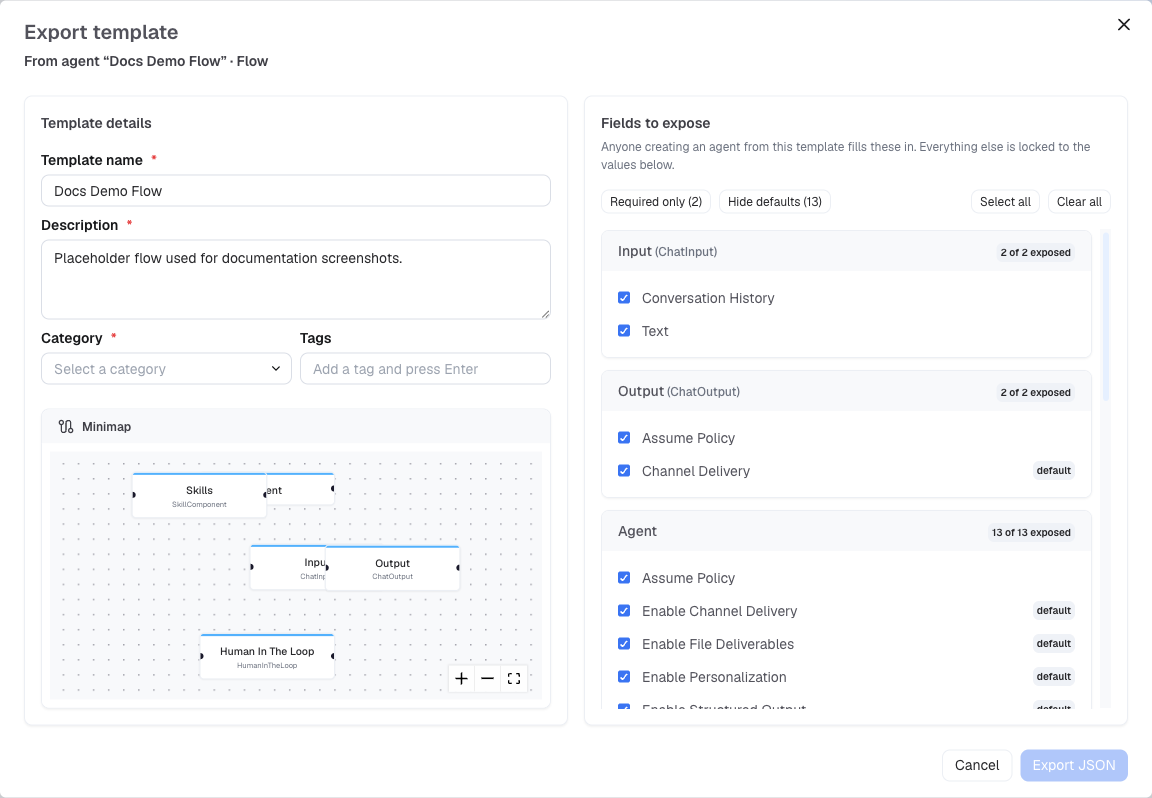
Under Template details, fill in:
Field Required Description Template name Yes Up to 80 characters. Starts as the agent’s name. Description Yes What the template does. Up to 500 characters. Category Yes One of: Claims & servicing, Customer support, Data & analytics, HR & internal, IT helpdesk, Onboarding & KYC, Operations, Sales & marketing, Other. Tags No Up to 10 tags of up to 32 characters. Press Enter after each tag. Tags are saved in lowercase, with spaces replaced by hyphens. -
Under Fields to expose, tick the fields that people using the template fill in. Everything else is locked to the values in the agent. The list offers the fields shown on each component, except fields fed by a connection from another component and fields an agent fills in when the component is used as a tool. Advanced settings are offered only if they are required. Use Required only and Hide defaults to narrow the list.
-
Click Export JSON. The template downloads as a JSON file.
Password fields — API keys and secrets — are never included in the file. If the agent needs one, expose that field so each user enters their own.
Exporting only creates the file. To publish the template, send the file to a Super Admin.
Publishing Templates (Super Admins)
Templates are managed in Control Center → Templates.
- Import — click + (Import Template) and choose the JSON file. Imported templates start disabled.
- Enable / Disable — use the toggle on the template card. Only enabled templates appear on the Create page.
- Edit fields — choose Edit fields from the card menu to change the name, description, category, tags, and which fields are exposed.
- Delete — removes the template permanently. Agents already created from it are not affected.
Use the search box and the Agent Type, Category, and Status filters to find a template.