
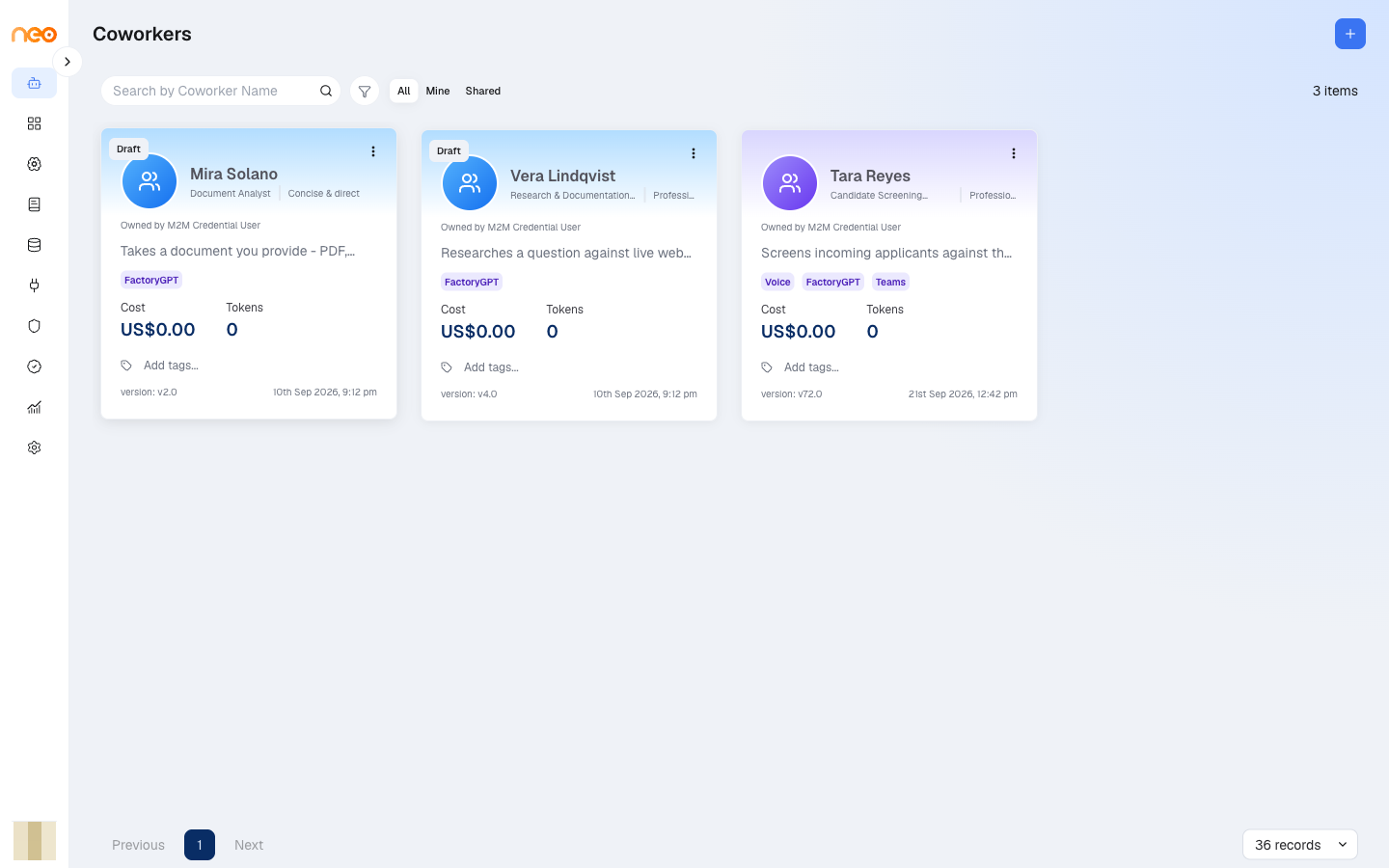
Coworkers live under Coworkers in the left sidebar. The list page shows a card for each Coworker in the workspace, with a Create Coworker (+) button to add a new one.

Roles and Permissions
What you can do with a Coworker depends on your workspace role. If an action described in this section is unavailable to you, ask your workspace administrator to grant the relevant permission.
| Permission | What it allows |
|---|---|
| View | See the Coworkers area and open a Coworker. This is the prerequisite for every other permission. |
| Create | Show the Create Coworker button and create a new Coworker. With Create alone, you complete Basics & Identity and click Create; the other tabs are locked. |
| Edit | Save changes to an existing Coworker, and configure Channels, Skills, Memory, Behaviour, and Governance. |
| Delete | Delete a Coworker. |
| Deploy | Publish and deploy a version. |
Quickstart: Your First Coworker
The fastest path to a working Coworker:
- Click Create Coworker (the + icon). On the Hire a digital coworker welcome screen, click Let’s get started.
- On Basics & Identity, enter the Name, Tone, Job role, Foundation model, and Objective, then click Next. The Coworker is created as a draft.
- Add one Channel — for example NeoGPT for internal chat.
- Add a Skill or two on the Skills tab.
- Click Publish. The Coworker is versioned, compiled into an agentic flow, and deployed — its status becomes Active.
- On the Channels tab, switch on the channel you added. Channels added before the first publish start switched off.
- Open it in NeoGPT (or your channel) and send it a message.
For a guided, step-by-step first build, follow Build Your First Coworker. For a complete, real-world example, see the Build a Coworker: An IT Helpdesk Assistant.
The Creation Wizard
Creating a Coworker opens a guided wizard with six steps, shown as a progress bar:
Basics & Identity → Channels → Skills → Memory → Behaviour → Governance
Only five fields are required to create the Coworker — Name, Tone, Job role, Foundation model, and Objective, all on the first step. Clicking Next on that first step creates the Coworker straight away — you do not need to finish the wizard — so you can leave and return at any time. Each later step has a Skip for now link, and Complete on the last step closes the wizard.
Note
Coworker names must be unique within a workspace.
The new Coworker is saved as a draft. It goes live — status Active — only when someone with the Deploy permission publishes it.
As you fill in the other tabs, Publish to apply your changes (see Publishing and Versioning). Two things need a published version first:
- A Channel or proactive routine can only be enabled after you have published at least once. A channel you add in the wizard starts switched off — switch it on from the Channels tab after you publish.
- The KPIs & Output Details tab appears only after the first publish, so it is not part of the wizard.
The Detail (Edit) Page
Opening an existing Coworker shows the same areas as tabs across the top. The Basics tab is always available; the others enable once the record exists. Publishing controls — the version history and the Publish button — sit at the top right.

From here you can revisit any tab, make changes, and republish. The pages that follow walk through each tab in turn, beginning with Basics & Identity.