
Human in the Loop (HITL) keeps a person in control of the important decisions your agent makes. When the agent is about to perform a sensitive action — calling a payment API, updating a customer record, triggering another workflow — it pauses and sends an approval request to a reviewer. The reviewer approves or rejects the action from Microsoft Teams, and the agent continues from where it paused.
When to Use It
Turn on approval for actions that are expensive, hard to undo, or visible outside your organisation:
- Sending money, issuing refunds, or filing disputes.
- Creating, changing, or deleting records in another system — a CRM update, an email or SMS to a customer.
- Handing off to another agent or workflow that acts on its own.
- Any decision where a mistake would be costly to reverse.
Leave approval off for everyday, low-risk actions such as looking things up. Asking for approval on everything overwhelms reviewers, who then approve requests without reading them.
The Two Pieces You Configure
HITL is made up of two settings:
- The approval switch — says "pause before this runs". You set it on the tool, MCP connection, flow agent, or skill you want to protect.
- The approval destination — the Human In The Loop node — says who receives the approval request and where.
You need both. If you turn on the switch but the flow has no Human In The Loop node with a delivery target, the agent pauses and no request is sent, so the run cannot continue.
Where You Can Turn It On
| Location | Setting | What it protects |
|---|---|---|
| A tool — In-House Tool, Custom Tool, or any component used as a tool | Ask for approval switch, off by default | Each call the agent makes to that tool. |
| An MCP connection | Ask for approval switch, off by default | Calls to the tools on that MCP server. The request names the tool and the server it targets. |
| A Flow Agent or Voice Agent Call | Ask for approval switch, off by default | The hand-off to that agent. The reviewer sees what is about to be triggered before it starts. |
| A skill | Skill Approvals table on the Skills node — Allow (default) or Ask per skill | The moment the agent starts using that skill. See Skills. |
Once a reviewer approves a tool, connection, agent, or skill, the agent does not ask again for it during the same run. This matters most for tools the agent calls several times in a row.
Setting Up Human in the Loop
Before you start
- Approval requests are delivered to Microsoft Teams. The reviewer receives an Adaptive Card with Approve and Reject buttons.
- Add a Microsoft Teams channel to the agent and make sure it is enabled. The agent must be published for the channel to be available.
Steps
- Add the Human In The Loop node. Open the flow in the editor and drag Human In The Loop from the Agents category of the component palette onto the canvas.
- Set the delivery target. In Approval Delivery Targets, click refresh to load the agent’s channels, then add a row:
- Channel — the Microsoft Teams channel.
- Recipient — the reviewer. Pick a specific person rather than
auto. - Event Type is filled in as
hitl_approval. Optionally choose a Template to customise the card — see Channel Delivery Templates.
- Describe the request. Enter an Approval Title and Approval Description the reviewer will see on the card.
- Turn on approval where you need it. On each tool, MCP connection, Flow Agent, or Voice Agent Call you want to protect, turn on Ask for approval. For skills, set the skill to Ask in the Skill Approvals table on the Skills node.
- Publish the flow.
- Test it from Teams. Send the agent a message that makes it use a protected action. The reviewer receives the approval card; once they approve or reject, the agent continues. Approvals are not raised in the Playground or NeoGPT.
To have a reviewer check the agent’s own reply before it is sent, use the node as a review step instead — see The Human In The Loop Node.
The Human In The Loop Node
The Human In The Loop node (Beta) is where approval requests are configured and sent from. Add it to the flow and set its Approval Delivery Targets — the channel and recipient that receive the approval request. The node takes one delivery target.
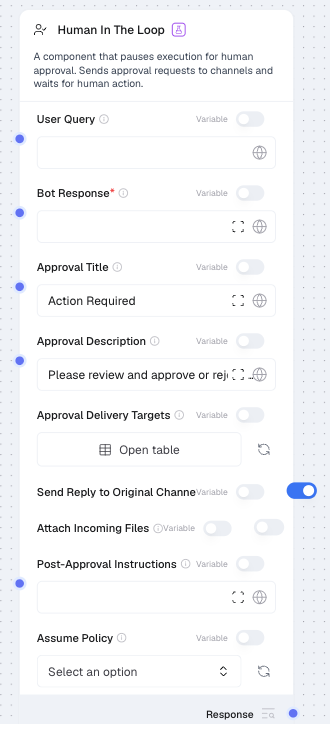
Use the node in either of two ways:
- As the destination for approval switches — every Ask for approval switch and Ask skill in the flow sends its request to this node’s delivery target. If a flow has more than one Human In The Loop node, keep a single node for this purpose.
- As a review step for the agent’s own output — wire User Query and Bot Response from an upstream Agent, or connect the node to the Agent as a tool, so the agent submits its draft for review. The reviewer can change the proposed response before approving it.
Other settings include Approval Title, Approval Description, Post-Approval Instructions (extra instructions given to the agent after approval), and Send Reply to Original Channel (tell the user that their request has been sent for review). See the full parameter table in the component reference, and Channel Delivery Templates for customising the approval card.
Note
If you build agents as AI Coworkers, the Governance tab sets all of this up on one screen — the delivery target, per-skill Allow / Ask gates, and business-rule approvals — without opening the canvas. See Governance.
What Happens During an Approval
- The agent reaches a protected action and pauses instead of going ahead.
- It saves its place. What it was about to do, and with what details, is stored with the run, so the pause is kept for as long as it takes the reviewer to respond.
- An approval request is sent to the delivery target.
- The agent waits. Nothing happens until the reviewer responds.
- The reviewer approves or rejects. Their name is recorded with the decision.
- The agent resumes from where it paused — running the action as proposed, or skipping it because it was rejected.
If the agent raises more than one approval request in the same turn, it waits until all of them are answered before continuing.
Important
Approval requests are not raised when the agent runs in the Playground or in NeoGPT — protected actions run without review. To test an approval end to end, send a message to the agent through a connected channel such as Microsoft Teams.
What the User Sees
Approval requests go to the reviewer, not into the user’s conversation. While a request is pending, the conversation shows that the action is awaiting approval. If Send Reply to Original Channel is on, the user is told that their request has been sent for review.
| Decision | What happens |
|---|---|
| Approve | The action runs as the agent proposed. If the reviewer changed the proposed response, the edited version is used. The agent then continues. |
| Reject | The action does not run, and the agent is told that the reviewer rejected it. |
Good Practices
- Protect the actions that matter, not all of them. Over-using HITL leads to approval fatigue.
- Always set a delivery target. A switch with no destination makes the agent wait with no way to continue.
- Pick a specific recipient. If Recipient is set to
auto, the agent chooses where to send the request, which may be a group chat or a channel rather than a person. - Pick the right reviewer — someone who can judge the request and respond promptly.
- Write clear titles and descriptions so the reviewer understands the request at a glance, without technical context.
Common Questions
I turned on "Ask for approval" but no request ever arrives. Make sure the flow has a Human In The Loop node with a delivery target, and that the channel on that target is enabled. For Coworkers, set an approval delivery target on the Governance tab. Also check that you are not testing in the Playground or NeoGPT, where approvals are not raised.
The agent asked once, then called the same tool again without asking. An approved tool is not re-asked during the same run, so the reviewer is not asked repeatedly for the same kind of action.
Does the approval request show up in the chat window? No. Requests go to the reviewer’s channel. The conversation only shows that something is awaiting approval.