
Custom tools let you connect OneByZero Neo agents to your own APIs — internal microservices, enterprise data systems, third-party services, or any backend that exposes an HTTP interface. They are created from an OpenAPI specification, which Neo uses to understand the API’s capabilities and invoke it correctly at runtime.
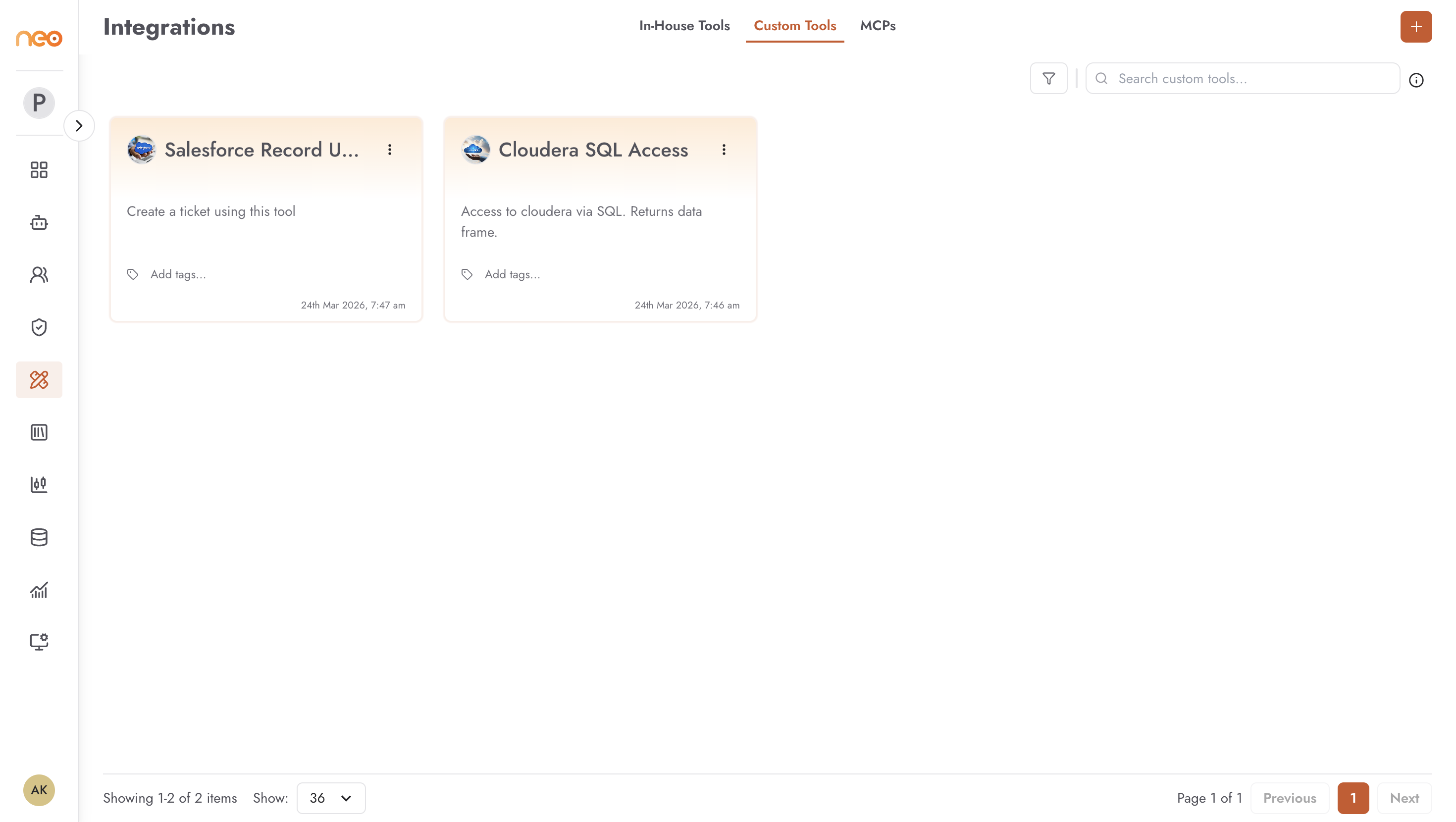
Creating a Custom Tool
Click the + Create button on the Custom Tools tab to open the creation form.
Tool Identity
- Name — the display name shown on the tool card and in the agent builder.
- Description — a description of what the tool does. This description is visible to agents when deciding which tool to call, so make it accurate and specific.
- Logo — optional emoji or image icon for the tool card.
API Specification
Paste or upload your API spec in OpenAPI format (JSON or YAML). Neo parses the spec to extract the available operations, their parameters, and their response schemas. The spec must accurately describe the API — Neo uses it as the sole source of truth for how to call the API.
After parsing the spec, Neo lists the detected operations (tools) from the schema. Each operation becomes an individually callable tool within the custom tool. You can edit the name and description of each extracted operation to make them more useful as agent tool descriptions.
Endpoint
The base URL of your API. For internal APIs, this must be accessible from the Neo deployment network. Options include:
- Internal API gateway endpoints
- Cloud-hosted service URLs
- Private microservice endpoints accessible via network peering or a VPN
- External third-party API endpoints
Authentication
Most APIs require authentication. Choose one of four options in Authentication Type:
- None — no authentication. Use for public APIs or APIs where authentication is embedded in the endpoint URL.
- API Key (Header) — the API key is sent as an HTTP request header. You configure the header name and key value. For APIs that expect a
BearerorBasicprefix, set the appropriate prefix in the header configuration. - API Key (Query) — the API key is appended as a query parameter in the request URL. Configure the parameter name and key value.
- Credential provider — the tool authenticates with OAuth 2.0 using a credential provider from Integrations → Providers → Custom Tool Credentials. Select it in the Credential provider field.
Credentials entered here are stored securely in the platform and are used at runtime whenever an agent calls the tool. Individual agents do not store credentials — they reference the Foundry configuration.
Credential providers
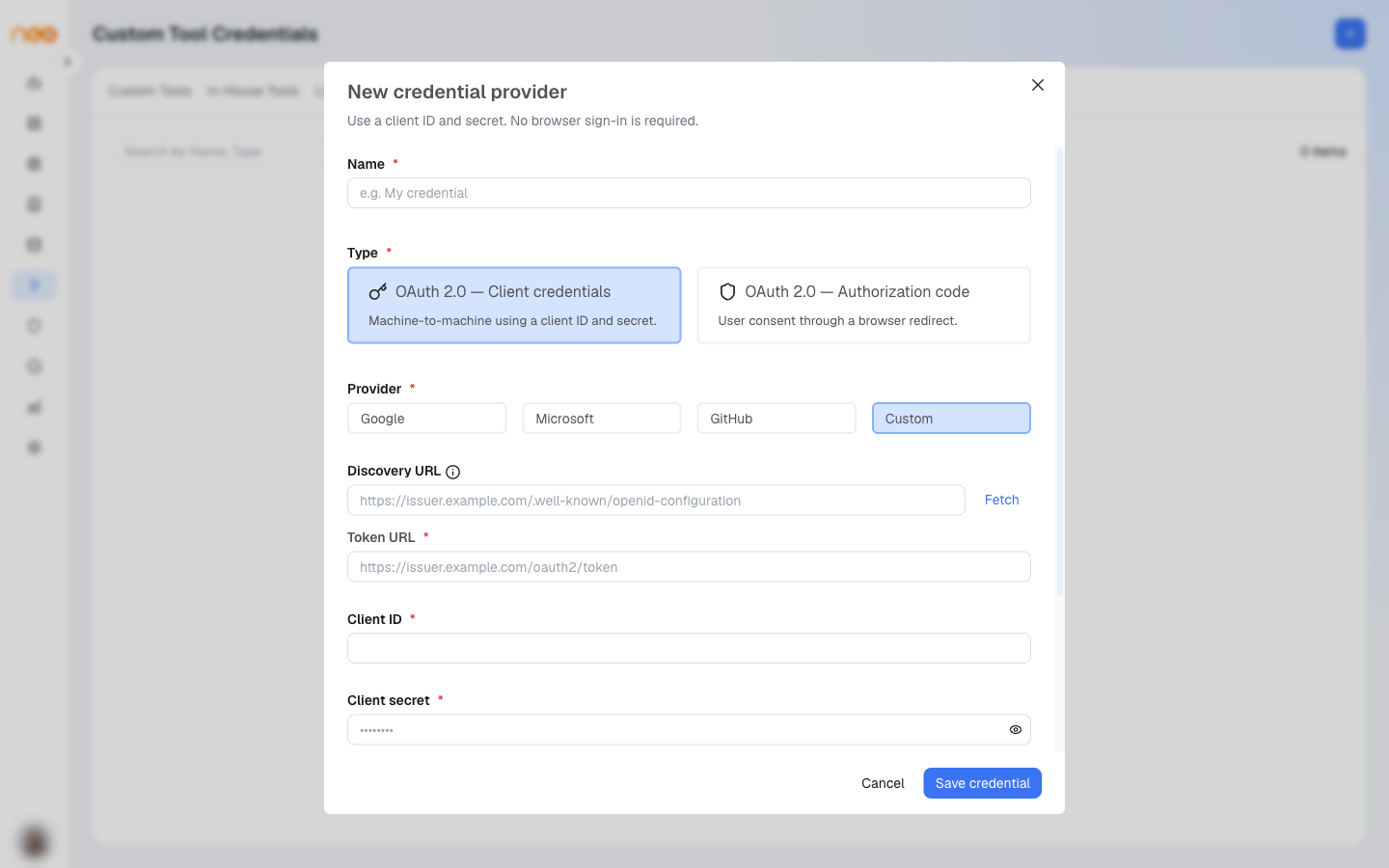
A credential provider stores an OAuth 2.0 client once so several custom tools can use it. To create one, open Integrations → Providers → Custom Tool Credentials and click + (Create Credential Provider):
| Field | Description |
|---|---|
| Name | A name for the credential provider. Required. |
| Type | OAuth 2.0 — Client credentials or OAuth 2.0 — Authorization code. Required. |
| Provider | The identity provider. Required. |
| Discovery URL | Optional. Click Fetch to fill in the authorization and token URLs from the provider’s discovery document. |
| Authorization URL | Required for the authorization code type. |
| Token URL | Required. |
| Client ID / Client secret | The OAuth client registered with the provider. Required. When editing, leave the secret blank to keep the stored value. |
| Scopes | Space-separated scopes to request. |
| Use PKCE | Turn on if the provider requires PKCE. |
| Redirect URI | Shown for you to register with the provider. |
Use Test connection to check the configuration, then Save credential. For the authorization code type, use Connect on the card to sign in to the provider. A credential provider that is attached to a custom tool cannot be deleted — detach it from those tools first.
Testing
After entering the spec, endpoint, and authentication, use the Test API button to send a test request to a specific operation. This verifies that the endpoint is reachable and the authentication is correct before attaching the tool to agents.
Managing Custom Tools
Each custom tool card shows:
- Name, description, and logo.
- Enabled / Disabled toggle — controls tool availability to agents.
- Tags — apply tags to organise tools by team, use case, or category.
- Last modified timestamp.
- Action menu — Edit to update the spec, endpoint, or credentials; Delete to remove the tool permanently.
To narrow the list, use the Ownership toggle — All, Mine, or Shared — and the Last Updated filter (From / To dates).
Editing a custom tool updates it for all agents that reference it. If you change the API spec in a way that removes or renames operations, agents that call those operations will fail at runtime until the agent flow is updated.
Best Practices
- Write clear, specific operation descriptions in your OpenAPI spec. Agents use these descriptions to decide when and how to call each operation.
- Version your OpenAPI specs externally (e.g. in a repository) and update the Foundry tool when the API version changes. Avoid letting the tool config drift from the live API.
- Use the Test API feature after any credential rotation or API endpoint change to confirm the tool still works before it is called by production agents.
- For internal APIs, make sure your Neo deployment environment can reach the API endpoint. Test connectivity separately from within the platform network if calls are failing unexpectedly.