Knowledge Bases
Knowledge Bases in OneByZero Neo provide your AI agents with access to organizational information, documents, and data that enable them to deliver accurate, contextually relevant responses. Neo supports multiple knowledge bases per workspace, and these knowledge bases can be reused across multiple agents, making them a powerful shared resource for your AI ecosystem.
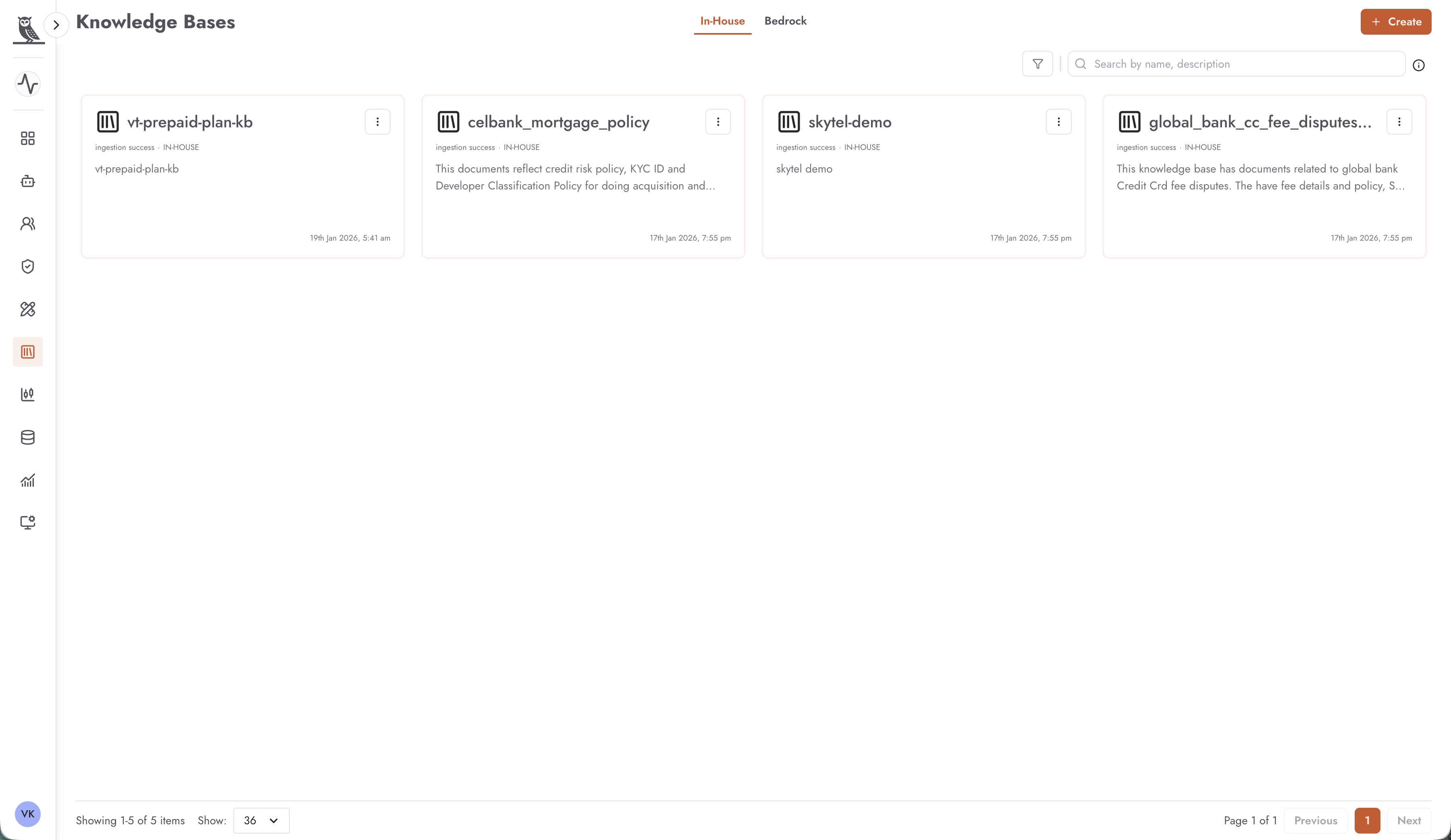
Knowledge Base Types
OneByZero Neo supports two types of knowledge bases:
In-House Knowledge Bases - Powered by OpenSearch, these knowledge bases are fully managed within the Neo platform and provide a straightforward way to store and retrieve document content.
Bedrock Knowledge Bases - Integration with AWS Bedrock Knowledge Bases, offering enterprise-grade vector storage and retrieval capabilities backed by Amazon’s infrastructure.
You can switch between viewing In-House and Bedrock knowledge bases using the tabs at the top of the Knowledge Bases page.
Reusability Across Agents
One of the key advantages of knowledge bases in Neo is their reusability. A single knowledge base can be connected to multiple agents within a workspace, providing several benefits:
Consistency - All agents accessing the same knowledge base work from the same information, ensuring consistent responses across different touchpoints
Efficiency - Maintain documents in one place rather than duplicating content across agents
Simplified Updates - When information changes, update the knowledge base once and all connected agents automatically access the updated content
Cost Optimization - Avoid redundant storage and ingestion costs by sharing knowledge bases
For example, a knowledge base containing company policies can be used by both a customer support agent and an internal HR assistant, ensuring both provide consistent policy information.
In-House Knowledge Bases
In-House knowledge bases are backed by OpenSearch and provide a fully integrated solution for document storage and retrieval within Neo.
Managing Documents
Clicking on an In-House knowledge base card opens the details view where you can manage the documents contained in the knowledge base.
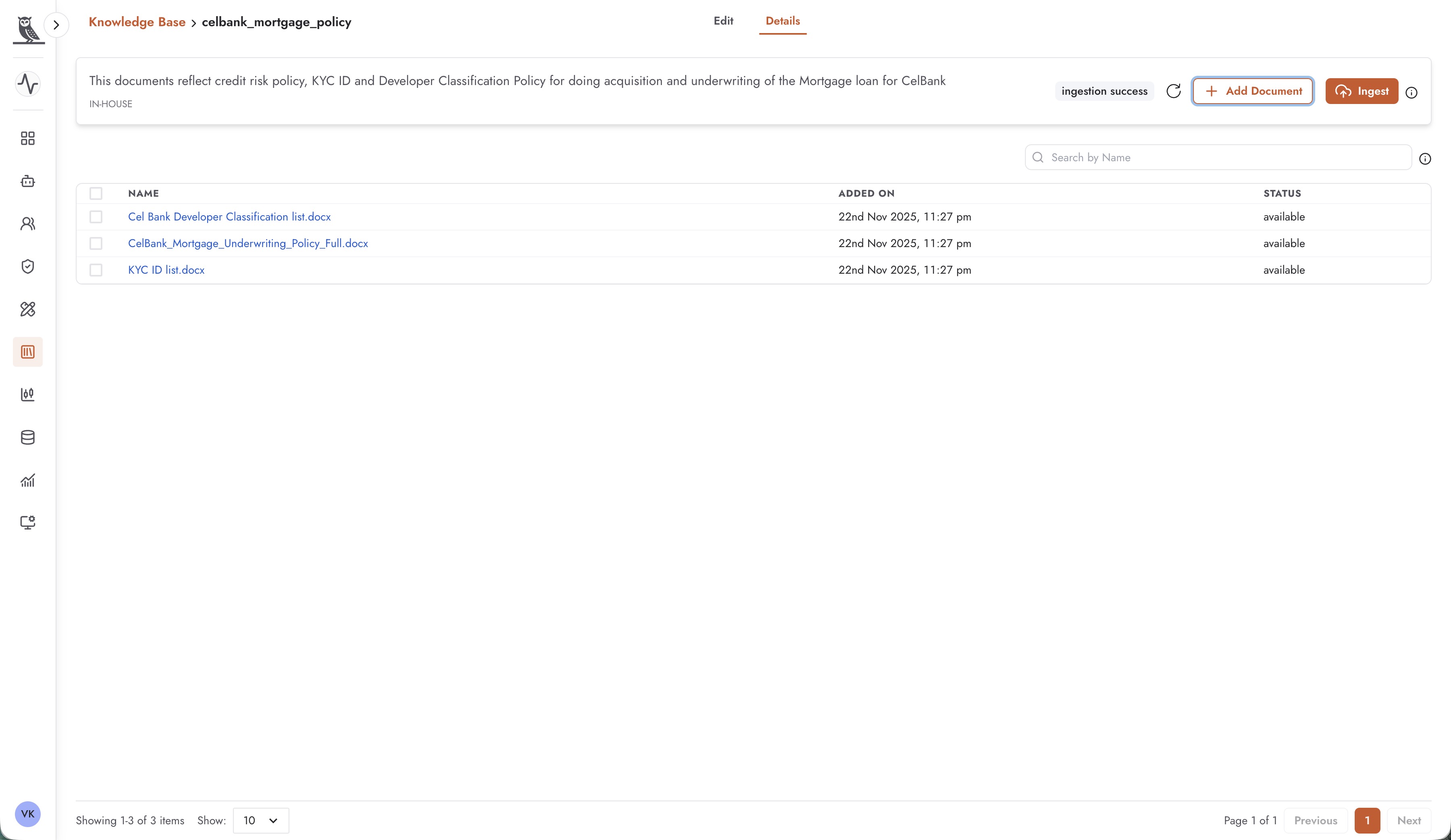
The details view displays:
Description - The knowledge base description explaining its purpose and contents
Type - Indicates IN-HOUSE for OpenSearch-backed knowledge bases
Ingestion Status - Shows whether documents have been successfully ingested (e.g., “ingestion success”)
Documents Table - Lists all documents with their name, upload date, and availability status
Action Buttons
Add Document - Upload new documents to the knowledge base
Ingest - Trigger the ingestion process to index newly uploaded documents into the vector store
Uploading Documents
Click Add Document to upload files to your knowledge base.
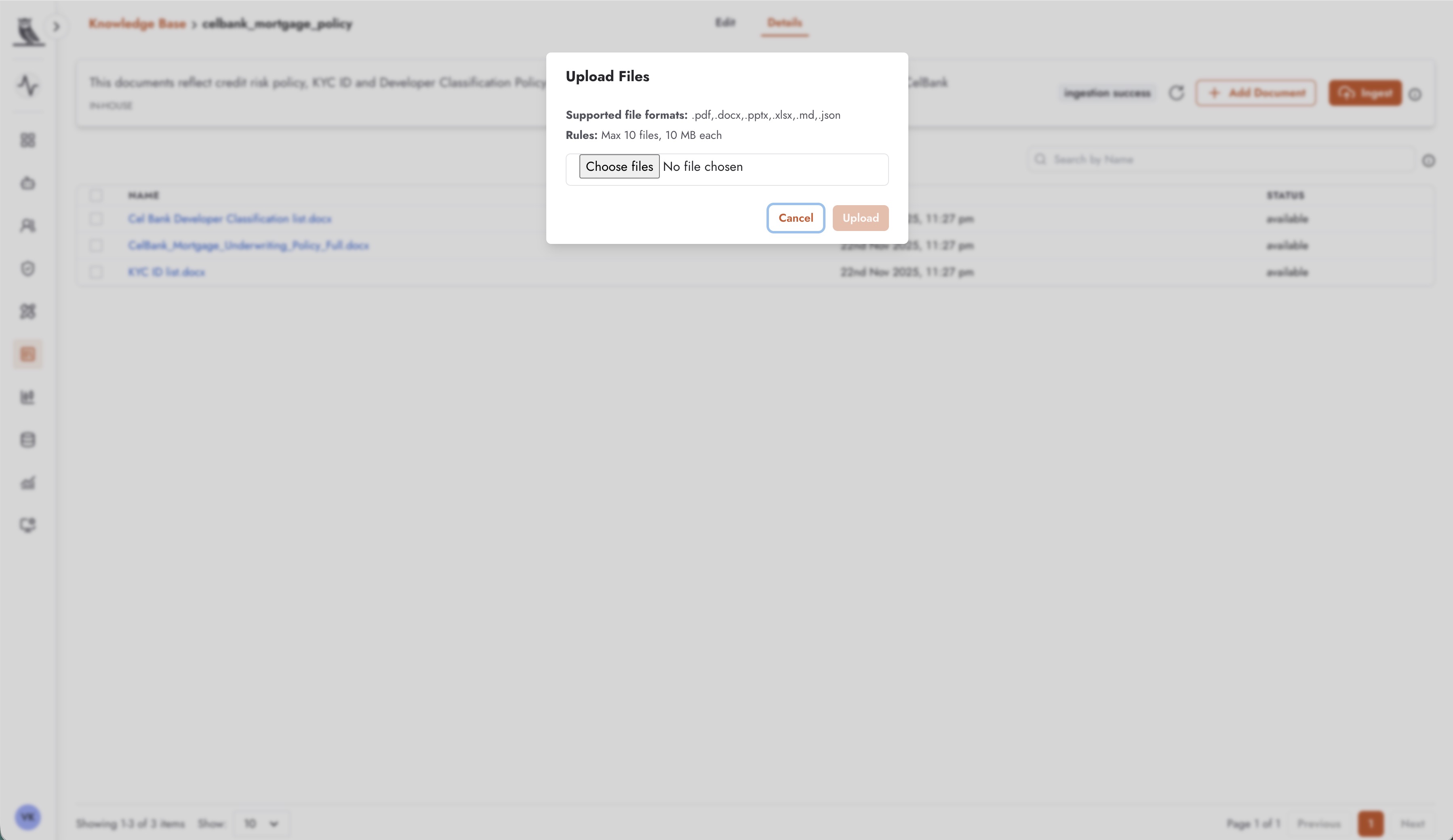
The upload dialog supports:
Supported file formats - .pdf, .docx, .pptx, .xlsx, .md, .json
Upload limits - Maximum 10 files per upload, 10 MB per file
After uploading, click Ingest to process the documents and make them available for retrieval by agents.
Bedrock Knowledge Bases
Bedrock knowledge bases integrate with AWS Bedrock’s managed knowledge base service, providing enterprise-grade vector storage and retrieval.
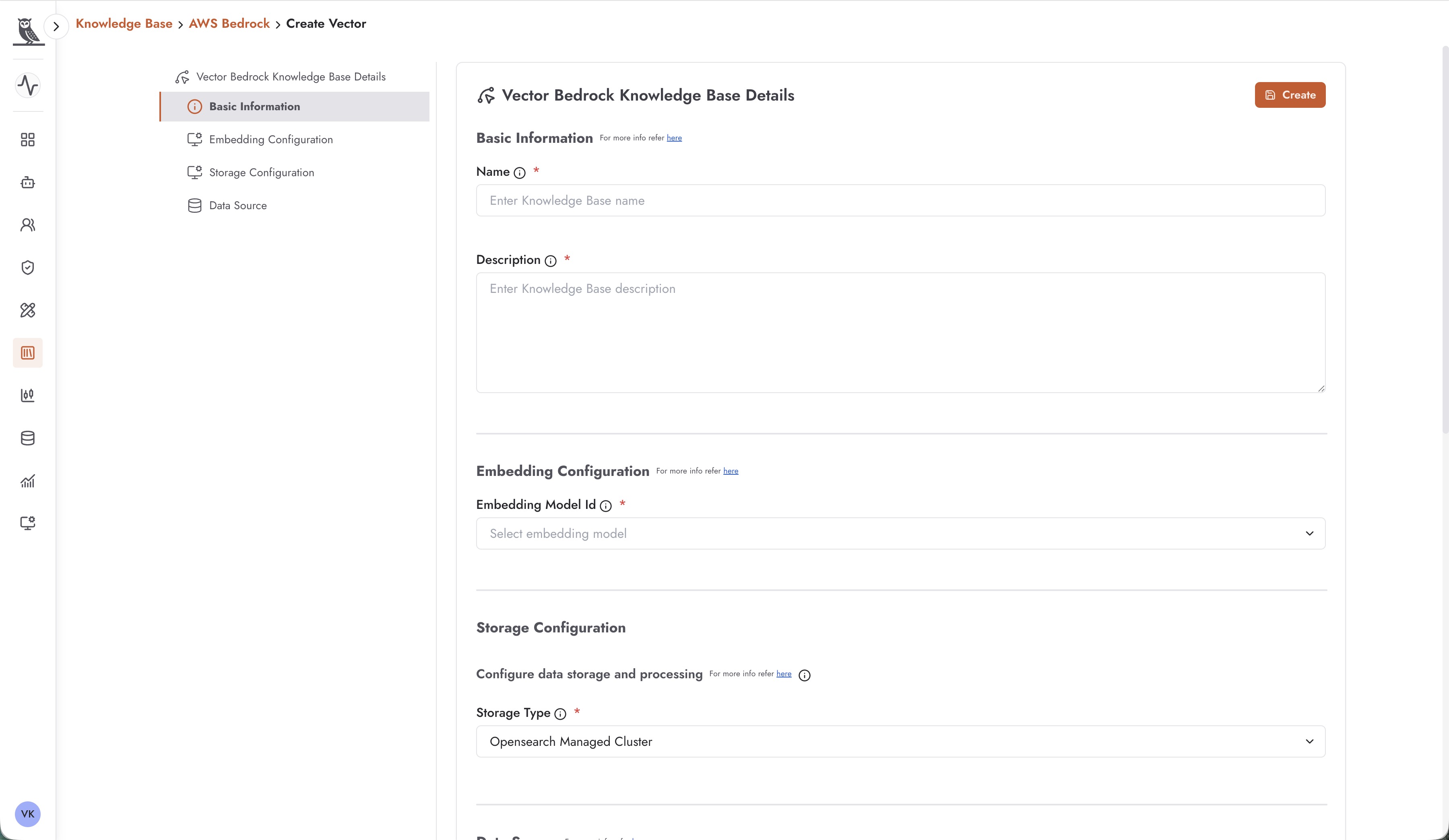
Creating a Bedrock Knowledge Base
When creating a Bedrock knowledge base, you configure:
Basic Information
Name - A unique identifier for the knowledge base
Description - A description of the knowledge base’s purpose and contents
Embedding Configuration
Embedding Model Id - Select the embedding model used to convert documents into vector representations
Storage Configuration
Storage Type - Choose the vector store backend (e.g., OpenSearch Managed Cluster)
Data Source
Configure where the knowledge base retrieves its source documents from.
Metadata Files for Bedrock
Bedrock knowledge bases support enhanced metadata through companion metadata files. For any document you upload, you can include a metadata file following the naming pattern:
<filename>.metadata.json
For example, if you upload policy_document.pdf, you can include policy_document.pdf.metadata.json to attach metadata to that document. This metadata is then associated with each chunk in the vector store, enabling:
Filtered retrieval based on metadata attributes
Enhanced search relevance
Document categorization and tagging
Custom attributes for your specific use case
Updating Knowledge Bases
Knowledge bases can be updated through the UI by:
Adding new documents - Upload additional files to expand the knowledge base
Removing documents - Delete outdated or incorrect documents
Re-ingesting - Trigger re-ingestion after making changes to ensure the vector store is updated
For In-House knowledge bases, the workflow is:
Navigate to the knowledge base details
Click Add Document to upload new files
Click Ingest to process and index the new content
Verify the ingestion status shows success
Best Practices
- Organize by Domain
Create separate knowledge bases for different domains or topics. This improves retrieval accuracy and makes management easier.
- Keep Content Current
Regularly review and update knowledge base content to ensure agents provide accurate information.
- Use Descriptive Names
Name knowledge bases clearly to indicate their purpose and contents, making it easier for team members to select the right knowledge base for their agents.
- Monitor Ingestion Status
After uploading documents, verify that ingestion completes successfully before relying on the content in production agents.
- Leverage Metadata
For Bedrock knowledge bases, use metadata files to enrich your documents with additional context that can improve retrieval quality.