Datasets
Datasets are a fundamental component of the evaluation workflow in OneByZero Neo. They serve as curated collections of test cases that are used to evaluate and benchmark the performance of your AI agents. By maintaining well-structured datasets, you can systematically track important quality metrics such as accuracy, hallucination rates, response relevance, and many other dimensions that matter for your specific use cases.
Understanding Datasets
At their core, datasets in OneByZero Neo are typically composed of LLM traces collected from agent runs. When your agents interact with users or process requests, these interactions generate traces that capture the inputs provided to the agent, the outputs generated, and various metadata about the interaction. These traces can be collected, curated, and organized into datasets that serve as the foundation for systematic evaluation.
Datasets serve several important purposes in the AI agent development lifecycle:
- Evaluation Foundation
Datasets provide the test cases against which evaluations are run. When you configure an evaluation (either In-House with DeepEval or using Bedrock Evaluations), you select a dataset that contains the inputs, expected outputs, and metadata needed to assess agent performance. The evaluation framework then processes each item in the dataset and computes metrics based on how well the agent’s actual outputs match expectations.
- Quality Benchmarking
By running evaluations against the same dataset over time, you can track how agent quality evolves. This allows you to measure the impact of changes to prompts, knowledge bases, model selections, or other configuration adjustments. Consistent datasets provide the stable baseline needed for meaningful comparisons.
- Regression Testing
Datasets that capture edge cases, challenging scenarios, or past issues serve as regression test suites. Running evaluations against these datasets helps ensure that improvements in one area don’t inadvertently cause problems in others.
- Training and Fine-tuning
Well-curated datasets can also be used for training or fine-tuning models, providing high-quality examples of desired agent behavior.
Dataset Scope and Organization
OneByZero Neo provides flexibility in how you organize and scope your datasets:
- Agent-Specific Datasets
You can maintain datasets that are specific to individual agents. These datasets contain test cases that are tailored to the particular use case, domain, or functionality of that agent. Agent-specific datasets allow for focused evaluation that accounts for the unique requirements and expected behaviors of each agent.
- Cross-Agent Datasets
Alternatively, you can create datasets that span multiple agents. These shared datasets are useful for:
Evaluating common capabilities across different agents
Ensuring consistent quality standards across your agent portfolio
Benchmarking different agent implementations against the same test cases
Testing scenarios that involve multiple agents working together
The choice between agent-specific and cross-agent datasets depends on your evaluation needs. Many organizations use a combination of both approaches—maintaining agent-specific datasets for detailed functional testing while using shared datasets for organization-wide quality standards.
Creating and Managing Datasets
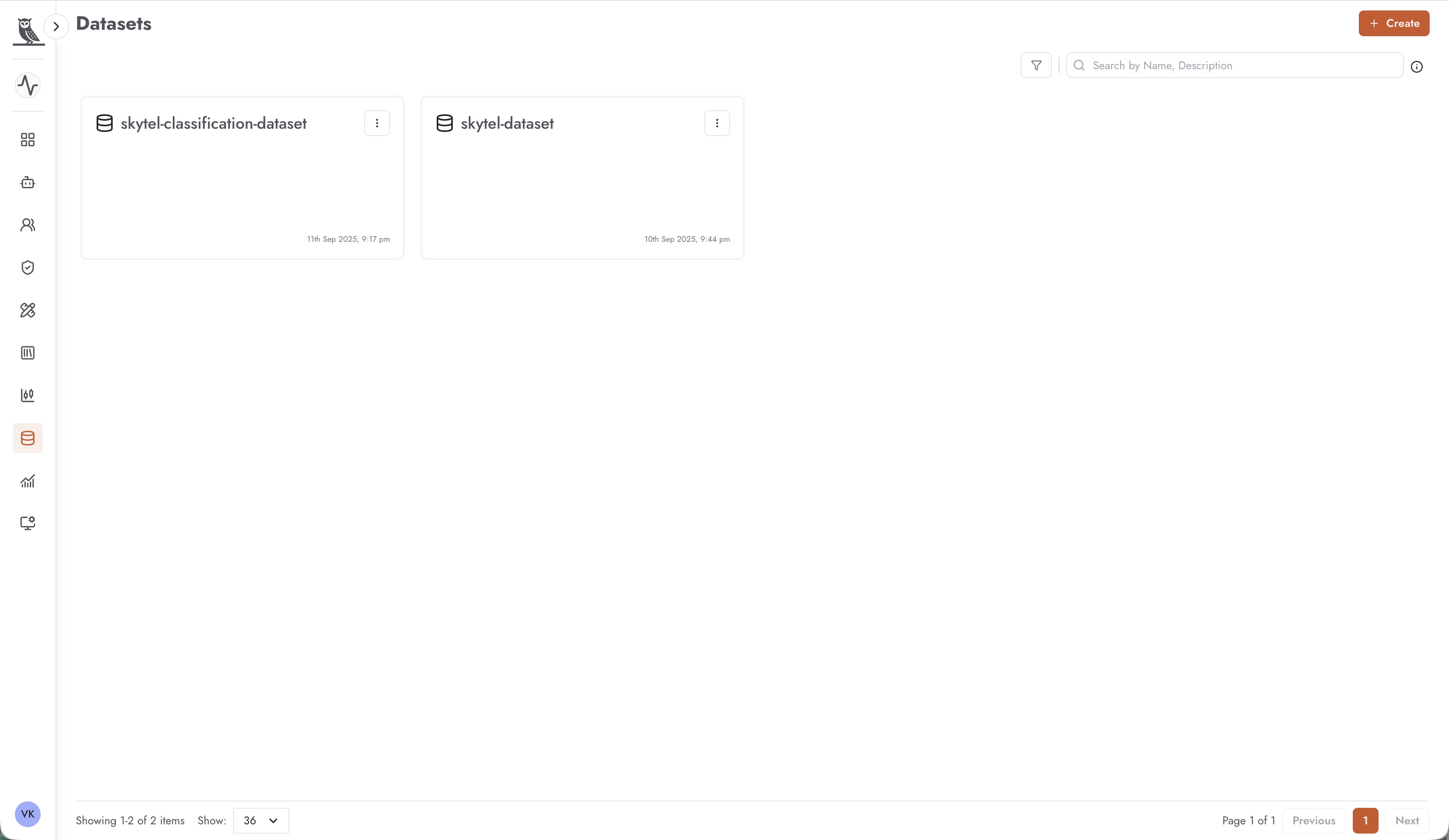
To create a new dataset, navigate to the Datasets section and click the + Create button. You’ll be prompted to provide a name and optional description for your dataset.
Once created, datasets appear as cards on the main Datasets page, displaying:
Dataset Name - The identifier for the dataset
Timestamp - When the dataset was last modified
Actions Menu - Quick access to common operations
Clicking on a dataset card opens the dataset details view, where you can manage the individual items that make up the dataset.
Dataset Details and Items
The dataset details view provides a comprehensive interface for managing the contents of your dataset.
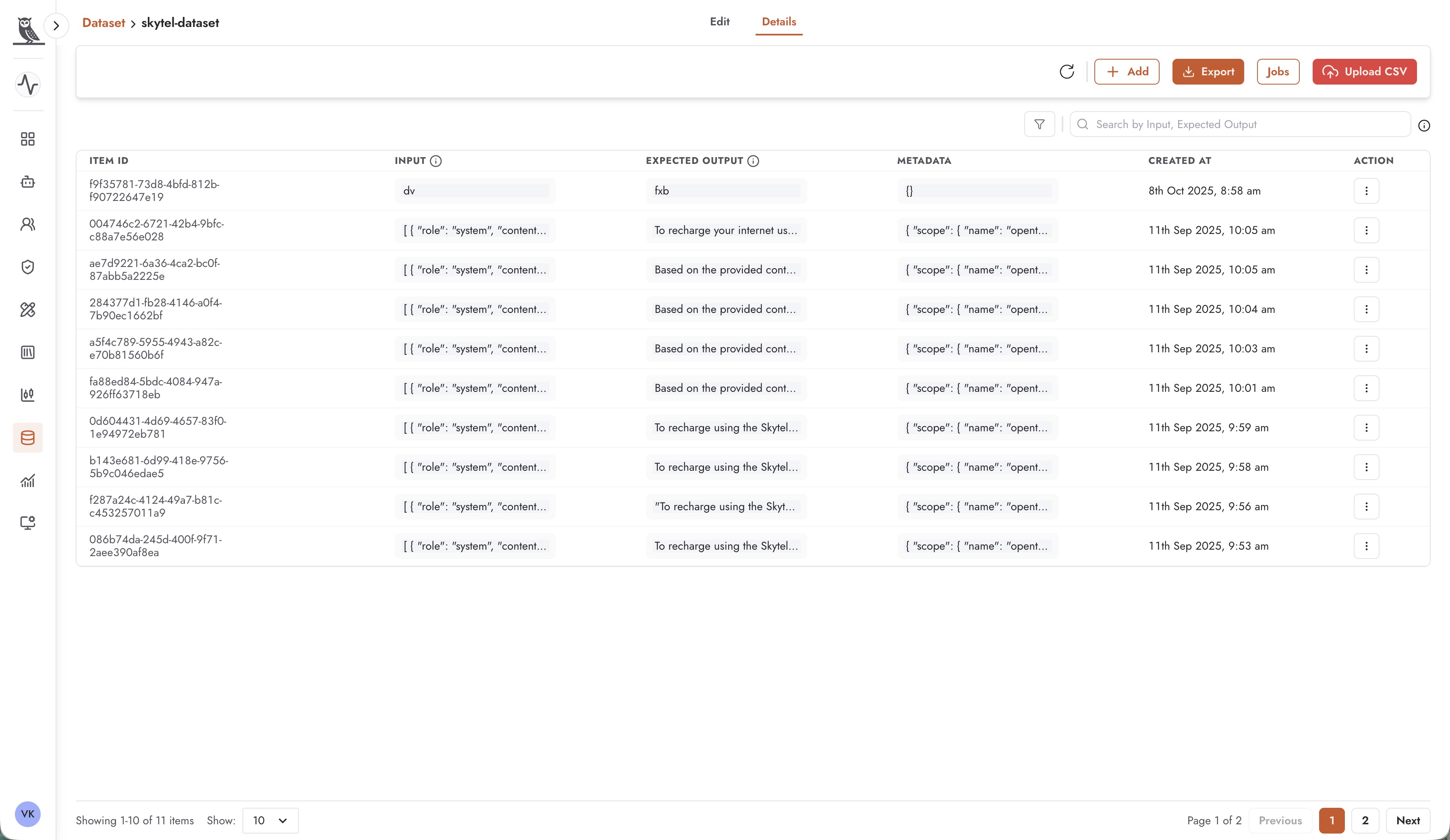
Navigation Tabs
The details view includes two main tabs:
Edit - Access configuration and settings for the dataset
Details - View and manage the individual items in the dataset
Action Buttons
Several action buttons are available at the top of the details view:
Add - Manually add a new item to the dataset
Export - Export the dataset for backup or sharing purposes
Jobs - View background jobs related to the dataset (such as import operations)
Upload CSV - Bulk import items from a CSV file
Items Table
The main area of the details view displays all items in the dataset in a tabular format with the following columns:
Item ID - A unique identifier for each item in the dataset, typically a UUID that ensures each test case can be uniquely referenced
Input - The input that would be provided to the agent. This is typically structured as a conversation or prompt, often in JSON format containing role and content fields (e.g., system messages, user queries)
Expected Output - The expected or reference response that the agent should produce. This serves as the ground truth against which actual agent outputs are compared during evaluation
Metadata - Additional contextual information about the item, stored in JSON format. Metadata can include information such as:
Scope and categorization details
Source information (e.g., which instrumentation or system generated the trace)
Version information
Custom tags or labels
Created At - The timestamp indicating when the item was added to the dataset
Action - A menu providing item-level operations such as edit and delete
Pagination and Search
For datasets with many items, pagination controls at the bottom of the table allow you to navigate through pages of items. A search box enables you to filter items based on input or expected output content, making it easy to find specific test cases.
Viewing and Editing Items
Each item in a dataset can be individually viewed and edited. Clicking on an item or selecting the edit option from the action menu opens the Edit Item dialog.
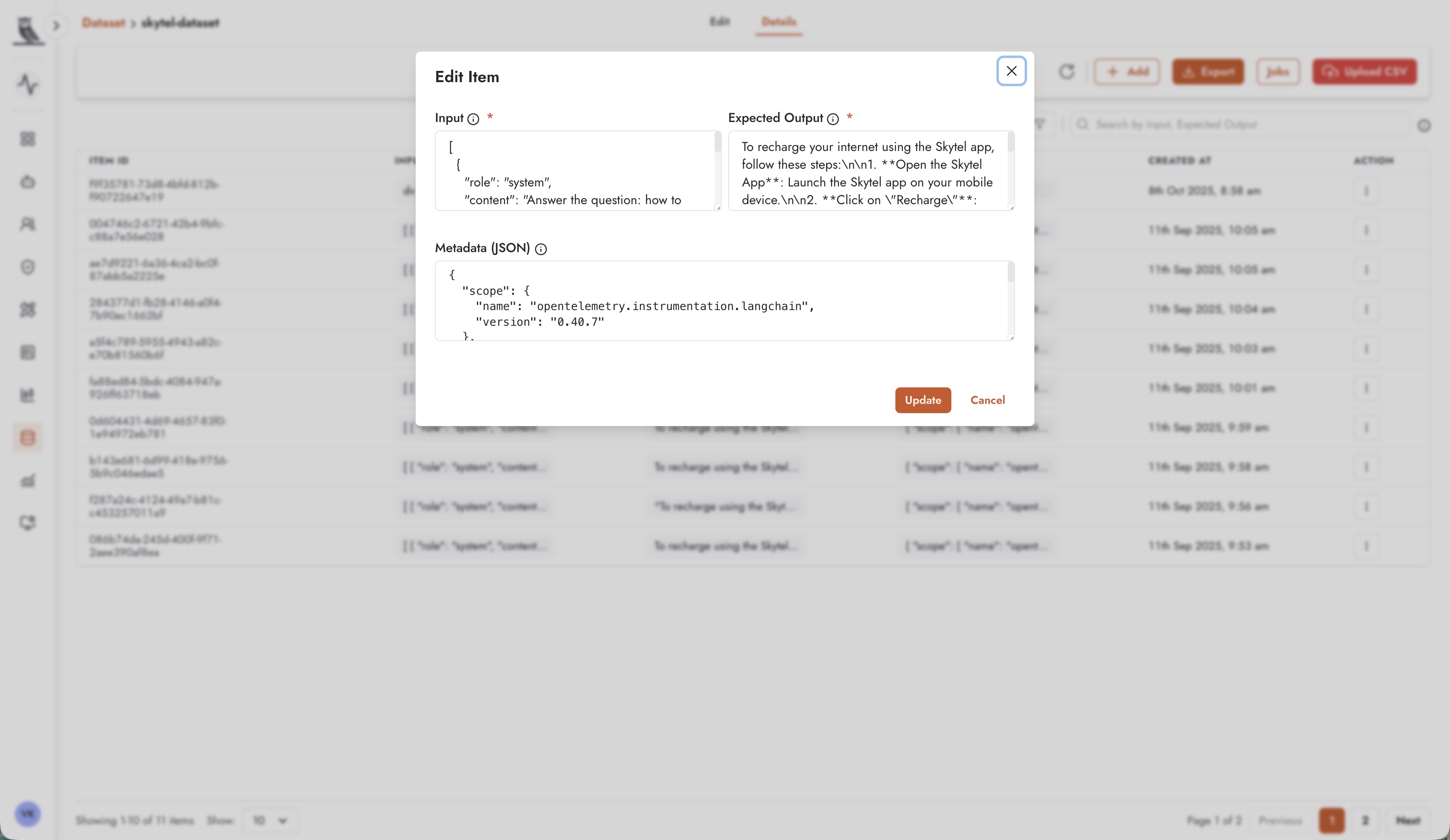
The Edit Item dialog provides fields for modifying all aspects of a dataset item:
- Input
The input field contains the data that will be provided to the agent during evaluation. This is typically structured as JSON representing a conversation or prompt. For example:
[
  {
    "role": "system",
    "content": "Answer the question: how to recharge..."
  }
]
The input format should match what your agent expects to receive during normal operation.
- Expected Output
The expected output field contains the reference response against which the agent’s actual output will be compared. This should represent the ideal or acceptable response for the given input. For example:
“To recharge your internet using the Skytel app, follow these steps: 1. Open the Skytel App: Launch the Skytel app on your mobile device. 2. Click on ‘Recharge’…”
Well-crafted expected outputs are crucial for meaningful evaluation results. They should be representative of the quality and style of responses you want your agent to produce.
- Metadata (JSON)
The metadata field allows you to attach additional structured information to the item. This is stored as JSON and can include any relevant contextual data:
{
  "scope": {
    "name": "opentelemetry.instrumentation.langchain",
    "version": "0.40.7"
  }
}
Metadata is useful for tracking the provenance of items, categorizing test cases, or storing additional information that might be relevant for analysis.
- Update and Cancel
After making changes, click Update to save the modifications or Cancel to discard changes and close the dialog.
- Deleting Items
Items can be deleted from the dataset using the delete option in the action menu. Deleted items are permanently removed from the dataset. Exercise caution when deleting items, especially from datasets that are actively used for evaluations, as this can affect the consistency of historical evaluation comparisons.
Uploading Datasets via CSV
For bulk data import, OneByZero Neo provides the ability to upload datasets from CSV files. This feature is particularly useful when:
Migrating datasets from other systems
Importing large numbers of test cases at once
Creating datasets from existing data sources or spreadsheets
Populating datasets with programmatically generated test cases
To upload a CSV file:
Click the Upload CSV button in the dataset details view
Select your CSV file from your local system
Map the CSV columns to the appropriate dataset fields (Input, Expected Output, Metadata)
Confirm the import to add the items to your dataset
CSV Format Considerations
When preparing a CSV file for upload, ensure that:
The file includes columns that can be mapped to Input and Expected Output fields
JSON data (such as conversation inputs or metadata) is properly formatted and escaped
The file encoding is compatible (UTF-8 is recommended)
Large files are split into manageable chunks if necessary
Best Practices for Dataset Management
- Curate Representative Samples
Ensure your datasets contain a representative sample of the scenarios your agents will encounter. Include common cases, edge cases, and examples of past issues or challenging scenarios.
- Maintain Consistent Quality
The quality of your expected outputs directly impacts the usefulness of evaluation results. Invest time in crafting accurate, high-quality reference responses.
- Version Your Datasets
As your agents evolve, your datasets may need to evolve as well. Consider maintaining different versions of datasets to track changes over time and enable historical comparisons.
- Document Your Datasets
Use meaningful names and maintain documentation about what each dataset covers, how it was created, and what it’s intended to test.
- Regular Review and Updates
Periodically review your datasets to ensure they remain relevant and accurate. Remove outdated items and add new test cases that reflect current requirements.
- Leverage Metadata
Use the metadata field to categorize and tag items. This makes it easier to filter and analyze subsets of your dataset and understand the provenance of each item.
- Balance Breadth and Depth
Create datasets that balance broad coverage of different scenarios with sufficient depth in critical areas. Don’t just test the happy path—include error cases, boundary conditions, and adversarial inputs.