Skills and Skillsets
The Skills tab assigns capabilities to the Co-Worker. Skills are organised into sub-tabs by type, each with a search box, and every skill card has an Enabled toggle to attach or detach it.
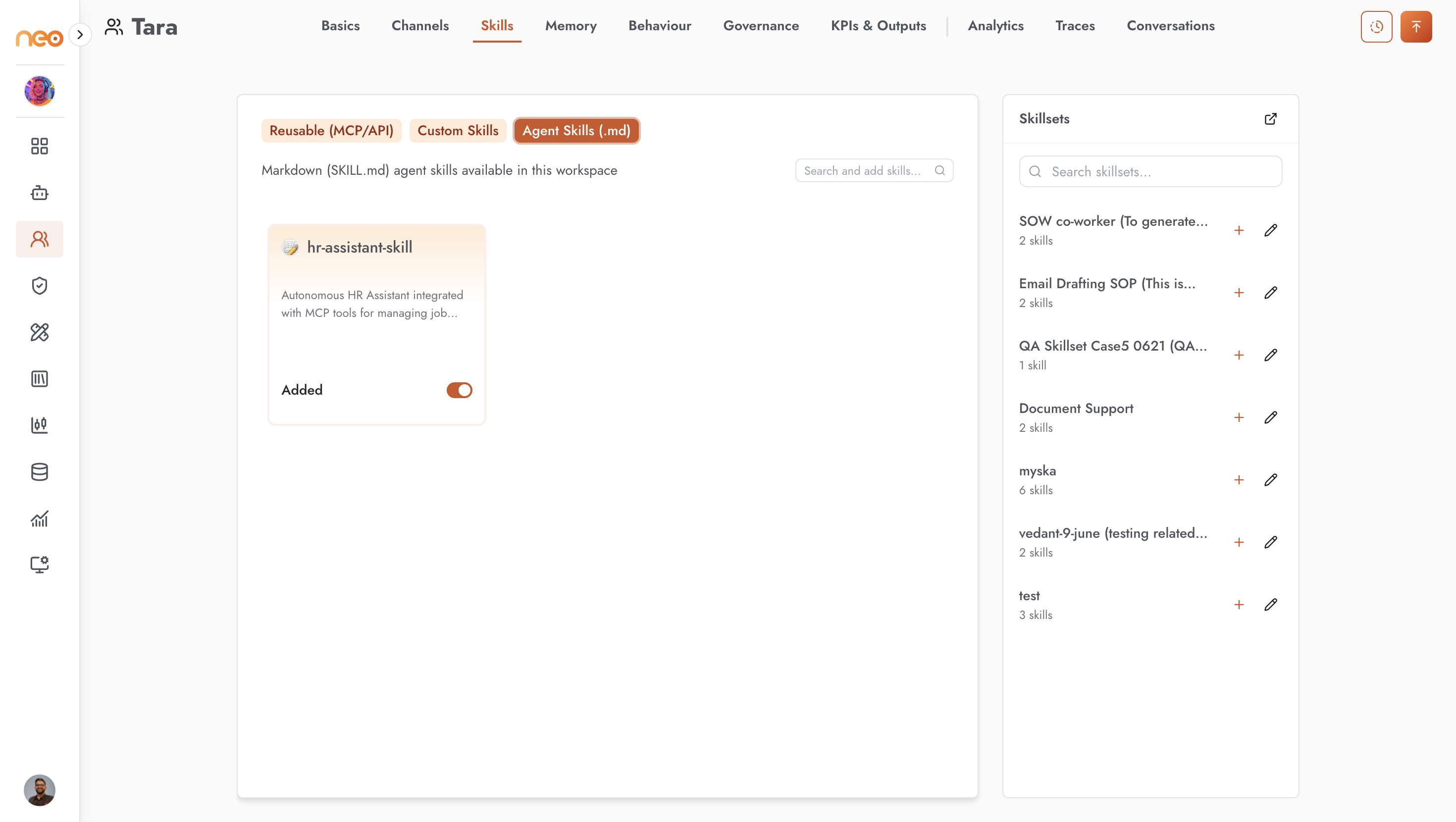
Skill Types
Sub-tab |
What it holds |
|---|---|
Reusable (MCP/API) |
Reusable skills wrapped over MCP endpoints, in-house tools, and API tools. They appear automatically when the underlying tool is enabled in your workspace. |
Custom Skills |
Agentic Flow and Voice agents exposed as skills. The + button creates a new Voice or Flow agent. |
Agent Skills (.md) |
Markdown ( |
Note
Which sub-tabs you see depends on the capabilities enabled for your workspace. Creating a Chat agent from the Custom Skills + menu is being rolled out and may not yet be available.
How Skill Selection Works
You do not have to decide in advance which skill handles what. The Co-Worker reads each enabled skill’s description and picks the right one for each request. Clear, specific descriptions are what make it choose well — vague descriptions lead to the wrong skill being used.
Adding a Skill
Reusable skills appear automatically once their underlying MCP, in-house, or API tool is enabled in the workspace — see Foundry → Integrations.
To make an Agentic Flow or Voice agent available as a Custom skill, use the Expose as Skill action on that agent’s own Settings page. It then appears in the Custom Skills sub-tab of every Co-Worker in the workspace. (See Agentic Flow and Voice Agent.)
Each attached skill has an approval gate — Allow or Ask — set on the Governance tab. New skills default to Allow.
Skillsets
A Skillset is a named, reusable bundle of skills, carrying a name and description. Skillsets let you assign a whole group of skills in one action.
Manage Skillsets from Integrations → Skillsets: create, rename, edit the description, add or remove skills, and delete.
On a Co-Worker’s Skills tab, a Skillsets panel lets you assign or unassign a whole set with a checkbox. Assigning a set copies all its skills onto the Co-Worker; unassigning removes that set’s skills.