Governance
The Governance tab is where you make a Co-Worker safe to run in production. It holds guardrail selections, a human-in-the-loop (HITL) approval workflow, per-skill gating, and business-rule approvals.
Input and Output Guardrails
Two dropdowns let you apply an input guardrail and an output guardrail. The options are the guardrails that already exist in your workspace — you select from that list rather than defining a new policy here.
Important
Guardrails are not inherited automatically. Create a guardrail in the Foundry, then select it here at the Co-Worker level. Once selected and published, it is enforced on the live Co-Worker. If the dropdown is empty, no guardrails have been created in the workspace yet.
Human in the Loop (HITL)
HITL routes selected actions through a human approval step before they run.
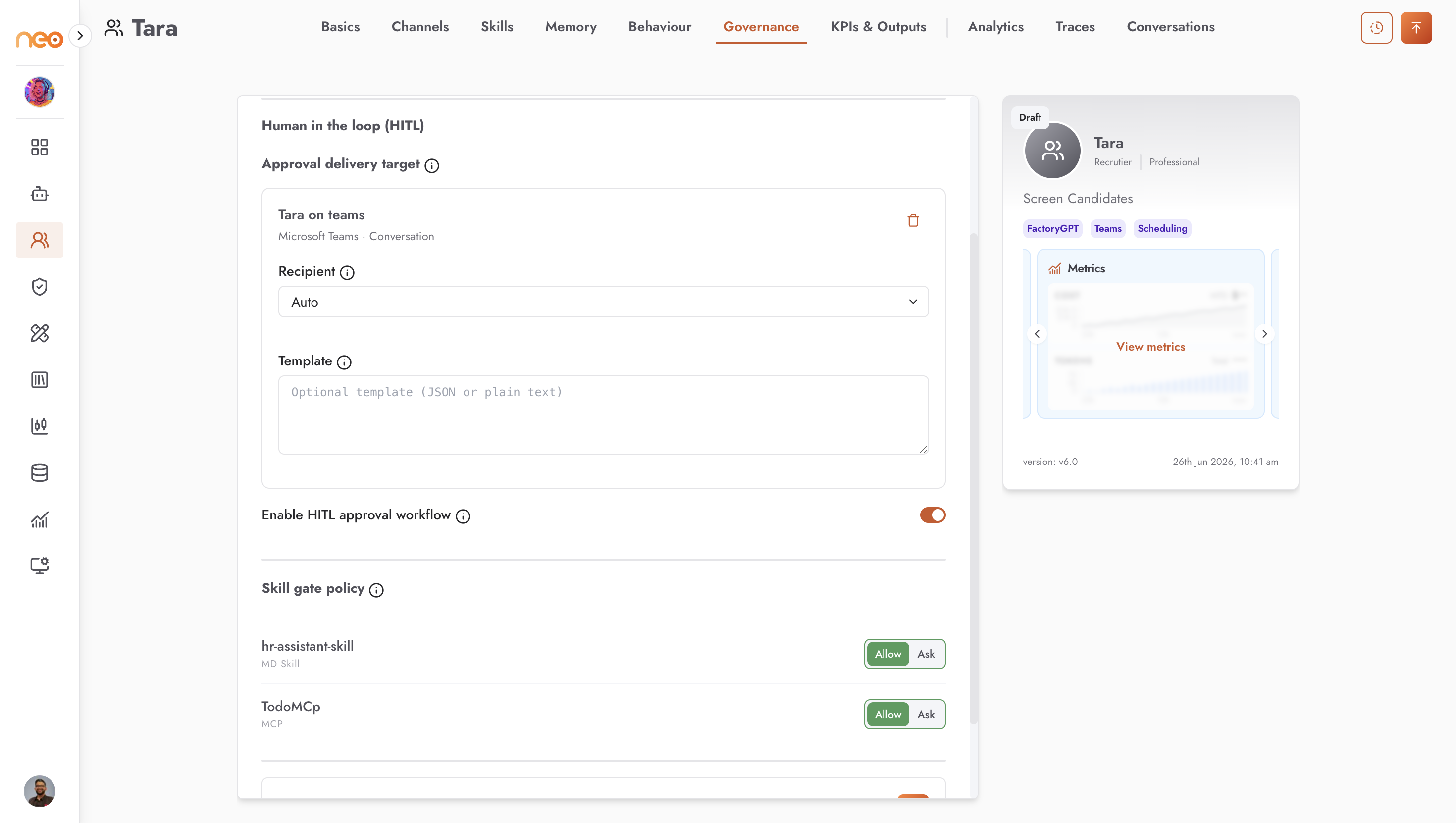
Choose an Approval delivery target — a Microsoft Teams route. Approvals are delivered on Teams only, so you need an enabled Teams channel on the Co-Worker first; publish it at least once so that channel is available to select.
Turn on Enable HITL approval workflow.
Each approval request is sent to that Teams route, where an approver can approve, reject, or edit before the action proceeds. The request arrives as an interactive Adaptive Card with Approve and Reject buttons that the system adds for you.
Note
Only one approval delivery target is supported here. Advanced approval settings — approval title and description, post-approval instructions, and a timeout (default 24 hours) with auto-reject — live on the orchestrating agent’s Human In The Loop node, which you can open with View your orchestrating agent after publishing.
Skill Gate Policy
When HITL is enabled, the Skill gate policy section lists every active skill with a two-option toggle:
Allow (green) — the skill runs without pausing.
Ask (yellow) — the Co-Worker pauses and sends an approval request before the skill runs.
New skills default to Allow. The skill gate is the most dependable approval control: an Ask setting makes that skill pause for approval every time it runs. Use it for any action that must always be approved — for example a password reset or an access change.
Business-Rule Approvals
When HITL is enabled, you can add business rules. Each has a Rule name, a Condition (a natural-language description of when to require approval), and an Approver (a recipient on a Teams channel). Rules can be toggled on or off.
Note
How business-rule matching works. The Co-Worker decides when a rule applies by interpreting your plain-language condition — it is not exact logic. Treat business rules as a soft control, and for actions that must always pause, rely on the per-skill Ask gate above.