Channels
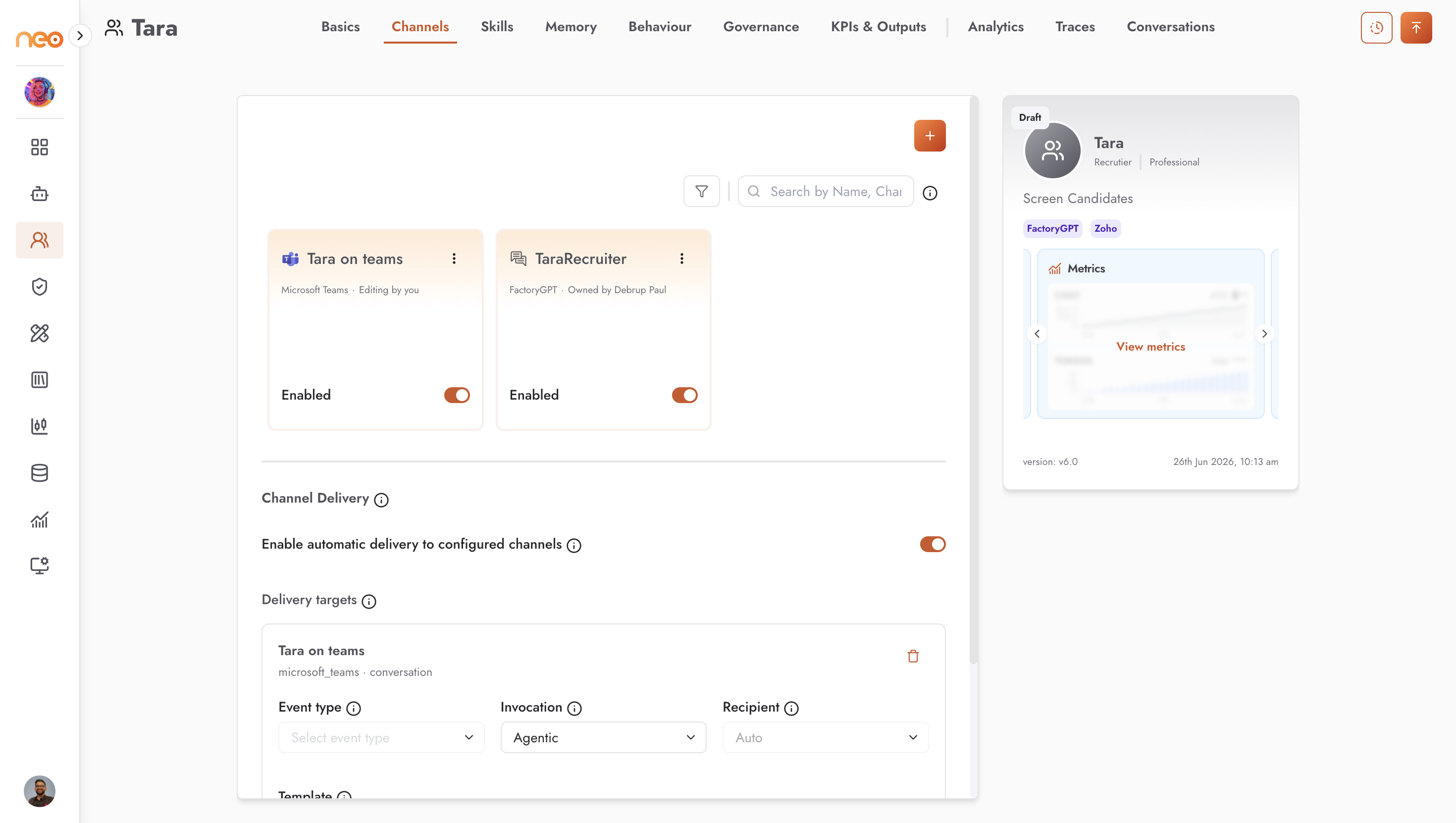
The Channels tab connects a Co-Worker to the surfaces it operates on. It shows a grid of configured channels — each with an Enable toggle — and an Add channel menu. A Co-Worker runs on three channels:
Channel |
Routes |
Purpose |
|---|---|---|
NeoGPT |
Conversation |
Internal chat inside OneByZero Neo. The quickest channel to test on — no external setup required. |
Microsoft Teams |
Conversation, Notification |
One-to-one chat with the Co-Worker’s bot, plus proactive notifications. |
Outlook (email) |
Incoming (poll), Conversation, Outgoing |
Polls a mailbox for new mail and replies by email; can also send outgoing notifications. |
Note
You must publish the Co-Worker at least once before you can enable or disable a channel. Until then the toggle is blocked, with the message “Publish the coworker before enabling or disabling channels.”
Only these three channels are available to Co-Workers. Other channels in OneByZero Neo are configured directly on individual agents — see Channels.
Configuring Each Channel
NeoGPT — internal chat. Set the Channel Name, Description, Purpose, an Initial Message (the greeting, up to 100 characters), and the Default Agent toggle (whether this Co-Worker is the default assistant in NeoGPT). It uses the platform’s built-in authentication, so no credential is required.
Microsoft Teams — has two routes:
Conversation (employees message the bot directly): Session Expiry (hours) — between 0.01 and 48, default 4. Requires Teams bot credentials: Bot App ID, Bot App Secret, and Tenant ID.
Notification (proactive messages): Max Retry Attempts (0–10, default 3) and Retry Delay in seconds (default 60).
Outlook (email) — has an Incoming polling route and an Outgoing notification route:
Incoming: Triggering Timing (mins) (1–60, default 5), Batch Size (1–50, default 10), Mail Folder (default Inbox), Unread Emails Only (on by default), optional From / Subject / Body filters to process only matching mail, Enable Auto Reply, Reply All, and an Initial Message.
Outgoing: Default Recipients, Default CC, Default Subject Prefix, and retry settings.
Sign in with your Microsoft account (SSO), or supply app credentials (client ID, client secret, tenant ID, and an optional mailbox address).
Note
Each channel also exposes a Description and Purpose per route. For the full external setup — registering the bot, granting mailbox access, and the prerequisites involved — see the dedicated Microsoft Teams and Outlook channel pages.
Channel Delivery: Sending Messages Proactively
Once the Co-Worker has a published version, a Channel Delivery section lets it push a message proactively to a channel route. Turn on Enable automatic delivery to configured channels, then add one or more delivery targets. For each target you choose:
Choice |
What it means |
|---|---|
Channel / route |
Where the message goes — a Teams or Outlook route. NeoGPT cannot be a delivery target. |
Event type |
The kind of message for that route (for example a note, an Adaptive Card, or an email). The available event types are provided by the channel. |
Invocation |
Automatic — you define a fixed delivery; or Agentic — the Co-Worker decides what to send, in which case the event type and recipient are set automatically. |
Recipient |
A specific person, or Auto to let the system decide. |
Message Template |
The words and layout of the message, with optional |
When authoring a template, an Adaptive Card must be valid Adaptive Card JSON, and an email needs a subject, body, and recipient.
Adaptive Cards (Microsoft Teams) are rich, interactive cards. To send one, set the event type to the card type on a Teams route and paste an Adaptive Card JSON into the template (or leave it blank to have the assistant generate one). For interactive approvals, use the Human-in-the-Loop approval card on the Governance tab — there the system adds the Approve and Reject buttons for you.
Note
For the full mechanics of delivery templates — placeholder reference, Adaptive Card structure, and worked JSON examples — see Channel Delivery Templates.