
The LLMs tab in the Control Center is where Super Administrators control which Large Language Models are available across the entire platform. A model registered here must pass validation and be enabled before any workspace can use it.
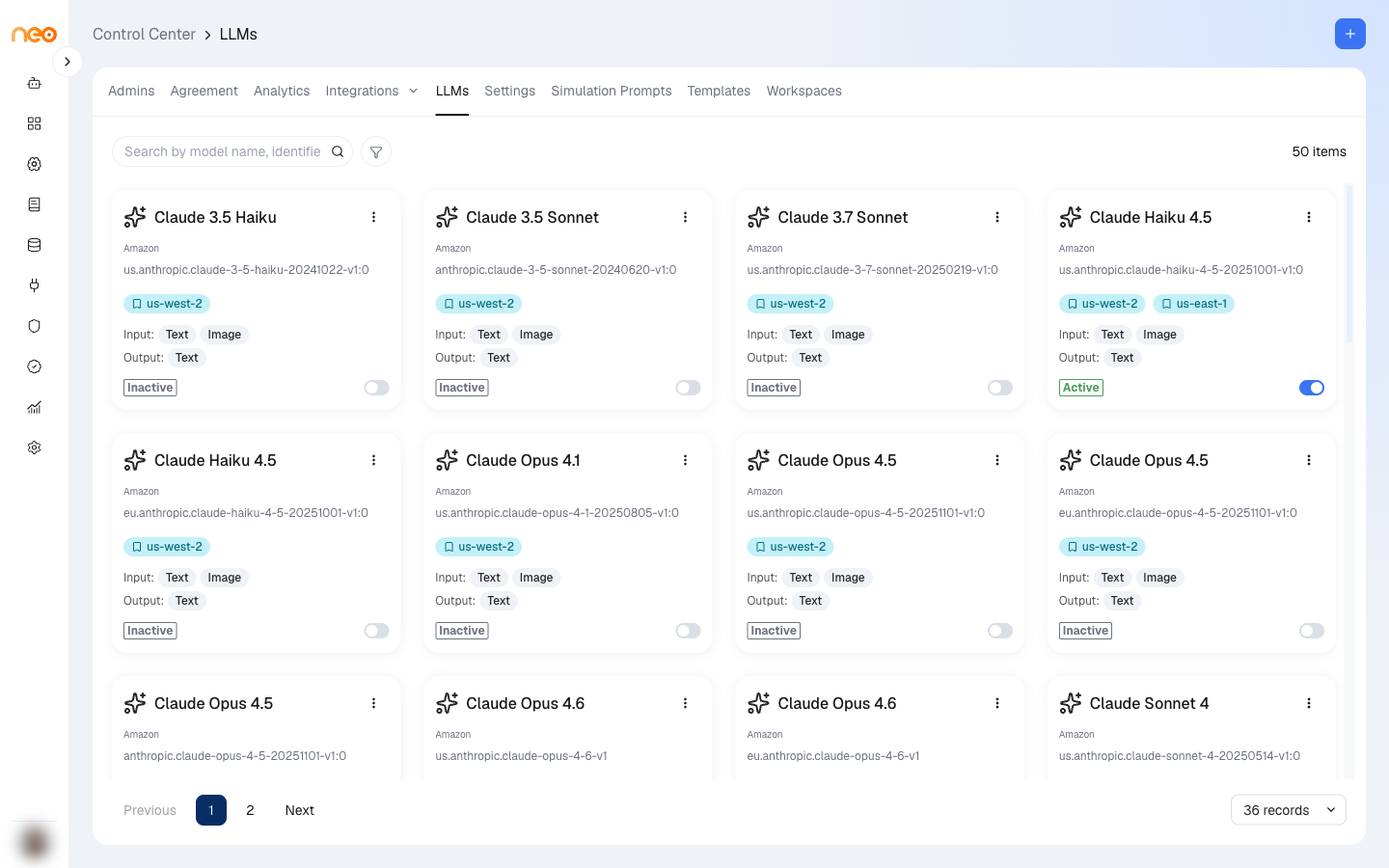
Each model card displays:
- Model Name — the display name shown in agent configuration (e.g., Claude 3.5 Sonnet)
- Model Identifier — the exact string used when invoking the model API
- Provider — the model’s originating provider (Amazon, Anthropic, OpenAI, etc.)
- Regions — the AWS regions configured for the model
- Input and Output — the modalities the model accepts and produces
- Active / Inactive toggle — whether the model is currently enabled for the platform
Use the search box to find a model by name, identifier, or provider, and the Provider, Prefix, Output Modalities, and Region filters to narrow the list. Click a card to open the model for editing.
How a Model Becomes Available
A model reaches agent builders in three steps:
- Register — a Super Admin adds the model on this tab. When you click Create, the platform saves the model and validates it straight away.
- Validate — the platform runs a live test against the model. If the test passes, the model is enabled for the platform. If it fails, the model is saved but stays Inactive, and the reason is shown.
- Enable in a workspace — an enabled model is added to every workspace switched off. Each workspace then turns it on from Integrations → LLMs. See LLM Models.
Only models that are enabled on this tab and enabled in the workspace appear in model selection dropdowns.
Adding a New LLM Model
Click the + button (Add LLM Model) to register a model that is not yet in the platform — typically a newly released model or one served by an external provider. The form has three sections: Basic Information, Capabilities, and Pricing.
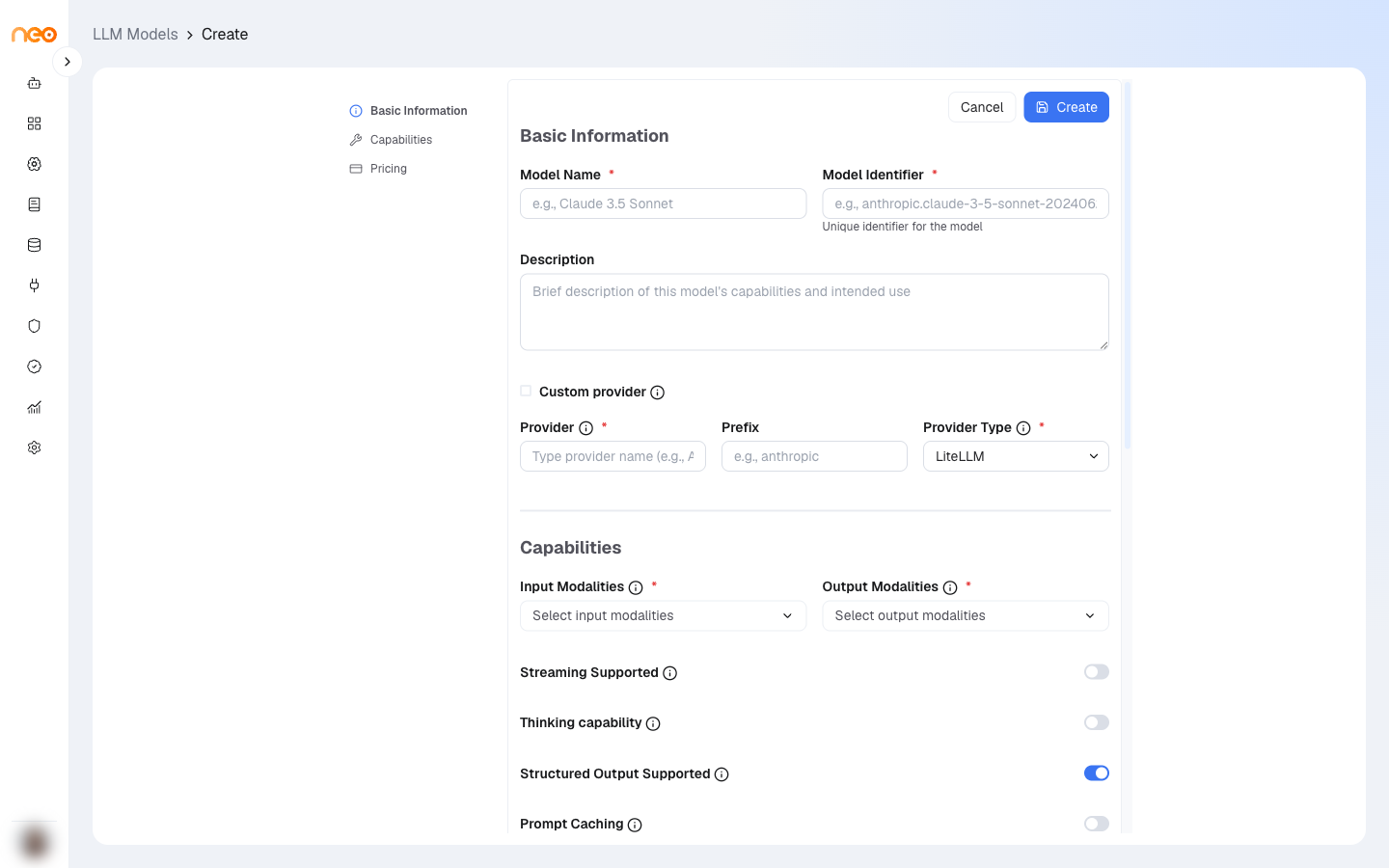
Basic Information
| Field | Required | Description |
|---|---|---|
| Model Name | Yes | The human-readable label shown throughout the UI. |
| Model Identifier | Yes | The exact API identifier (e.g., anthropic.claude-3-5-sonnet-20240620-v1:0). Must be unique across the platform. |
| Description | No | A short note on what the model is for. |
| Custom provider | No | Tick this for a model from a provider that is not routed by name. The Provider field is then set to Custom. |
| Provider | Yes | The provider name, typed in (e.g., AWS, OpenAI, Anthropic). |
| Prefix | No | A provider prefix prepended to the model identifier when the model is called (e.g., anthropic). |
| Provider Type | Yes | How the platform routes calls to the model. See Provider Types. Defaults to LiteLLM. |
Capabilities
| Field | Default | Description |
|---|---|---|
| Input Modalities | — | The input types the model accepts. At least one is required. Options: Text, Image, Audio, Video, Document, Embeddings. |
| Output Modalities | — | The output types the model produces. At least one is required. Same options as input. |
| Streaming Supported | Off | Whether responses can be streamed token by token. |
| Thinking capability | Off | Whether the model supports extended reasoning. When on, Hyperparameters must include budget_tokens with a value greater than 0. |
| Structured Output Supported | On | Whether the model supports native structured (JSON) output. |
| Prompt Caching | Off | Whether prompt caching is used for this model. Takes effect only when prompt caching is enabled for the platform deployment. |
| Regions | — | The AWS regions the model is called in. Needed for LiteLLM and Bedrock models — validation fails if none are set. |
| Supported Document Types | — | File formats the model can process directly. |
| Hyperparameters (JSON) | — | Default parameters sent with every call to the model. See Hyperparameters. |
| Model Metadata (JSON) | — | OpenRouter-style metadata used by the agentic LLM router when it is configured to read model metadata from the database. Leave empty if you do not use this. |
Pricing
| Field | Required | Description |
|---|---|---|
| Cost Per Input Token (USD) | Yes | Used for cost tracking. |
| Cost Per Output Token (USD) | Yes | Used for cost tracking. |
| Cost Per Cache-Read Token (USD) | No | Used when Prompt Caching is on. |
| Cost Per Cache-Write Token (USD) | No | Used when Prompt Caching is on. |
Provider Types
| Provider Type | How calls are routed | Supports |
|---|---|---|
| LiteLLM | Through the platform’s LiteLLM proxy. No API key is needed for standard providers. A model marked Custom provider must include api_key in its hyperparameters. | Chat, embeddings, image generation |
| Bedrock | Directly to Amazon Bedrock in the model’s region. | Chat, embeddings |
| External | Through the LiteLLM proxy, using credentials supplied in the model’s hyperparameters. | Chat only |
Hyperparameters
Hyperparameters are a JSON object. Any key you add is passed through to the model call, so use the parameter names your provider expects. Commonly used keys:
| Key | Use |
|---|---|
temperature, max_tokens | Default sampling settings. |
api_key, api_base | Credentials and endpoint for External models and Custom provider models. |
aws_region_name | Overrides the region for a call. |
budget_tokens | Required when Thinking capability is on. |
dimension, max_tokens, data_type | Required when Output Modalities includes Embeddings. data_type is float32, float16, or int8. |
Example:
{ "temperature": 0.7, "max_tokens": 2048 }
Validation
Validation runs a live test against the model:
- Text and Document output — the model is asked for a short reply and must return text.
- Image output — the model is asked to generate a small image and must return one.
- Embeddings output — the model must return a vector.
The test runs once for each configured region and output modality. External and Custom provider models are tested once. Audio and Video outputs are not tested.
Validation runs:
- when you Create a model
- when you Save changes to a model — if the test fails, the model is switched to Inactive
- when you switch a model’s toggle to Active on the list
Enabling and Disabling Models
Use the toggle on any model card to enable or disable it platform-wide. Enabling runs validation first. When a model is disabled:
- It immediately disappears from model selection in all workspaces
- Agents that were already configured to use it keep the setting, but calls to the model fail until it is re-enabled
- Each workspace’s own setting for the model is kept, so it returns to the same state when re-enabled
Deleting a Model
Use the delete action on the model card. A model that is still in use by an agent or other resource cannot be deleted — remove it from those resources first, or disable it instead.
Best Practices
Evaluate before enabling : Test a new model in a controlled workspace before rolling it out widely. Check cost, latency, and output quality against your organisation’s standards.
Enter accurate pricing : Cost tracking uses the per-token costs entered here. Update them when your provider’s prices change.
Disable unused models : Remove models that are no longer in use from the enabled list. A shorter, curated model list reduces decision fatigue for agent builders and prevents accidental selection of outdated models.
Track model identifiers carefully : When registering custom provider or external models, verify the model identifier exactly — validation fails if the identifier does not match a model the provider can serve.