
Members → Users in Workspace Settings is where Workspace Administrators control who has access to the workspace, which role they hold, and which policies apply to them.
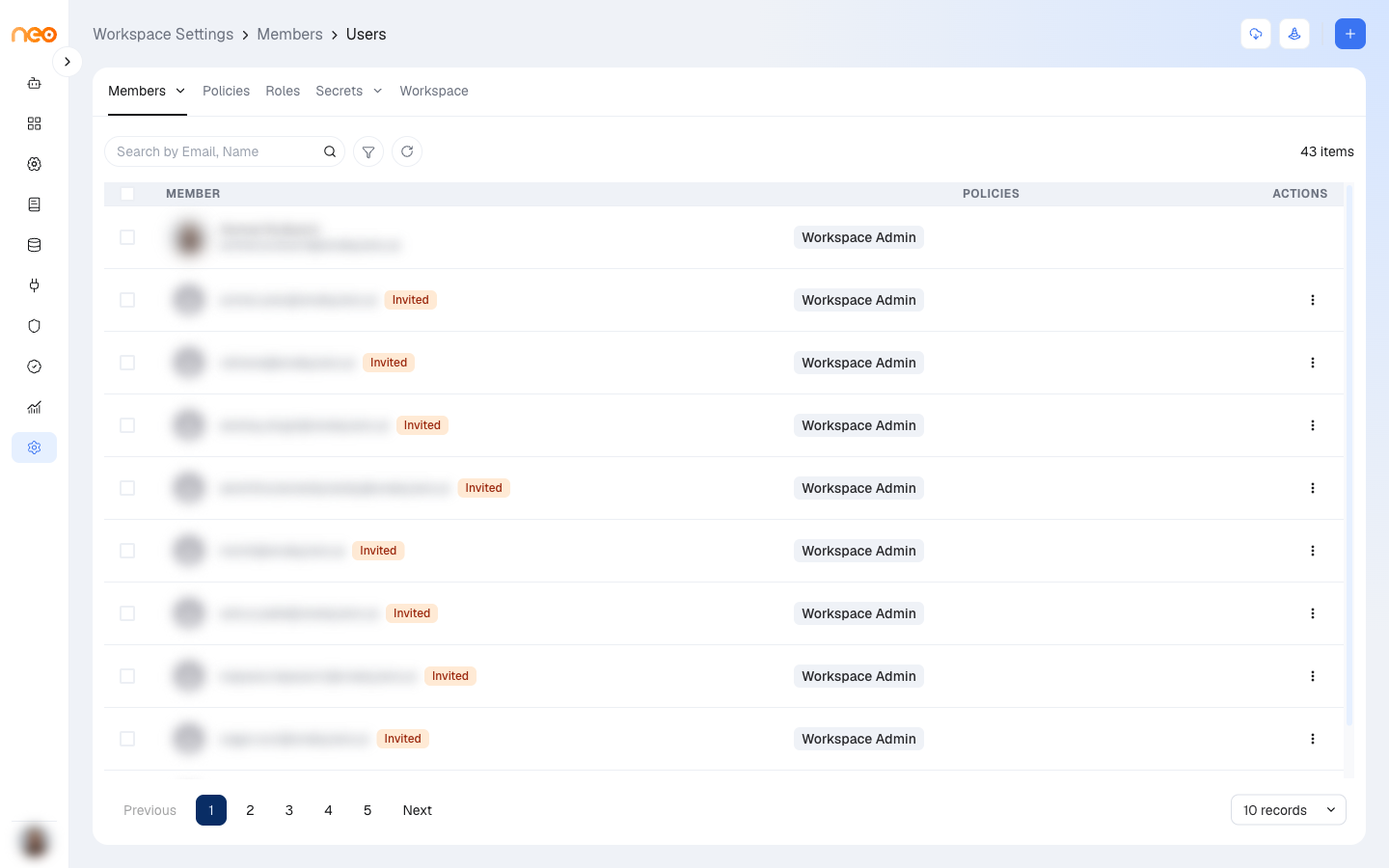
The members list has three columns:
- Member — the member’s name, email, and role. An Invited tag marks people who have been invited but do not have an account yet.
- Policies — the policies assigned to the member. Shown to Workspace Admins only, and empty for members with an admin role, since policies do not apply to them. See Policies.
- Actions — the member’s action menu.
Use the search box to find a member by email or name, and the Role filter to show members with particular roles.
Inviting a New Member
Click + (Invite Member) and fill in:
- Email Address — the person’s email. Required.
- Role — the role to assign. Required.
- Policies — the policies to assign. Shown to Workspace Admins when the selected role is not an admin role. Optional.
Click Send Invitation:
- If the person already has an OneByZero Neo account, they are added to the workspace straight away.
- If not, they appear in the list with an Invited tag and can join when they sign up with that email address.
Only Workspace Admins can assign an admin role. Other members with permission to invite can only assign roles whose permissions they hold themselves.
Managing Existing Members
The Actions menu next to each member offers:
- Edit Role — change the member’s role. The change takes effect immediately.
- Set Password / Manage Password — for members who sign in with a password rather than single sign-on: generate a 16-character password, set a custom one (at least 8 characters), or remove it. Available to Workspace Admins.
- Remove — revoke the member’s access to the workspace. Their account is not deleted, only their membership in this workspace. Available to Workspace Admins.
You cannot edit or remove yourself from this list.
Bulk Actions
- Import — the import icon in the page header opens a template for a JSON file listing members (
email,roleName, and optionalpolicyNames). Click Download Sample for an example, then Upload File. Existing users are added, new email addresses are invited, and rows that match an existing member or invitation are skipped. - Export and Delete — select members with the checkboxes, then choose the action. Both run in the background.
- View jobs — the jobs icon in the page header shows import, export, and delete jobs from the past seven days, with a download link for finished exports.
A bulk delete that would remove every Workspace Admin is refused — at least one Workspace Admin must remain.
Best Practices
Assign roles conservatively on invite : When inviting a new member, start with a restricted role. It is easy to broaden permissions later once the member’s requirements are understood; it is harder to notice that permissions are too broad after the fact.
Regular membership audits : Schedule a periodic review of the members list — quarterly at minimum. Remove or downgrade users who no longer need their current level of access. Former team members or contractors who retain access after their engagement ends are a common source of unintended data exposure.