
The Policies tab in Workspace Settings defines which resources members can access and at what level. Where a role decides which features someone can use, a policy decides which specific agents, datasets, knowledge bases, integrations, and other resources they can use.
Access Levels
For each resource in a policy you choose one level:
| Level | Allows |
|---|---|
| View | Seeing the resource. |
| Execute | Seeing and running or using the resource. |
| Edit | Seeing, using, and changing the resource. |
Creating a Policy
Click + (Add Policy).
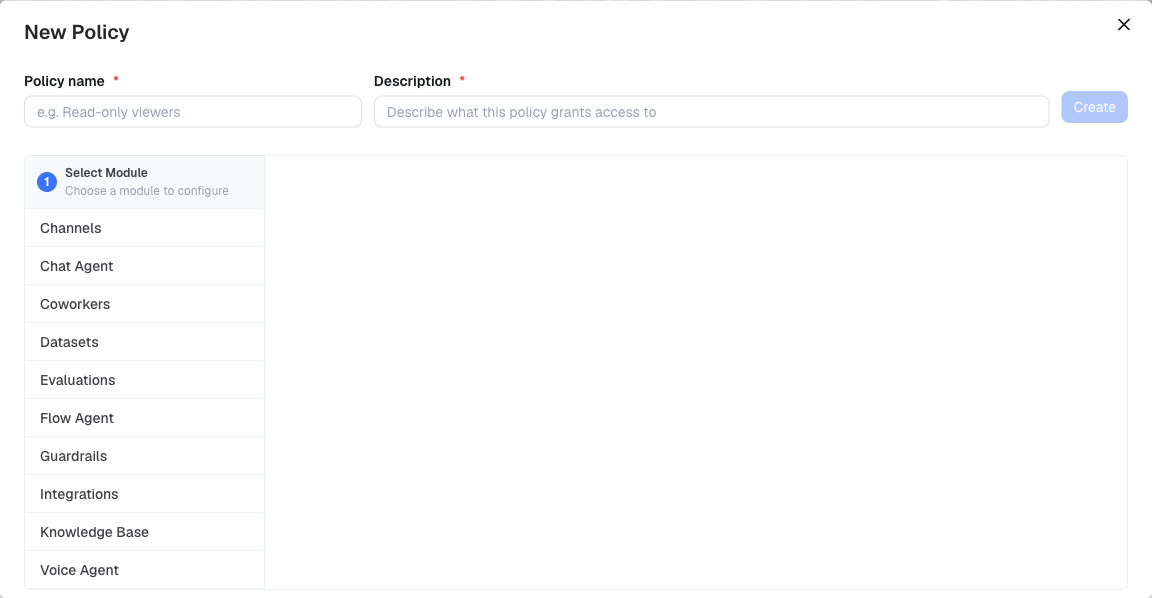
- Enter a Policy name (for example, “Read-only viewers”) and a Description of what the policy grants. Both are required.
- Choose a module on the left — Channels, Chat Agent, Coworkers, Datasets, Evaluations, Flow Agent, Guardrails, Integrations, Knowledge Base, or Voice Agent — and select the resources in it, each with a level.
- Click Create. The button is available once at least one resource is selected.
To change a policy, click it in the list, make your changes, and click Update. Use the row menu to Duplicate or Delete a policy.
Assigning Policies
Policies can be attached to:
- Members — in the Policies column of Members → Users, or when inviting a member. See Member Management.
- Service accounts — in the Policies column, or when creating one. See Service Accounts.
- Agentic Flow agents — in the Execution Policy section of the agent’s Settings page, choose Custom Policy and select the policy. Only the agent’s owner can change this. The agent then runs with that policy’s access, instead of its owner’s (Flow Owner) or the person running it (Executing User).
Policies do not apply to members or service accounts with an admin role — they already have access to everything in the workspace.
Permissions
| Permission | Allows |
|---|---|
| View Access Policy | Seeing the Policies tab. |
| Create Access Policy | Creating policies. |
| Edit Access Policy | Changing policies. |
| Delete Access Policy | Deleting policies. |