
The Roles tab lets Workspace Administrators define what members can do within the workspace. Every member is assigned a role; a role is a named collection of permissions that decides which features they can use. To control which specific resources a member can reach, use Policies alongside roles.
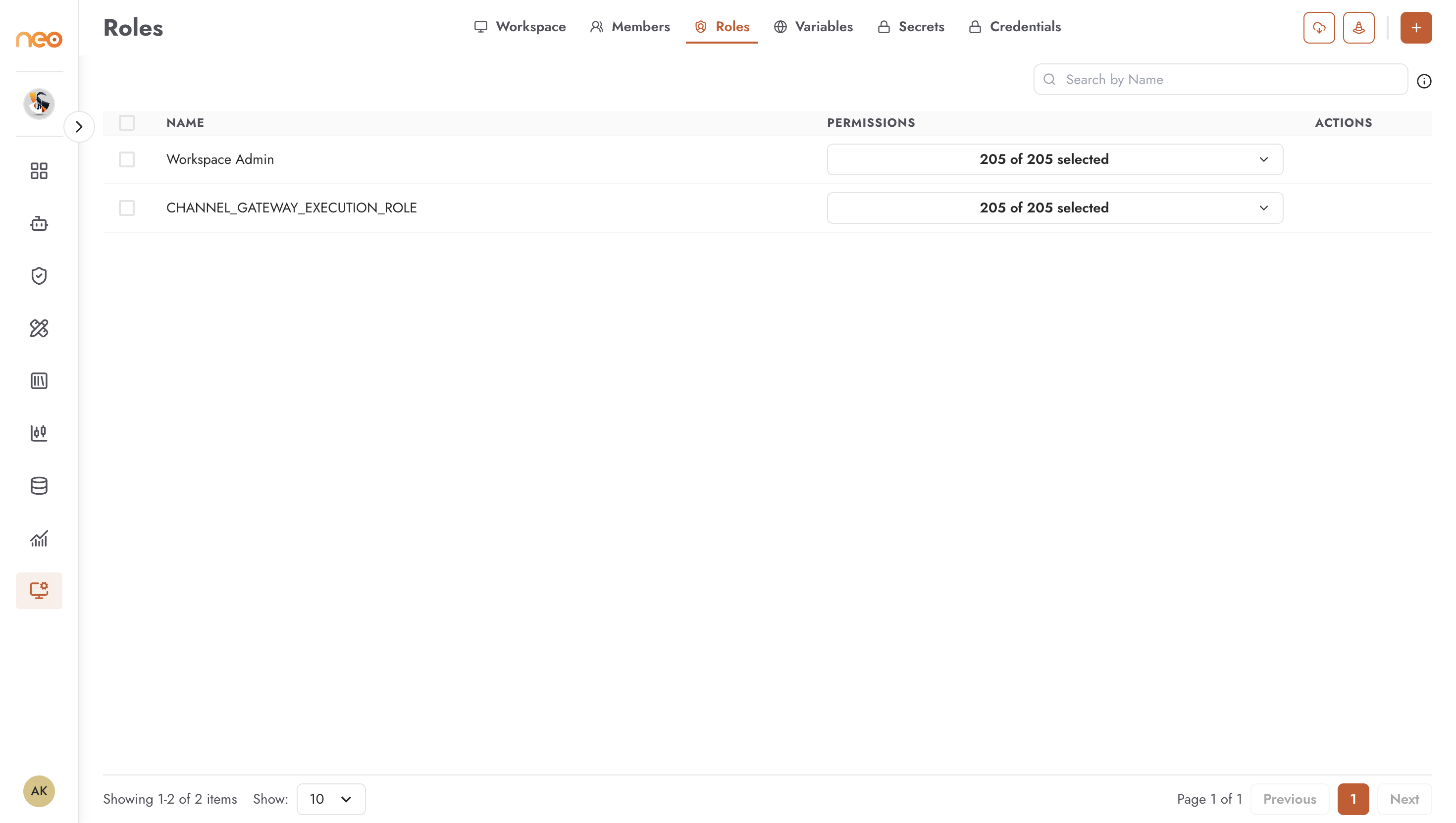
The roles list shows:
- Name — the role name
- Permissions — how many permissions are selected out of the total available. Click it to open the permission list and change the role’s permissions.
- Actions — menu with the delete option
Every workspace starts with these roles: Workspace Admin (all permissions), Viewer, Foundry Admin, NeoGPT, and Studio. They cannot be deleted.
Creating a Role
Click + (Create Role) to define a new role.
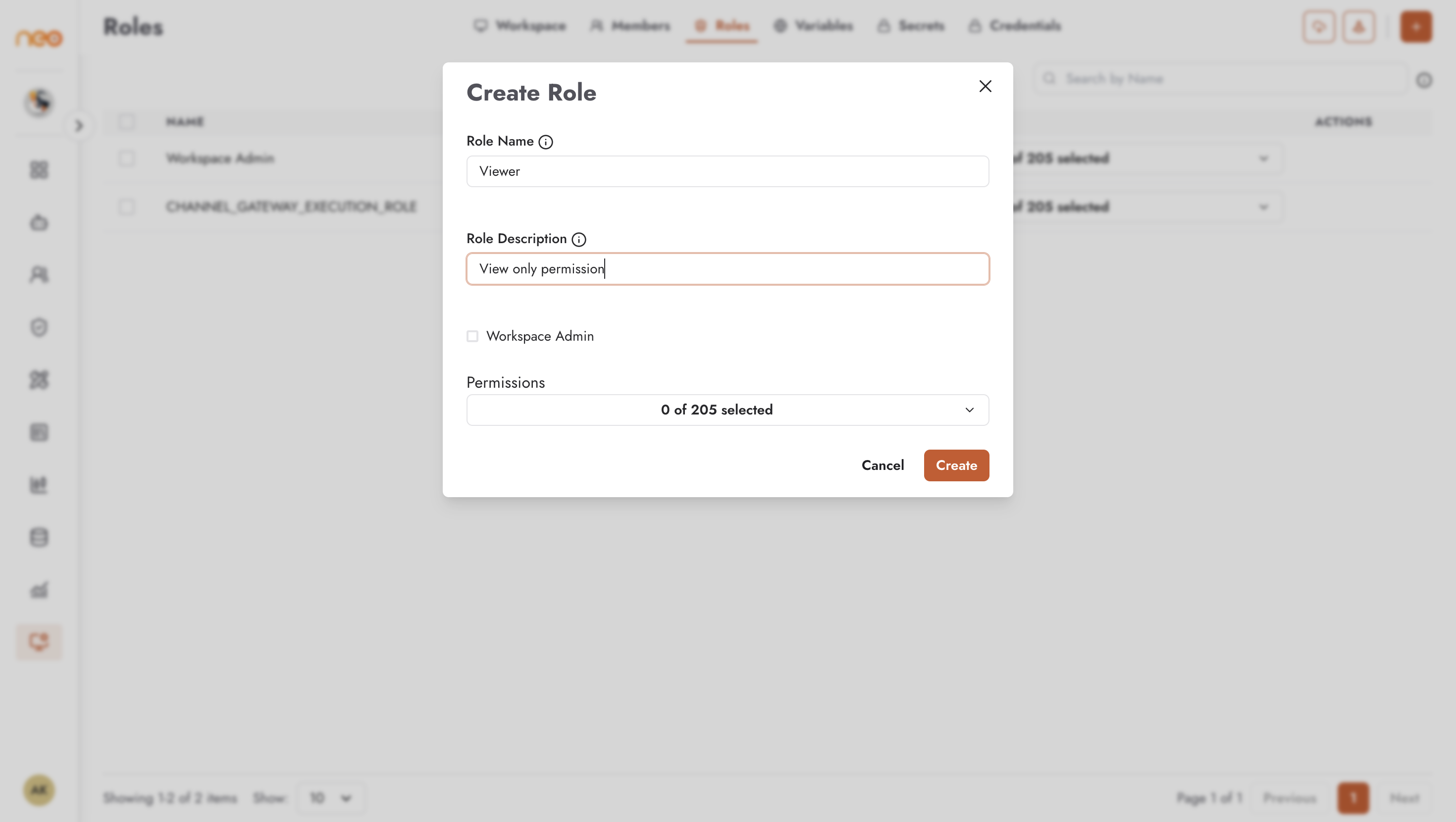
Fill in:
- Role Name — a name that signals the role’s purpose (e.g., “Agent Builder”, “Read Only”, “Analytics Viewer”)
- Role Description — required; helps other admins understand who should be assigned this role
- Permissions — select individual permissions from the full list, or use Select All Permissions to grant unrestricted access
Permission categories include:
- Knowledge Bases — create, read, update, and delete in-house and Bedrock knowledge bases
- Workspace — access and modify workspace settings
- Voice Agent — create and manage voice agents and their telephony channels
- Chatbot / Agentic Flow — build, publish, and manage each agent type
- Command Center — view conversation history, LLM traces, and analytics. Without the View All … Conversations and View All … Traces permissions for an agent type, users see only their own conversations and traces
- Coworker — view, create, edit, delete, and deploy AI Coworkers
- Integrations — view and manage tools, skills, workspace LLM models, channel credentials (View / Create / Edit / Delete Channel Credential), and custom tool credential providers (View / Create / Edit / Delete Credential Provider)
- Members and Roles — invite members, assign roles, modify role definitions
- And many more categories covering all Neo functionality
Design roles around the principle of least privilege: users should have only the permissions required for their job, nothing more.
Editing and Deleting Roles
To change a role’s permissions, click its Permissions entry, select or clear permissions, and click Update. Changes apply immediately to every member assigned that role. A role’s name and description cannot be changed after it is created.
The permissions of admin roles, including Workspace Admin, cannot be changed.
To delete a role, choose delete from its Actions menu. A role that is still assigned to members cannot be deleted — reassign them first. The default roles cannot be deleted.
Roles can also be imported from a JSON file with the import icon in the page header, and exported in bulk.
Best Practices
Design roles around job functions : Create one role per distinct job function rather than one role per person. Role names like “Agent Builder”, “Analytics Viewer”, and “Read Only” scale better than individual roles and make membership audits easier.
Least privilege : Start with the minimum permissions a job function requires and add more only when a specific need arises. It is straightforward to add permissions later; discovering over-privileged roles after an incident is far more disruptive.
Test roles before assigning broadly : After creating a new role, assign it to a test account and verify that the expected permissions work and that restricted actions are properly blocked before rolling it out to real users.