Workspace Management
The Workspaces tab gives Super Administrators a full view of every workspace in the Neo deployment. From here you can create workspaces, review their IDs, and delete ones that are no longer needed.
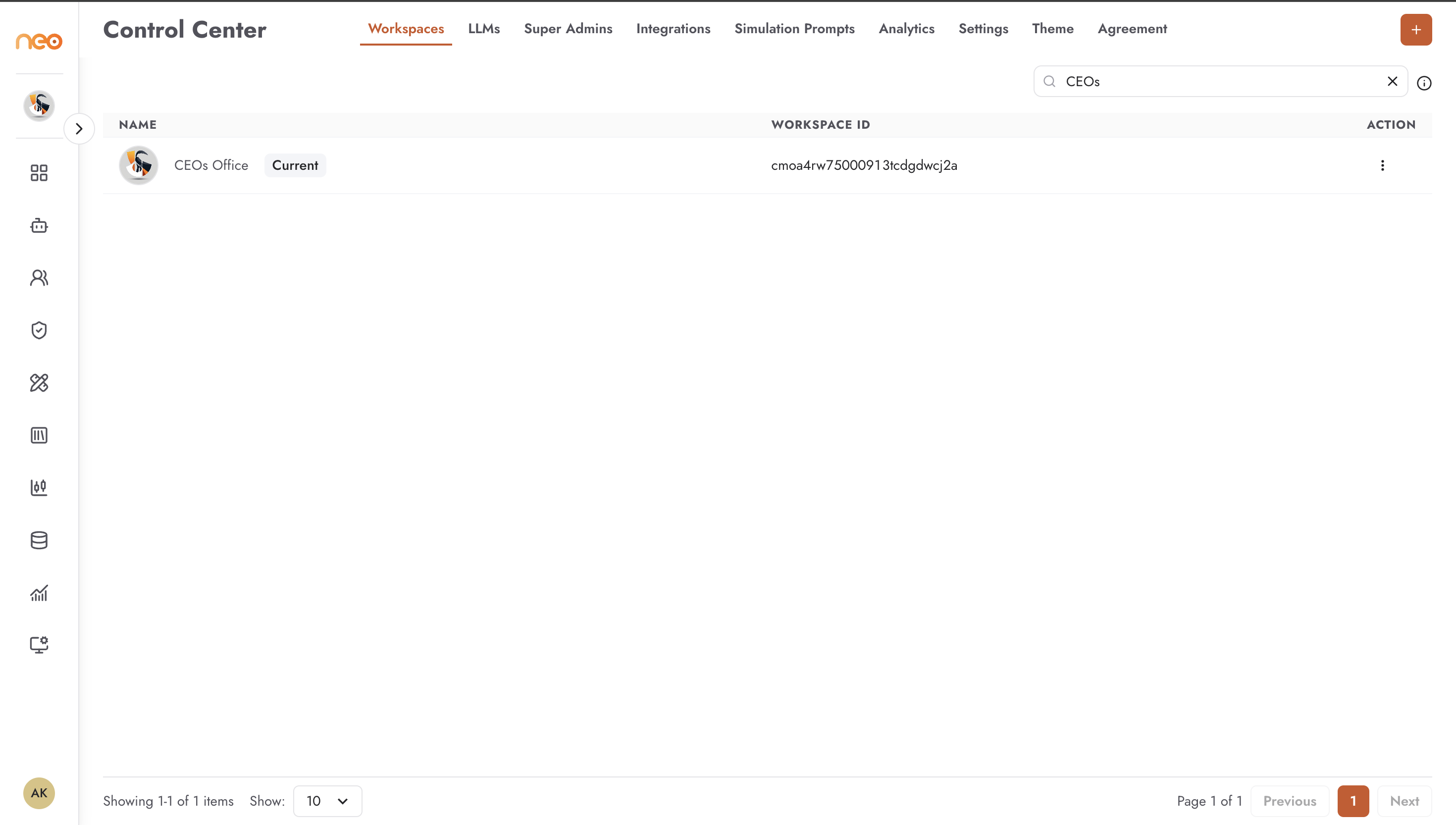
The workspaces list shows:
Name — the workspace name; the workspace you are currently browsing is marked Current
Workspace ID — the system-generated unique identifier, used in API calls and support requests
Action — per-workspace menu for deletion
Creating a Workspace
Click + Add Workspace to open the creation dialog.
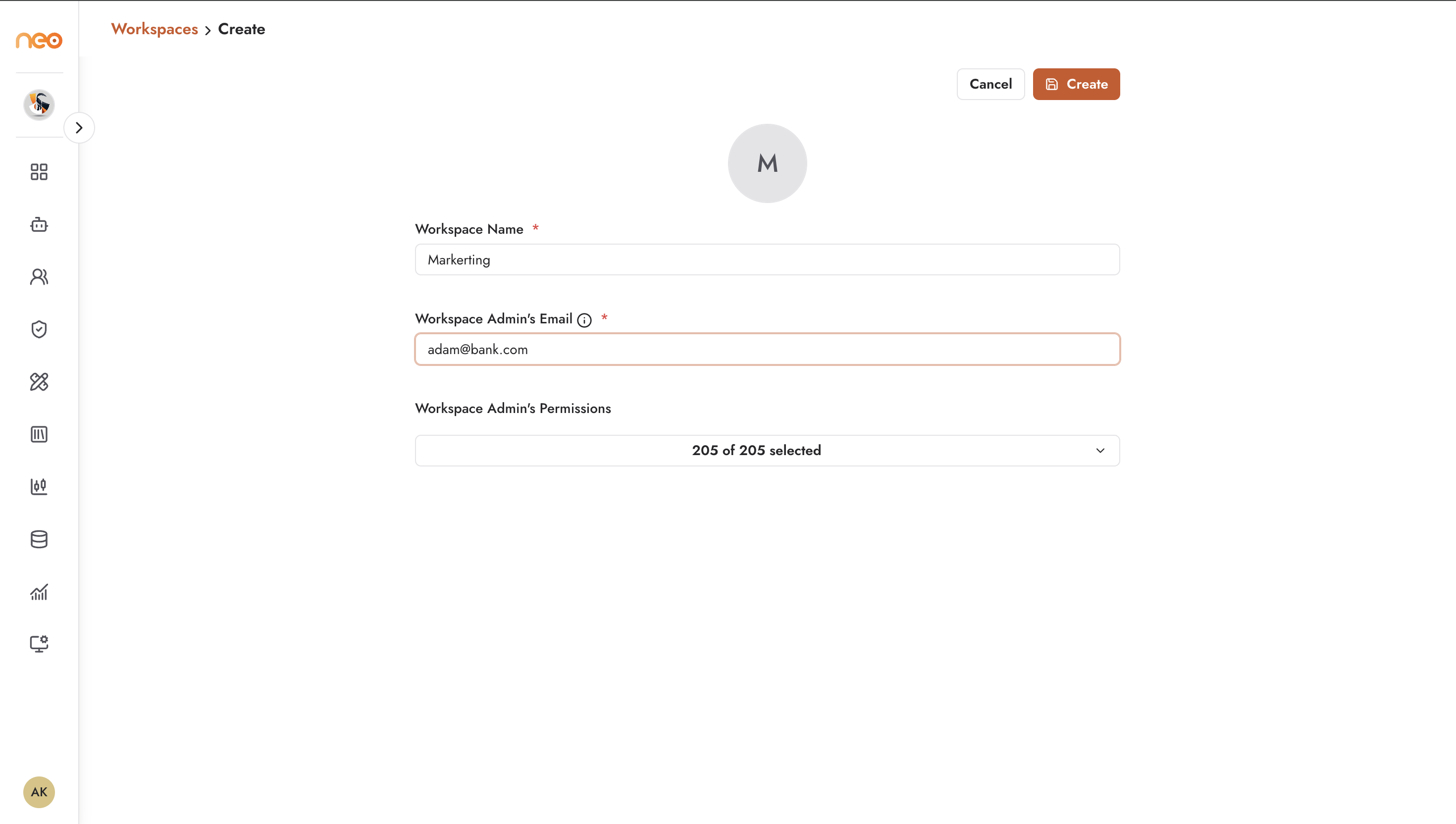
Fill in the following fields:
Workspace Name — a descriptive name visible to all members of that workspace
Workspace Admin’s Email — the user who will be assigned as workspace administrator on creation
Workspace Admin’s Permissions — the permission set the workspace admin will start with (for example, 169 of 180 available permissions)
Set as default permissions for new workspaces — when checked, this permission set becomes the template for all future workspace admins
Once saved, the new workspace appears in the list and the designated admin receives access immediately.
Per-Workspace Actions
Each workspace row has an action menu with three options:
Invite Members — add users to the workspace and assign them a role; this is the same as the invite flow available to Workspace Admins
Manage Permissions — view and edit the workspace’s role permission sets
Delete — permanently remove the workspace
Deletion removes everything inside the workspace — all agents, knowledge bases, variables, secrets, and member associations — with no recovery path.
Note
Super Admins can manage workspace membership and permissions from the Control Center, but they cannot browse workspace contents (agents, conversations, knowledge bases, etc.) unless they have been explicitly added as a member of that workspace. Platform-level authority does not grant automatic read access to workspace-level resources.
Best Practices
- Naming conventions
Establish a workspace naming convention before creating workspaces at scale — for example, team name or business unit as a prefix. Consistent names make it easier to identify workspaces in analytics filters and audit logs.
- Default permission template
Use the Set as default permissions for new workspaces option to standardise the starting permission set for workspace admins across the organisation. Review and update this template whenever role requirements change.
- Clean up unused workspaces
Periodically review the workspaces list and delete any that are no longer actively used. Dormant workspaces still appear in analytics and can cause confusion in platform-wide reports.