Integrations
The Integrations tab is where Super Administrators manage the tools and MCP servers available to agents across all workspaces. It contains two sub-tabs: In-House Tools and MCPs.
Disabling a tool or MCP at the platform level removes it from every workspace immediately — workspace administrators cannot re-enable them.
In-House Tools
In-House Tools are built-in integrations that agents can call during execution — search APIs, calculators, code runners, and similar utilities.
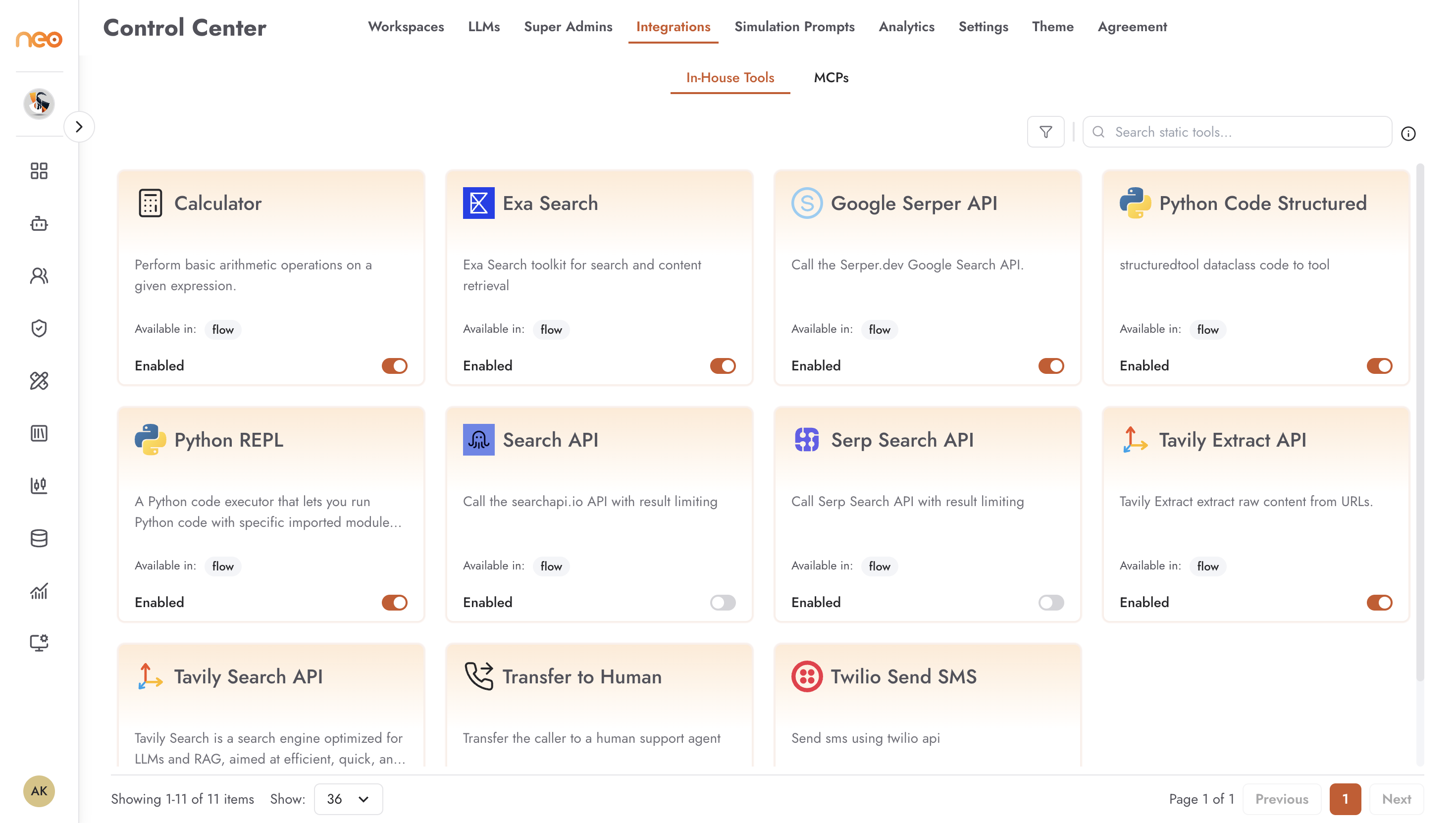
Each tool card shows:
Tool Name — the name of the tool (e.g., Calculator, Exa Search, Google Serper API)
Description — what the tool does
Configuration Status — whether additional setup is required before the tool can be used, or whether it works out of the box
Available in — which agent types support the tool (Agentic Flow, Voice Agent)
Enabled toggle — current availability across all workspaces
Use the toggle to enable or disable a tool. Common reasons to disable a tool platform-wide:
Enforcing a security policy that prohibits a specific external integration
Controlling costs from paid third-party APIs
Compliance requirements restricting certain data egress paths
MCPs
The MCPs sub-tab manages Model Context Protocol servers — standardised tool endpoints that provide structured capabilities to Agentic Flow agents.
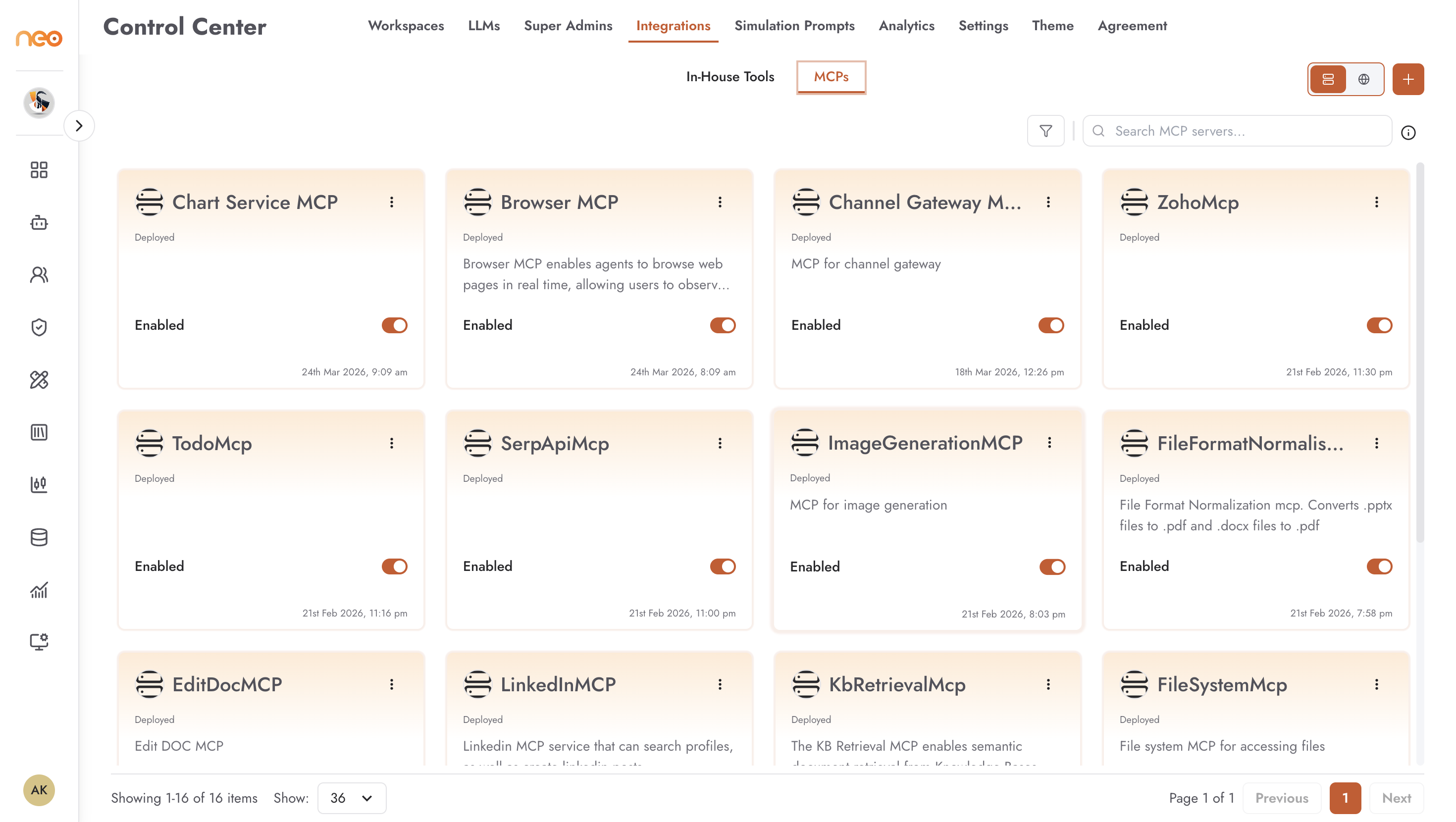
The MCP list displays:
MCP Name — the name of the server
Status — deployment state (Deployed)
Description — what capabilities the MCP server provides
Enabled toggle — whether agents can use this MCP
Timestamp — when the MCP was last updated
Adding an MCP Server
Click + Add MCP Server to register a new MCP endpoint.
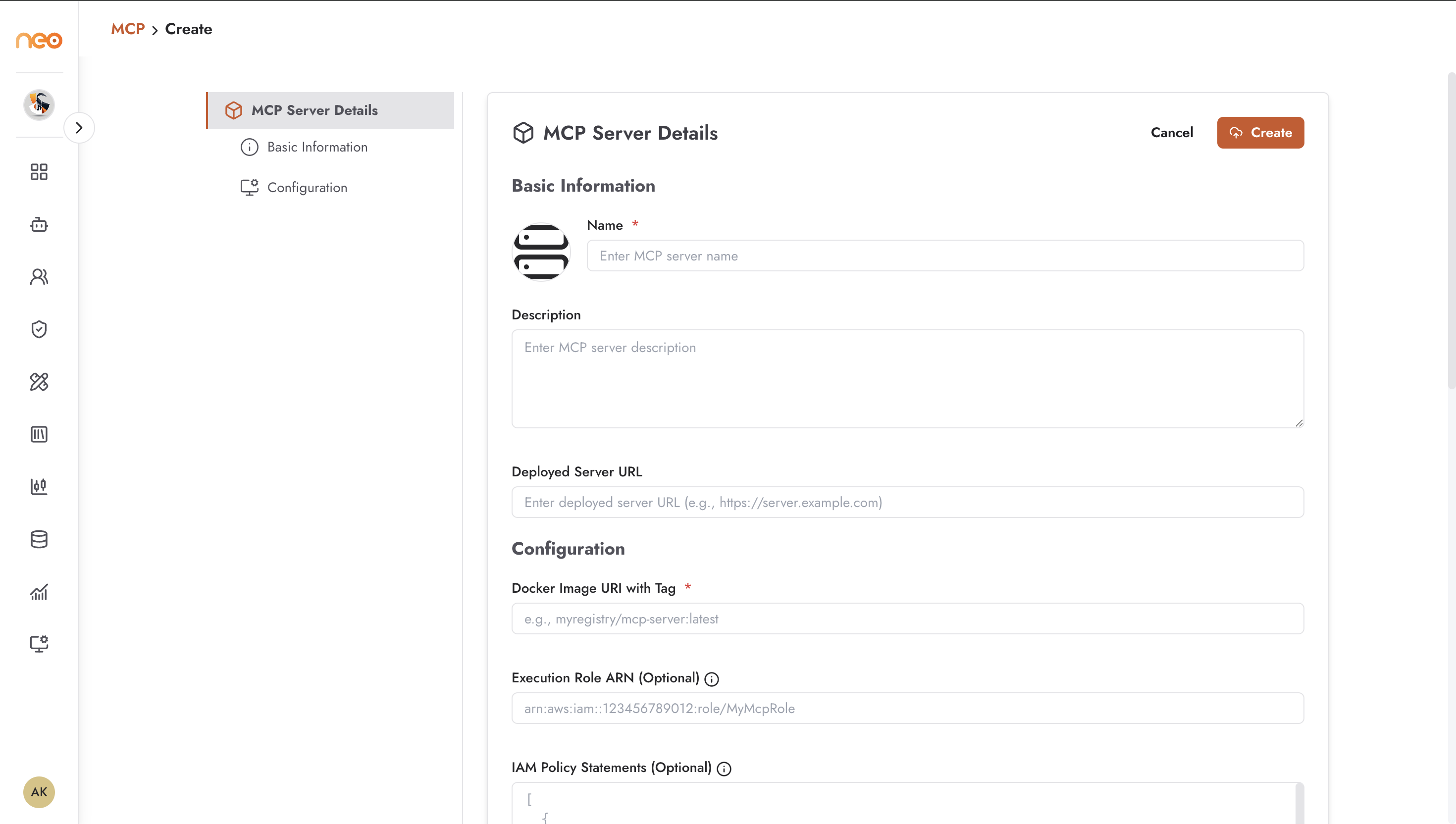
Basic Information
Name — a descriptive label for the MCP server
Description — what the server provides; shown to workspace admins and agent builders
Deployed Server URL — the URL where the MCP server is reachable
Configuration
Docker Image URI with Tag — the container image for the server (e.g.,
myregistry/mcp-server:latest)Port — the port the server listens on
Environment Variables — runtime configuration passed to the container
Arguments — command-line arguments for the server process
Once added, the MCP server is available to Agentic Flow agents in all workspaces where it is enabled.
Best Practices
- Disable tools you don’t use
Review the In-House Tools list and disable any tools that are not actively used by your workspaces. Enabled tools are available to every agent builder across the platform; disabling unused ones reduces the attack surface and avoids unintended external API calls.
- Security and compliance review for MCPs
Before adding a new MCP server, verify that the Docker image comes from a trusted registry and that the server URL is reachable only from the expected network path. Review MCP environment variables — they often contain API keys or credentials — and ensure they are rotated on the same schedule as other platform secrets.
- Document what each MCP provides
Write a clear Description when registering an MCP server. Agent builders rely on this description to understand what capabilities the MCP provides and whether it is appropriate for their use case.