User Access Management
The Super Admins tab is where Super Administrators manage who holds platform-wide administrative privileges. Because Super Admins have unrestricted access across all workspaces and configuration, this list should be kept as small as possible.
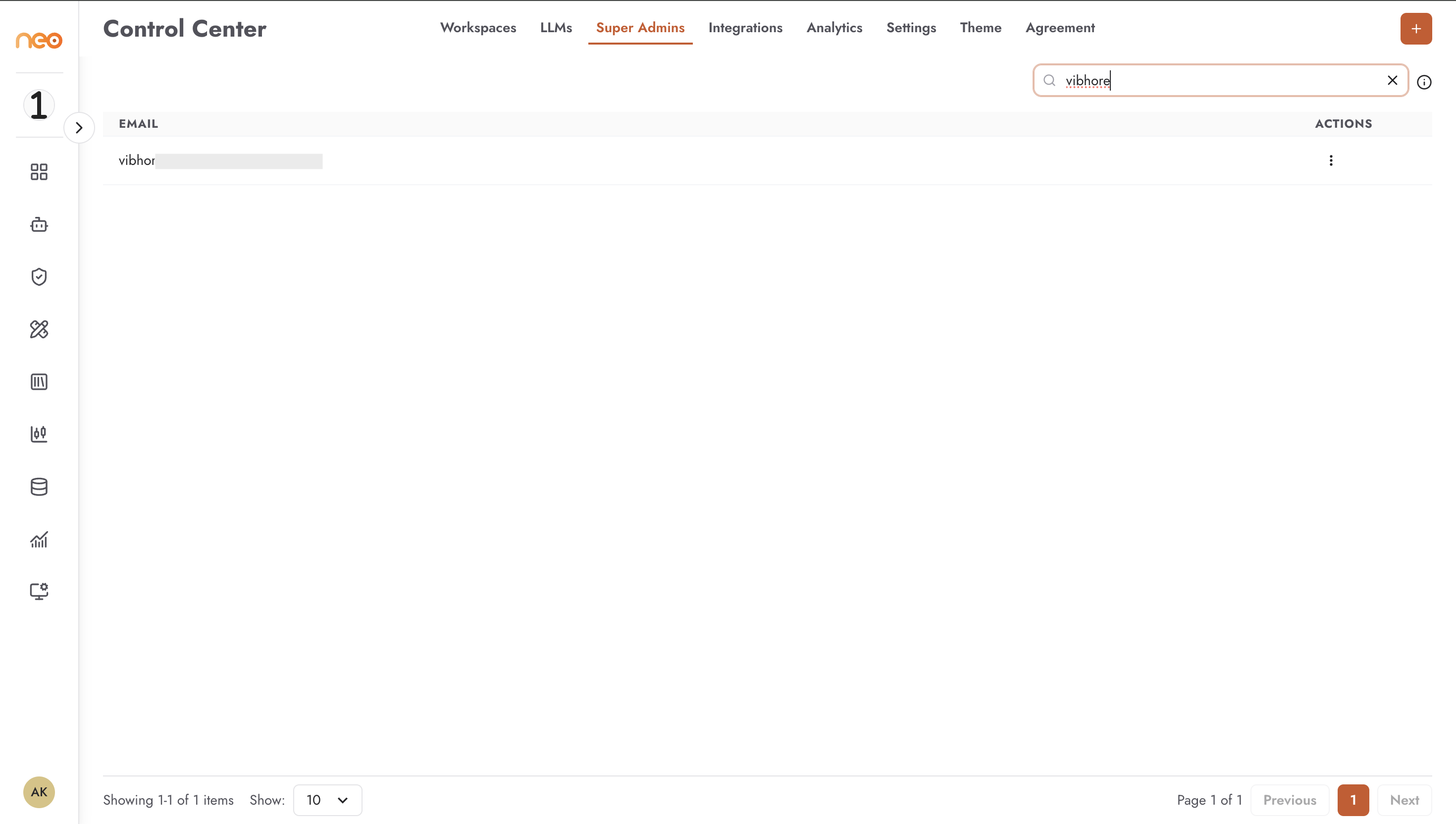
The list shows:
Email — the email address of each Super Administrator
Actions — per-entry menu for managing privileges; your own account is labelled You
Adding a Super Administrator
Click + Add Super Admin and enter the email address of an existing Neo user. The user must already have an account in the system — this action elevates their privileges; it does not create a new account.
Once added, the user gains immediate platform-wide access including the Control Center and the ability to enter any workspace.
Removing a Super Administrator
Open the Actions menu for any Super Admin entry and select the removal option. The system requires at least one Super Administrator to remain at all times — you cannot remove yourself if you are the last Super Admin.
Removing Super Admin privileges does not delete the user’s account. The user retains access to any workspaces they were individually invited to as a workspace member.
Best Practices
- Minimal Super Admin list
Limit the number of Super Administrators to the smallest set of people who genuinely need platform-wide access. Super Admins can enter any workspace and modify global configuration — this is a high-privilege role.
- Regular audits
Review the Super Admins list periodically. Remove access for anyone who has changed roles, left the organisation, or no longer needs platform-wide authority.
- Break-glass account
Maintain at least two Super Admin accounts so that platform access is not lost if one account becomes unavailable. Never rely on a single administrator.