LLM Management
The LLM Models tab is where Super Administrators control which Large Language Models are available across the entire platform. Only models enabled here can be selected when configuring agents in any workspace.
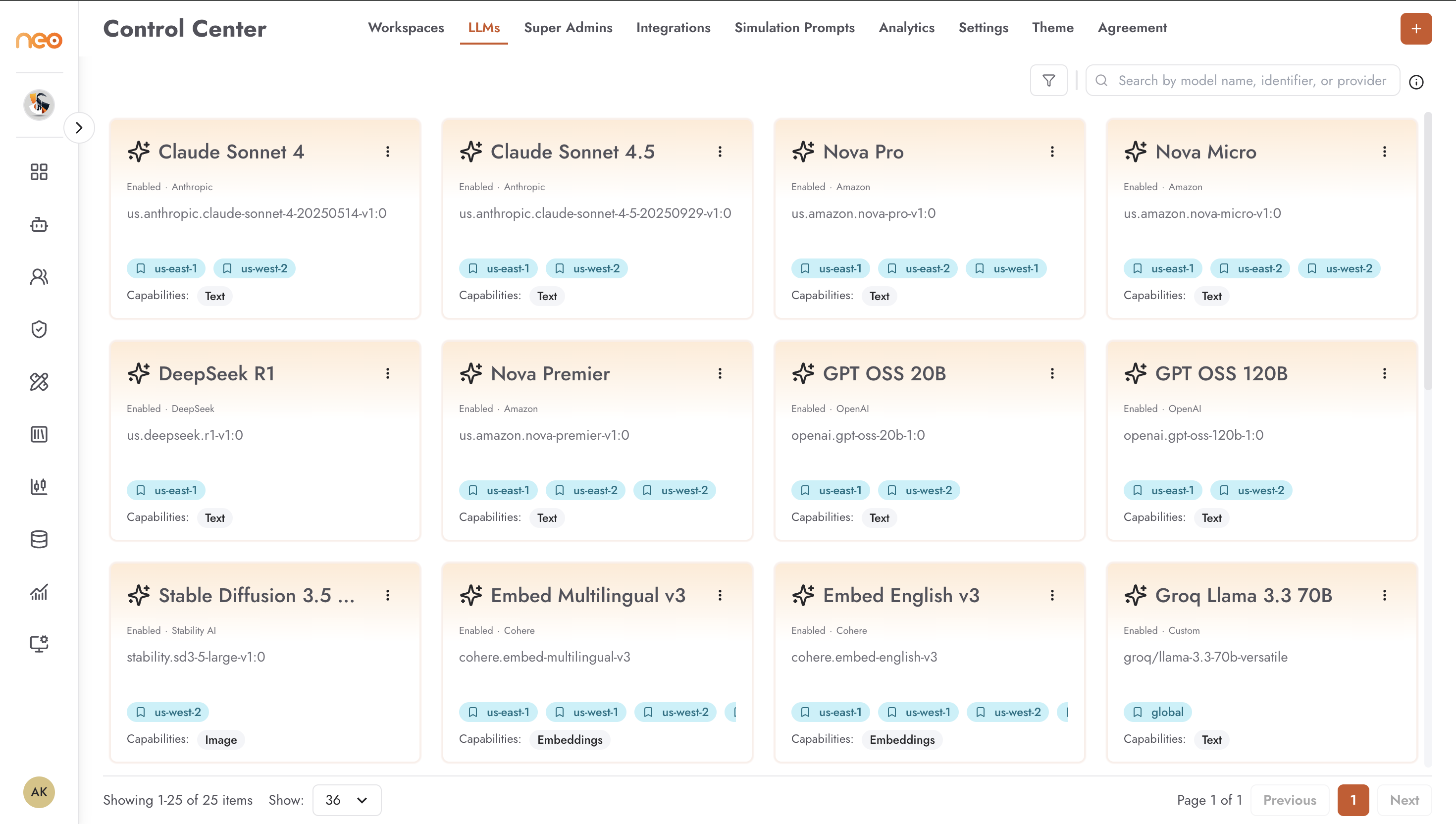
Each model card displays:
Model Name — the display name shown in agent configuration (e.g., Claude 3.5 Sonnet)
Provider — the model’s originating provider (Amazon, Anthropic, OpenAI, etc.)
Model Identifier — the exact string used when invoking the model API
Regions — the AWS regions in which the model is available
Capabilities — what the model can process (Text, Image)
Enabled toggle — whether the model is currently available to all workspaces
Enabling and Disabling Models
Use the toggle on any model card to enable or disable it platform-wide. When a model is disabled:
It immediately disappears from the model selection dropdowns in all workspaces
Agents that were already configured to use it retain the setting but the model will not respond until re-enabled
Workspace administrators cannot override this at the workspace level
Adding a New LLM Model
Click + Add LLM Model to register a model that is not yet in the platform — typically a newly released model or a self-hosted endpoint.
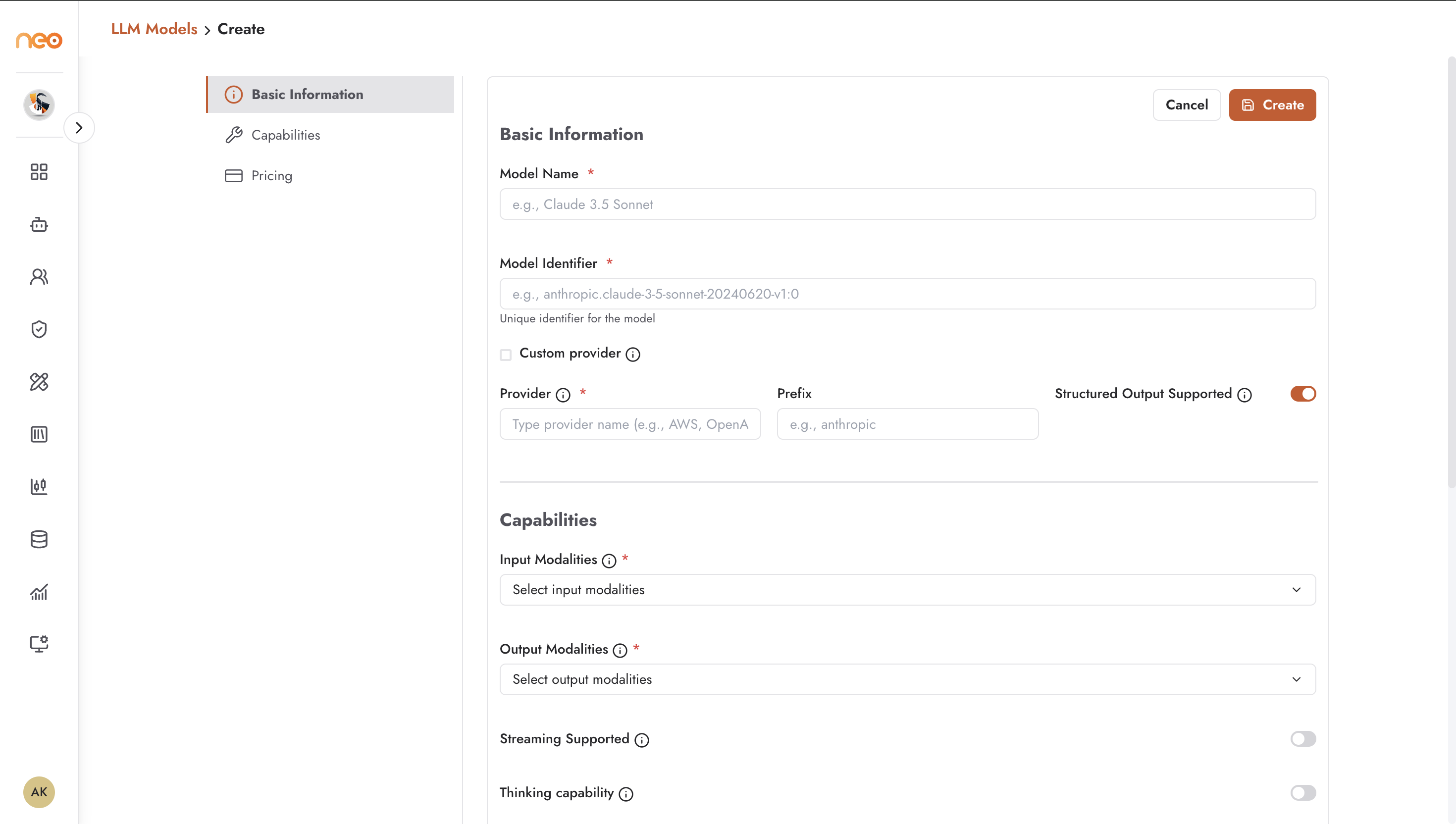
Basic Information
Model Name — the human-readable label shown throughout the UI
Model Identifier — the exact API identifier (e.g.,
anthropic.claude-3-5-sonnet-20240620-v1:0)Custom Provider — enable this for self-hosted models or providers not in the standard list
Provider — select from AWS, OpenAI, Anthropic, or enter a custom provider name
Prefix — provider prefix prepended to the model identifier where required
Structured Output Supported — whether the model reliably returns structured (JSON) output
Capabilities
Input Modalities — the input types the model accepts (text, image, document)
Output Modalities — the output types it produces
Streaming Supported — whether responses can be streamed token-by-token
Regions — which AWS regions this model is deployed in
Supported Document Types — file formats the model can process directly
Best Practices
- Evaluate before enabling
Test a new model in a controlled workspace before enabling it platform-wide. Check cost, latency, and output quality against your organisation’s standards.
- Disable unused models
Remove models that are no longer in use from the enabled list. A shorter, curated model list reduces decision fatigue for agent builders and prevents accidental selection of deprecated models.
- Track model identifiers carefully
When registering self-hosted or custom provider models, verify the model identifier exactly — a mismatch will cause silent failures in agent configurations that reference the model.