Conversations
The Conversations tab is available on every published agent — Chatbot, Agentic Flow, and Voice Agent. It provides a full log of every conversation or session the agent has handled, with detail views showing the complete message transcript, KPI results, and session metadata.
Access is permission-gated: canViewChatAgentConversations, canViewFlowAgentConversations, or canViewVoiceAgentConversations depending on agent type.
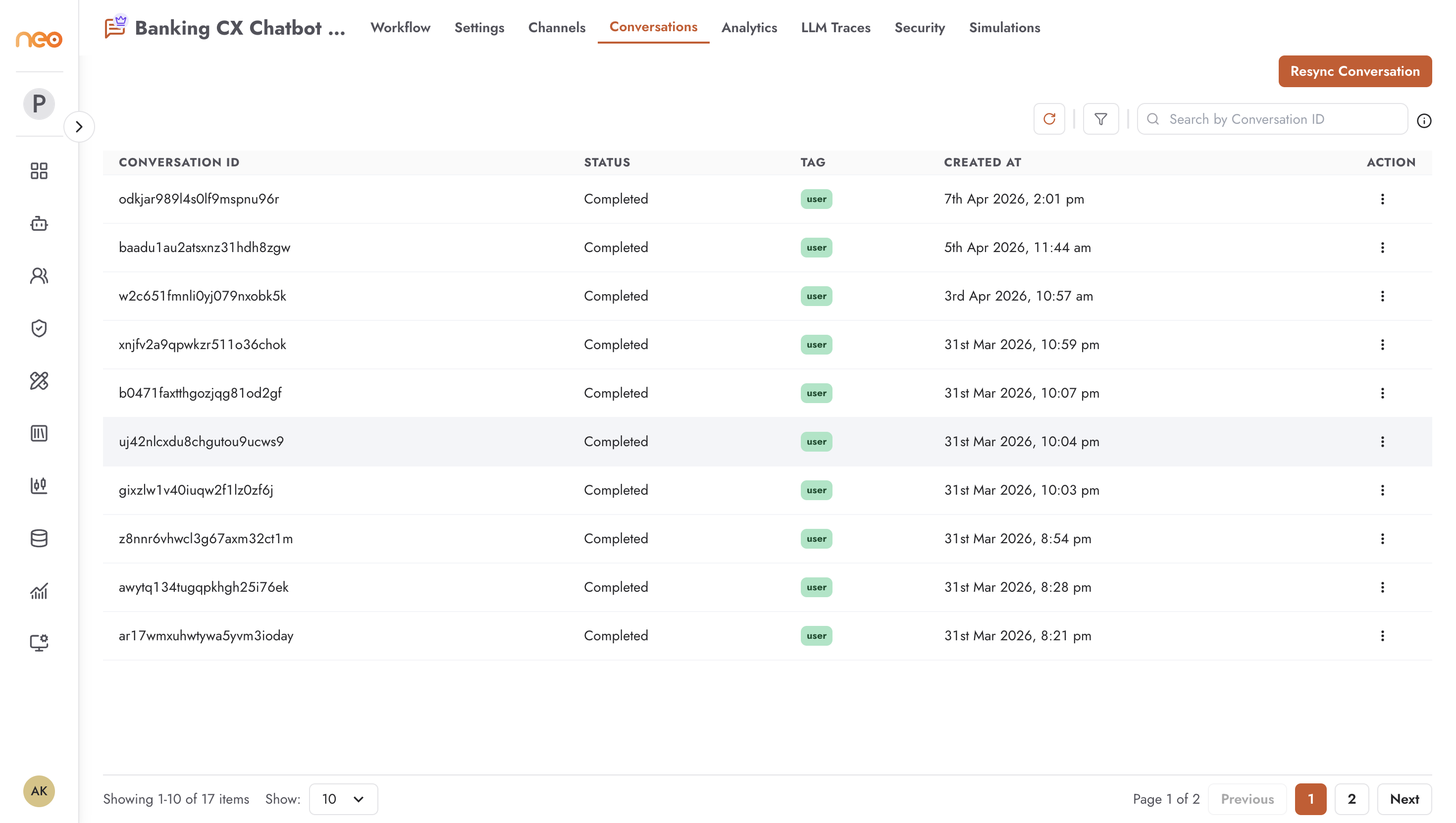
Conversations List
The list view shows one row per conversation or session. The columns and available filters differ slightly between agent types.
Chatbot
Columns:
Conversation ID — unique identifier for the conversation session.
Status —
CompletedorIn progress.Tag —
user(live conversation) orsimulation(triggered from NeoGPT or the Simulations tab). Displayed as a colour-coded badge.Created At — timestamp when the conversation started.
Filters:
Created on — date range picker to narrow by conversation start date.
Tag — filter to show only
userorsimulationconversations, or both.
Search: by Conversation ID.
Additional controls:
Refresh button — reloads the list.
Resync Conversation button — triggers a background process to resync and update conversation status records. Appears when conversations are present. The process may take some time to complete.
Delete (per row, permission-gated with
canDeleteChatAgentConversations) — permanently removes the conversation record.
Agentic Flow
Columns:
Session ID — unique identifier for the flow execution session.
Status —
CompletedorIn Progress.Duration — elapsed time in minutes, or
-if the session is still in progress.Created At — timestamp when the session started.
Search: by Session ID or User ID.
Delete per row is available to users with canDeleteFlowAgentConversations permission.
Voice Agent
The Voice Agent Conversations tab follows the same structure as the Agentic Flow tab, with session-level rows showing ID, status, duration, and timestamp.
Conversation Detail View
Clicking any row opens the full detail view for that conversation.
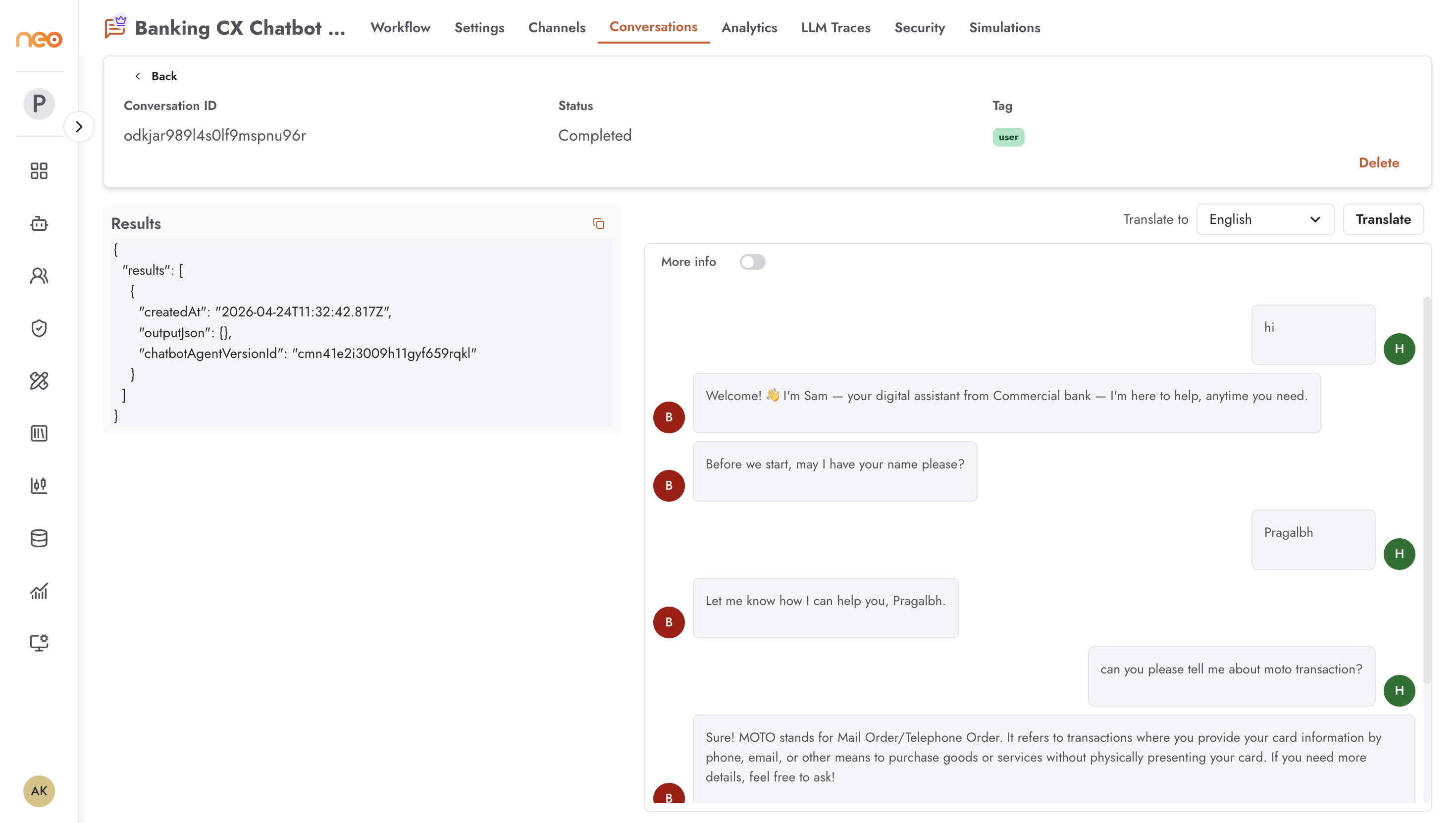
Header card
The top of the detail view shows a summary card with key metadata. Fields vary by agent type:
Chatbot:
Conversation ID
Status (Completed / In progress)
Tag (user / simulation)
Agentic Flow:
Conversation ID
Status (Completed / In Progress)
Duration (minutes, or In progress)
Messages (total message count)
Created At
Flow ID
A Delete action button appears on the header card for users with the appropriate delete permission.
Left panel — Results and Metadata
The left panel (40% width) shows structured data extracted during the conversation:
KPI Results — if the agent has KPIs configured, the extracted KPI values from this conversation are displayed here as a JSON viewer with copy-to-clipboard support.
Session Metadata (Agentic Flow only) — additional session-level metadata stored alongside the conversation, rendered as a JSON viewer.
If no KPI results or metadata are present, the left panel is empty.
Right panel — Message Transcript
The right panel (60% width) shows the full conversation as a chat history — user messages and agent responses in chronological order, each with a timestamp. Messages are rendered in a familiar chat bubble layout with outgoing (agent) and incoming (user) sides distinguished visually.
Translation
The transcript panel includes a built-in translation feature for reviewing conversations in other languages:
Select a target language from the language dropdown.
Click Translate to translate the entire transcript into the selected language.
The panel switches to showing the translated version of each message.
Click Translate again to toggle back to the original.
The source language is detected automatically and displayed once translation completes. Translation is disabled if the conversation has no messages.
Note
Translation is performed on demand per conversation. The original messages are always stored; translation is a view-only feature and does not modify the stored records.
Best Practices
Use the Tag filter on Chatbot conversations to separate live user traffic from simulation/test runs — simulation conversations are tagged automatically when triggered from NeoGPT or the Simulations tab.
Check the KPI Results panel on high-value conversations to verify that structured outputs were extracted correctly, especially after making changes to the agent’s output schema.
Use the Resync Conversation button if conversations appear stuck in
In progressstatus longer than expected — this triggers a backend reconciliation pass.For systematic quality reviews, filter to
usertag only and review a sample of recent conversations regularly to catch unexpected agent behaviour early.