Publishing
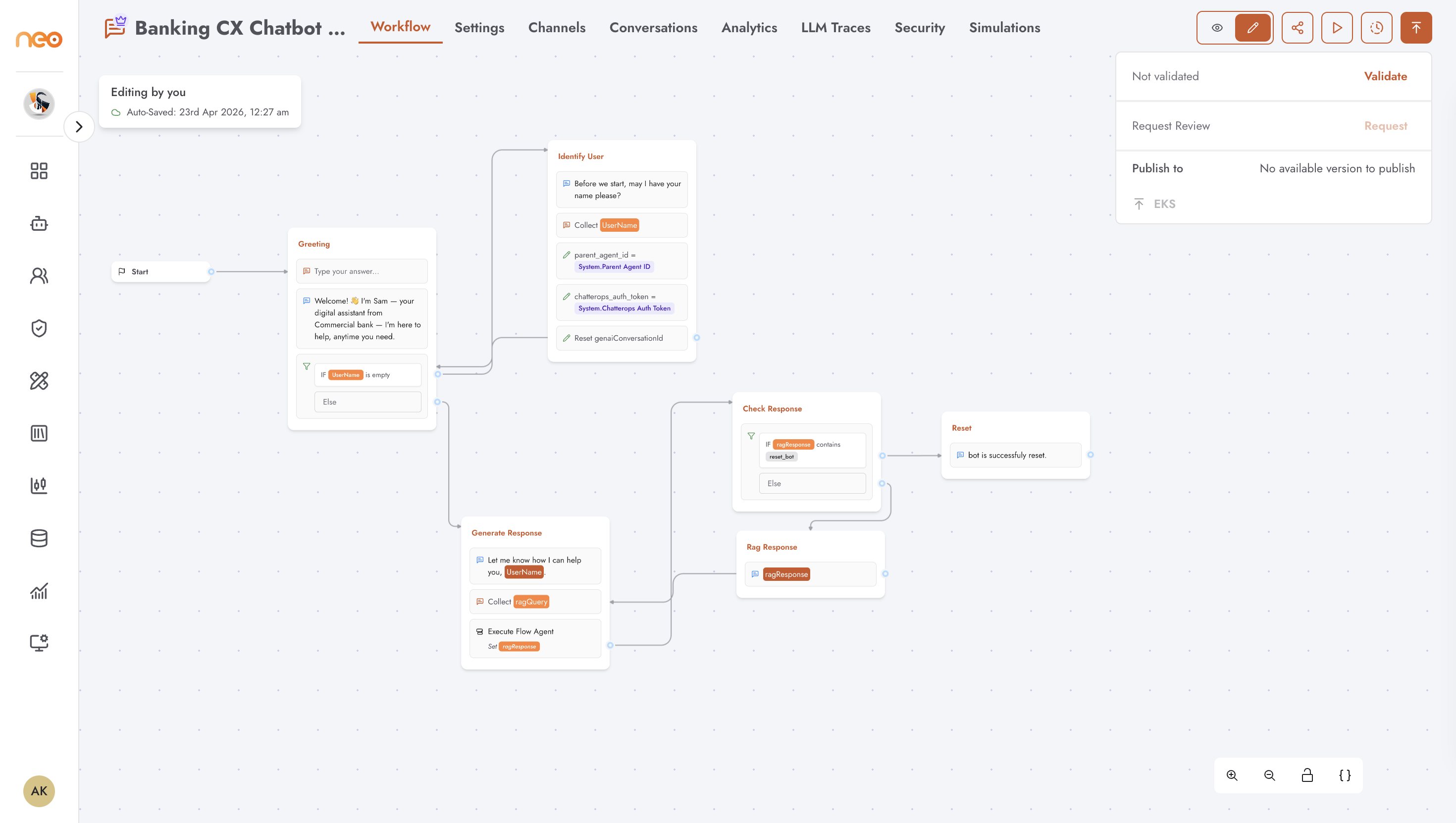
Publishing a chatbot makes a specific version of the flow available to live channels. The publish flow follows a validate → review → publish sequence to ensure changes are reviewed before going live.
Versioning
Every time a chatbot is approved through the review flow, a new numbered version is created. The version dropdown in the header (e.g. v1.0) shows the currently active version.
To view or restore a previous version, click the version history button in the header. Selecting a past version loads it in read-only mode so you can inspect it. Click Restore to make that version the working draft.
Publish Flow
Publishing requires edit mode to be active. The steps are:
Validate — click the publish button (top-right header) and select Validate. The system checks the flow for configuration errors. The result is shown as Valid or Invalid with a timestamp.
Request Review — once the flow is valid, click Request. This submits the flow for approval and sets the agent status to Pending Approval. The flow is locked for editing until the review is complete.
Review — a user with approval permissions sees a Review option in the publish menu. They can add an optional comment, then click Approve or Reject.
Approve — creates a new version and makes it the active draft, ready to publish to channels.
Reject — returns the flow to Available status with the reviewer’s comment. The builder can make changes and request review again.
Publish to EKS — after approval, click the publish button and select EKS to deploy the approved version to the live environment.
Edit Mode
Only one user can edit a chatbot at a time. The edit mode toggle (pencil icon in the header) shows whether you currently own edit access. If another user has the flow locked, the header shows their name and the time they took ownership.
Users with the appropriate permission can unlock a flow that is locked by another user.