Chatbot Settings
Chatbot settings are managed from the Settings tab. Settings are organised into three sections, accessible from the left sidebar within the tab.
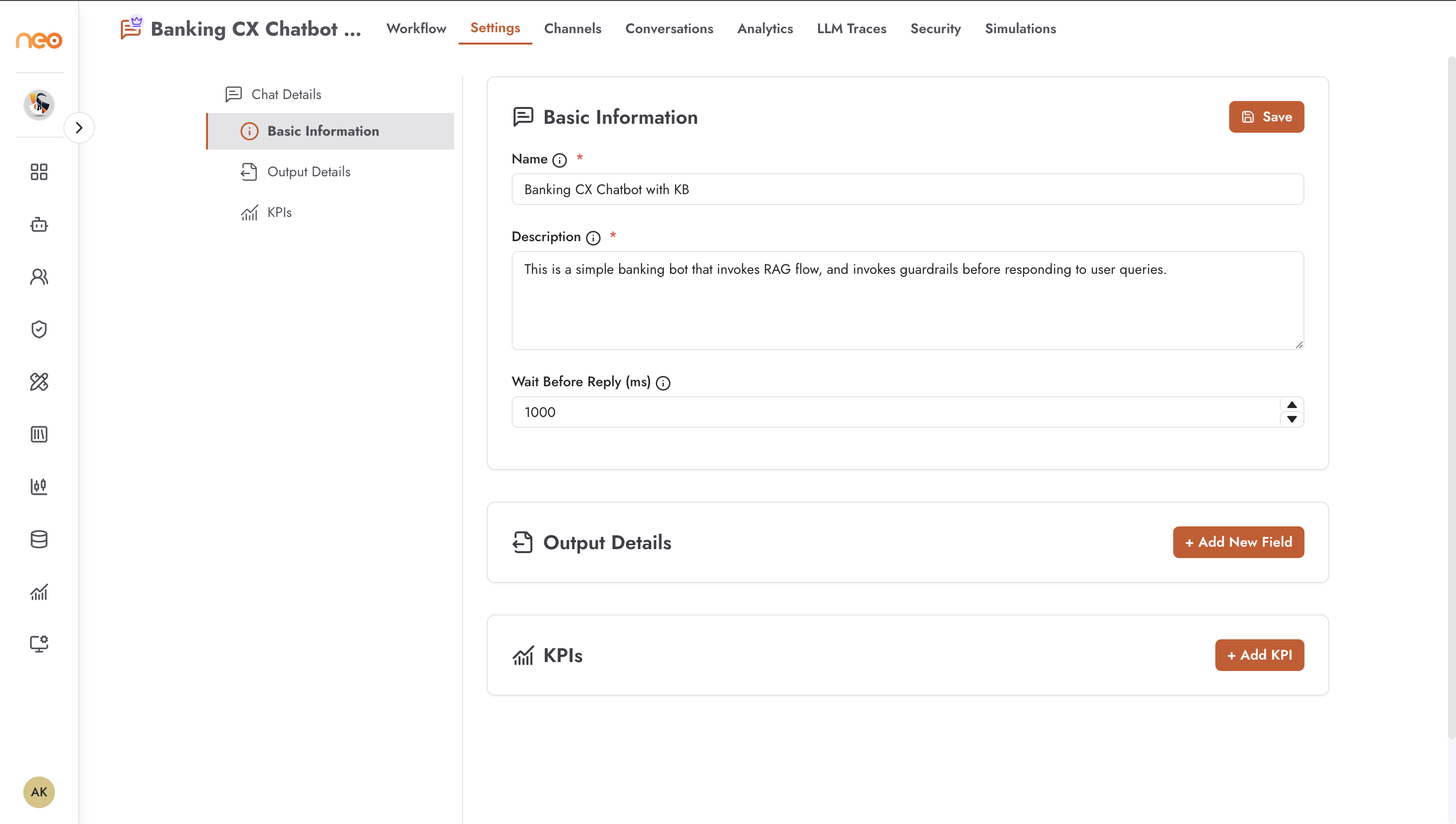
Basic Information
Found under Chat Details → Basic Information.
Name — the display name of the chatbot. Required.
Description — a brief description of the chatbot’s purpose. Required.
Wait Before Reply (ms) — how long the agent waits after receiving a message before processing and responding. This batches rapid successive messages from the user into a single response. Default is 1000ms. Range: 0–30000ms.
Output Details
Found under Chat Details → Output Details. Only available after the agent has been created.
Defines the schema of structured data that this chatbot should extract or produce during a conversation. Used for downstream processing and integration.
KPIs
Found under Chat Details → KPIs. Only available after the agent has been created.
Define custom KPI metrics to track business outcomes from this chatbot. KPI values are tracked per conversation and visible in the Analytics tab.
Channels
The Channels tab deploys this chatbot to external platforms. Supported channels include messaging apps (WhatsApp, Telegram, Facebook Messenger, Viber, Zalo, Slack, Microsoft Teams) and event-driven triggers (GitHub, Jira, Databricks, Outlook Calendar, Agent Schedule).
See Channels for per-channel prerequisites, credentials, and configuration.
Conversations
The Conversations tab shows the conversation history for this chatbot. Each row represents a session with the caller details, timestamp, and duration. Click a row to open the full conversation detail view including the complete message transcript and any structured output fields that were extracted.
Analytics
The Analytics tab shows usage and cost metrics for this chatbot over a selectable time range: conversation volume, average duration, LLM token usage, and cost breakdown.
LLM Traces
The LLM Traces tab shows a log of every LLM call made during conversations. Each entry shows the prompt sent to the model, the model response, token counts, and latency. Use this tab to debug unexpected chatbot behaviour or verify that prompts are being constructed as expected.
Simulations
The Simulations tab lets you run predefined test scenarios against the chatbot without publishing. Define a set of test inputs and review the agent’s responses in a consistent, repeatable way. Results are saved and can be compared across runs.
API Access
The API Access tab provides code snippets and credentials for calling this chatbot programmatically via the OneByZero Neo API. Use this to integrate the chatbot into external applications or trigger conversations from your own systems.
The tab shows ready-to-use code examples in multiple languages with the agent’s API endpoint and authentication details pre-filled.