Workspace Admin Quickstart
This guide walks you through setting up your workspace so your team can log in and start building agents. By the end, your members will have the right roles and the credentials they need to get started.
Time to complete: ~10 minutes.
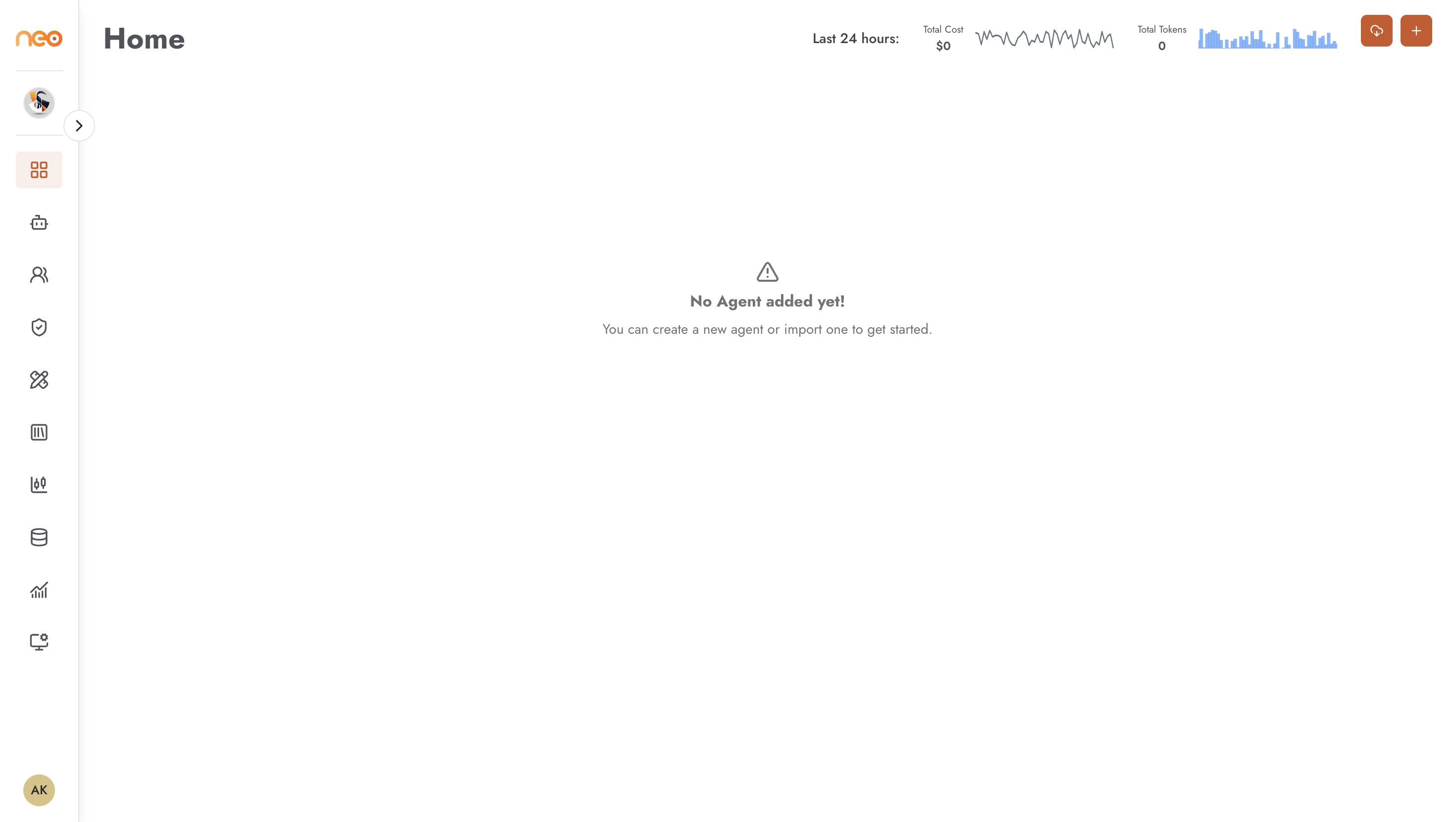
Step 1 — Access Your Workspace
Log in to OneByZero Neo with your credentials. If you have access to more than one workspace, the workspace switcher in the top-left corner lets you move between them.
After login you land on the Command Center Home — the agent listing for your workspace. It will be empty until agents are created.
Step 2 — Create Roles
Before inviting members, define the roles that reflect your team’s responsibilities. Each role is a named collection of permissions.
Open Workspace Settings (gear icon, bottom-left).
Navigate to the Roles tab.
Click + Create Role.
Name the role (e.g.
Agent Builder,Viewer) and toggle the permissions appropriate for that role.Save.
At minimum, create one role for builders (who create and edit agents) and one for viewers (who can only interact with published agents). For details, see Roles and Permissions.
Step 3 — Invite Members
In Workspace Settings, navigate to the Members tab.
Click + Invite Member.
Enter the user’s email address.
Assign them one of the roles you just created.
Save. The user receives an invitation and can now log in.
For details, see Member Management.
Step 4 — Add Secrets and Variables
Agents often need credentials and configuration values at runtime — API keys, database connection strings, environment-specific settings. Store these centrally so agents can reference them without embedding them in the flow.
In Workspace Settings, navigate to the Secrets tab for sensitive values (API keys, tokens, passwords).
Click + Add Secret, enter the key name and value, and save.
Navigate to the Variables tab for non-sensitive configuration values.
Click + Add Variable, enter the key and value, and save.
For details, see Variables and Secrets.
Your workspace is ready. Point your builders at the Build Your First Agent guide.