Flow Agent Settings
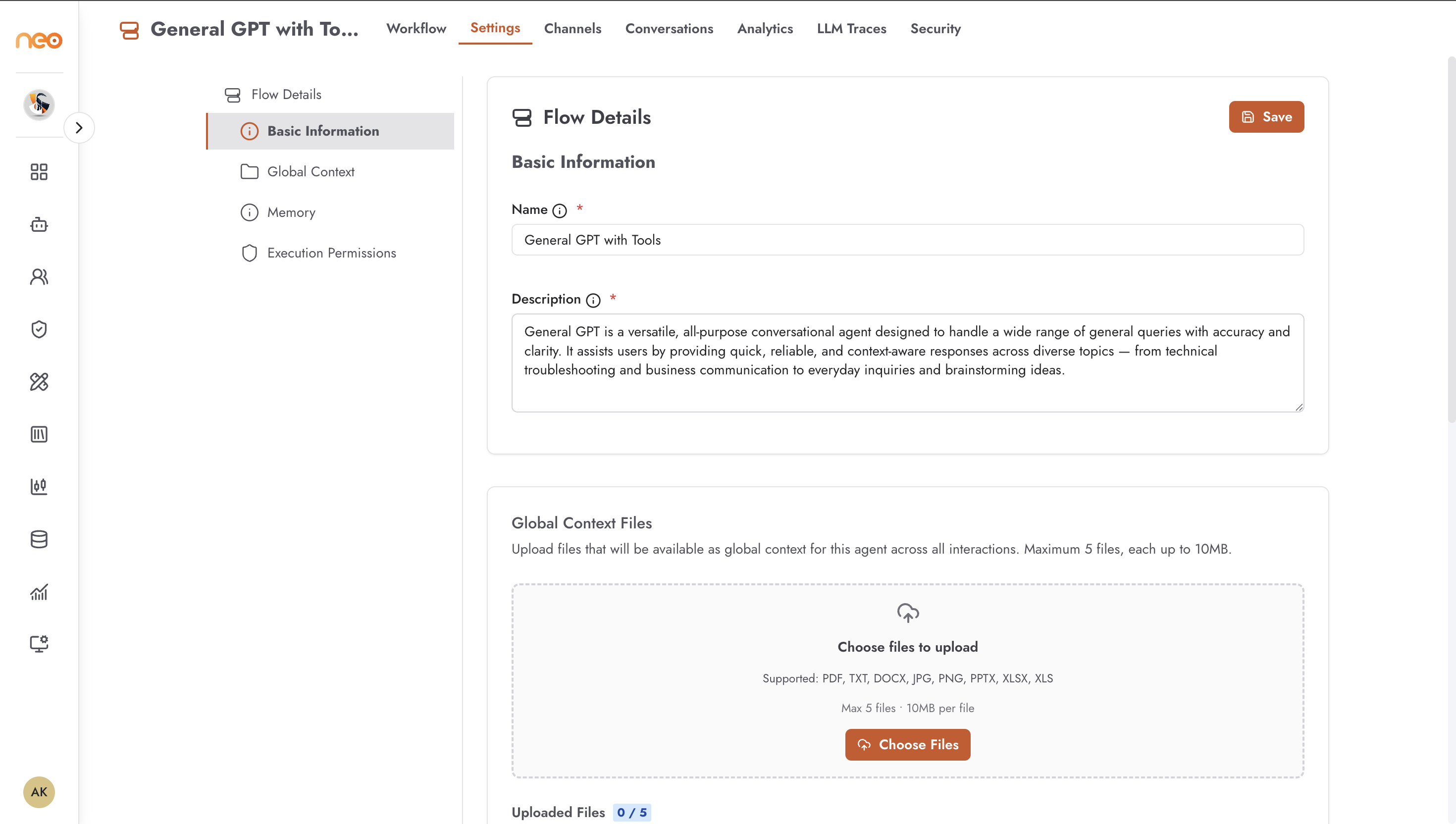
Settings for an Agentic Flow agent are managed from the Settings tab.
Note
To make this agent available to a Digital Co-Worker as a skill, use Expose as Skill on this Settings page. Once exposed, it appears in the Custom Skills sub-tab of every Co-Worker in the workspace.
Flow Details
Found under Flow Details → Basic Information.
Name — the display name of the flow agent. Required.
Description — a brief description of what this flow does. Required.
Global Context
Found under Flow Details → Global Context. Only available after the flow has been created.
Attach files that are made available to the flow as global context during every execution. Supported formats: PDF, TXT, DOCX, JPG, JPEG, PNG, PPTX, XLSX, XLS. Maximum 5 files, 10 MB per file.
Memory
Found under Flow Details → Memory. Only available after the flow has been created, and only visible to users with the appropriate permission.
Configure a memory backend for this flow to retain conversation context across sessions. Uses a PostgreSQL-backed memory store.
Execution Permissions
Found under Flow Details → Execution Permissions. Only available to the flow owner after creation.
Controls which workspace members or roles are permitted to execute this flow. Restricts runtime invocation independently of the edit/view access granted in the sharing settings.
Output Details
Found under Output Details. Only available after the flow has been created.
Defines the schema of structured data that this flow should extract or produce. Used for downstream processing and integration.
KPIs
Found under KPIs. Only available after the flow has been created.
Define custom KPI metrics to track business outcomes from this flow. KPI values are tracked per conversation and visible in the Analytics tab.
Channels
The Channels tab deploys this flow to external platforms. Supported channels include Microsoft Teams, Outlook Mail, Facebook Messenger, Outlook Calendar, GitHub, Jira, Databricks, Zoho Recruit, Agent Schedule, and Universal Webhook.
See Channels for per-channel prerequisites, credentials, and configuration.
To control how the flow formats and delivers messages through a channel — Adaptive Card templates, HITL approval cards, placeholder tokens — add a Channel Output node to the flow. See Channel Delivery Templates.
Conversations
The Conversations tab shows the execution history for this flow. Each row represents a single run with the input message, timestamp, and duration. Click a row to open the full conversation detail view including the message thread and any structured output fields that were extracted.
Analytics
The Analytics tab shows usage and cost metrics for this flow over a selectable time range: run volume, average duration, LLM token usage, and cost breakdown.
LLM Traces
The LLM Traces tab shows a log of every LLM call made during flow executions. Each entry shows the prompt sent to the model, the model response, token counts, and latency. Use this tab to debug unexpected agent behaviour or verify that prompts are being constructed as expected.
API Access
The API Access tab provides code snippets and credentials for calling this flow programmatically via the OneByZero Neo API. The tab shows ready-to-use code examples in multiple languages with the flow’s API endpoint and authentication details pre-filled.