Testing
Voice Agents can be tested before publishing using the Simulations tab.
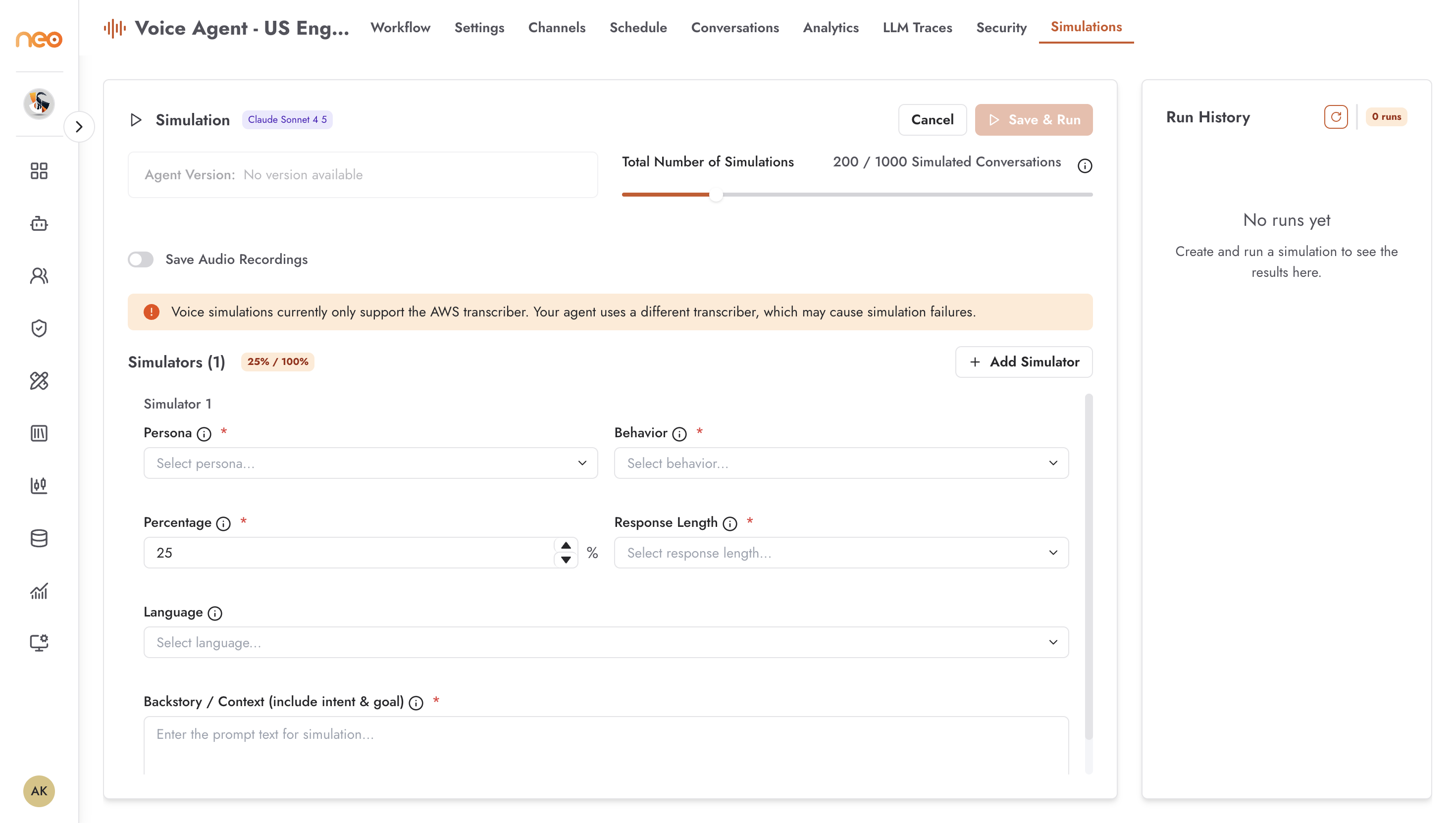
Opening Simulations
Click the Simulations tab in the agent header to open the simulations page. You can also trigger a simulation directly from the Test button (play icon) in the header toolbar.
The simulation interface loads the agent’s current configuration and fetches any call parameters defined in the agent’s flow (stage variables or output schema fields). These parameters are rendered as input fields that you fill in before starting a session — they represent the caller context that would normally come from a CSV upload in a scheduled campaign or from the inbound call trigger.
Running a Chat Simulation
Fill in any parameter fields shown (e.g. caller name, account number), then click Chat. A chat-style interface opens and sends your typed messages through the agent’s full processing pipeline: LLM reasoning, prompt construction, and response generation. STT and TTS are bypassed — input and output are text only.
Use Chat simulation to:
Verify the agent’s LLM configuration and prompt logic
Test conditional branching in the call flow
Check that the agent handles edge cases and unknown inputs correctly
Iterate quickly without needing a microphone or phone
Running a Voice Call Simulation
Fill in any parameter fields, then click Voice Call. The platform initiates a browser-based call using your microphone and speakers. The full STT → LLM → TTS pipeline runs, so you hear the synthesised voice response and the agent hears your spoken input.
Use Voice Call simulation to:
Verify the STT provider configuration (transcription accuracy, language detection)
Evaluate the TTS voice quality and settings (stability, speed, model)
Test end-to-end latency
Identify turn-taking issues or VAD sensitivity problems
Placing a Real Call
The Place Call button (phone icon) in the header opens a dialog to trigger an actual outbound call to a phone number of your choice. This uses the agent’s configured Twilio number and requires the Twilio credentials to be valid and the agent to be in a deployable state.
Use Place Call to:
Confirm Twilio connectivity end-to-end
Test audio quality on a real PSTN connection
Validate inbound webhook configuration
Post-Simulation Review
After a simulation session, the conversation appears in the Conversations tab with a full transcript. If the agent was configured for call recording, the audio recording is also available there.
For step-level LLM diagnostics, use the LLM Traces tab to inspect the exact prompts sent to the model and the responses received.