Agent Settings
Beyond the core configuration form, a Voice Agent has several additional settings pages accessible from the header tabs.
Note
To make this Voice Agent available to a Digital Co-Worker as a skill, use Expose as Skill on its Settings page. Once exposed, it appears in the Custom Skills sub-tab of every Co-Worker in the workspace.
Workflow
The Workflow tab opens the call flow canvas — a stage-based conversation graph. Each stage represents a step in the call (e.g. greeting, intent collection, escalation). Stages are connected with edges that define transition logic.
The workflow canvas uses a separate configuration structure from the settings form. Configuration sections like LLM, STT, TTS, and Twilio credentials are set in Settings; the workflow canvas configures the conversational routing on top of that foundation.
Settings Sub-sections
The Settings tab uses a scrollable left-side navigation divided into two groups:
Agent Details
Basic Information
Phone Configuration
Input Speech Details
Output Speech Details
LLM Configuration
Flow Configuration
Stage Variables — global variables available to all stages in the call flow
Initial Message — the first thing the agent says when a call connects
Generic Prompt — the base system prompt used by the LLM across all stages
Knowledge Base — attach a knowledge base from the Foundry for retrieval-augmented responses
Functions
Functions are custom tools the LLM can call during a conversation. Each function defines a name, description, parameter schema, and the action to execute. Use functions to look up account data, trigger external APIs, or fetch information mid-call.
Output Details
Defines a structured output schema. When configured, the agent extracts structured data fields from the conversation at the end of each call (e.g. caller name, intent, resolution status). Output fields appear in conversation history and can be exported.
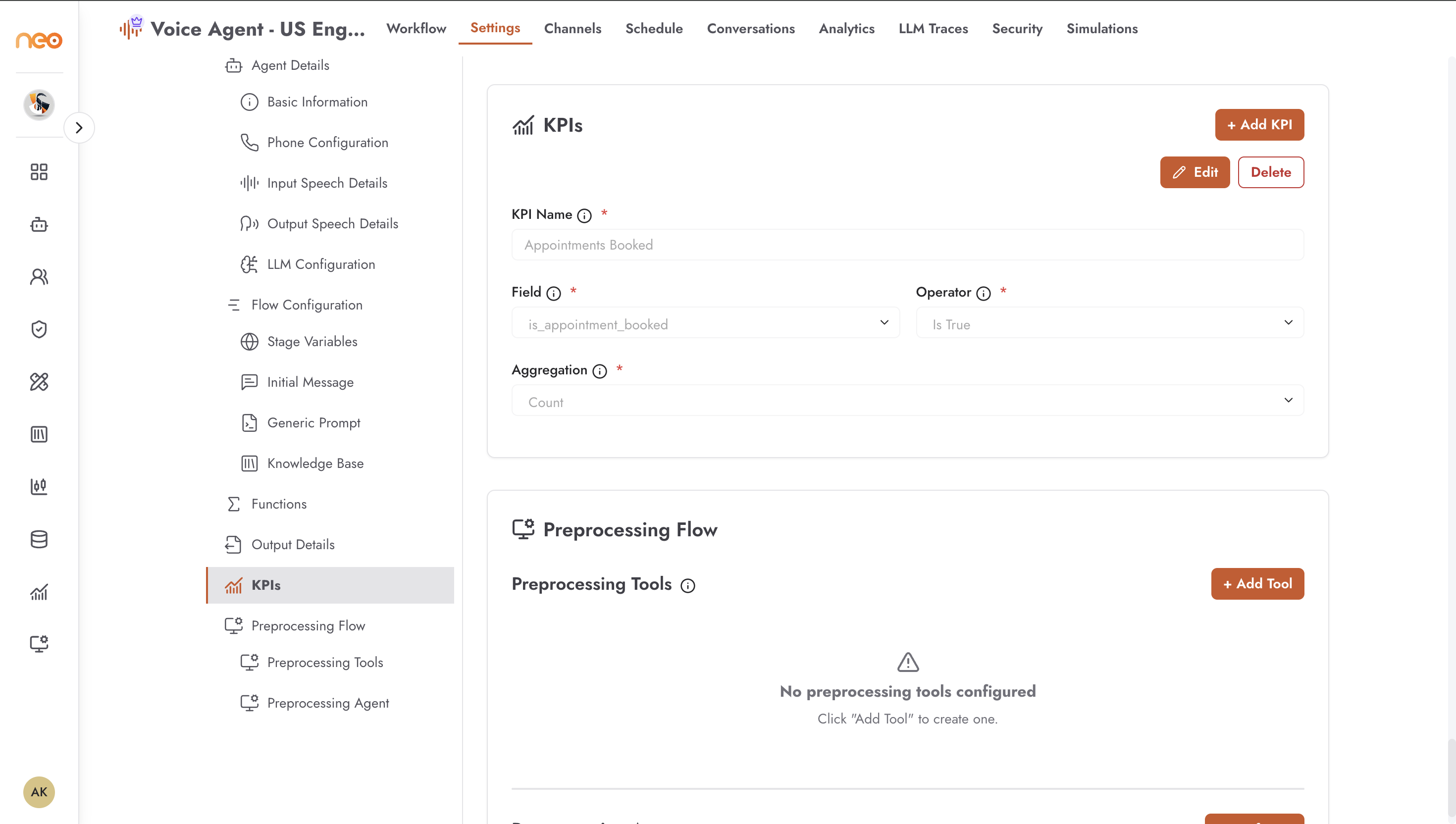
KPIs
Configure key performance indicators to track against conversation outcomes. KPIs are measured per-call and surfaced in the Analytics tab.
Preprocessing Flow
A preprocessing pipeline that runs before the main LLM receives each transcript turn. Consists of:
Preprocessing Tools — custom tools applied to the transcript before passing it to the agent
Preprocessing Agent — a secondary LLM agent that pre-processes or annotates the input
Postprocessing Flow
A postprocessing step that runs on the agent’s response before it is synthesised to audio. Can be used to clean up responses, apply guardrails, or trigger side effects.
Schedule
The Schedule tab manages outbound call campaigns. A campaign dials a list of contacts on a recurring schedule.
Creating a Schedule
Click New Schedule to open the schedule form. Fill in:
Field |
Description |
|---|---|
Schedule Name |
A label for this campaign run. Required. |
CSV File Upload |
A CSV file containing one row per contact. The required column names are shown as hints; the file is validated on upload and missing columns are flagged. Required when creating; optional when editing (leave empty to keep the existing file). |
Days of Week |
Which days the campaign runs. Select individual days, click Select All, or click Weekdays Only as shortcuts. Required. |
Schedule Period |
Start date, end date, start time, and end time for the campaign window. Required. |
Start Immediately |
When checked, the schedule activates as soon as it is created. Once started, the schedule cannot be edited. Only available when creating a new schedule. |
CSV File Format
The required columns are determined by the call parameters defined in the agent’s flow. Download a sample CSV template (shown when no file is uploaded) to see the exact column names expected. Each row represents one outbound call.
Channels
The Channels tab deploys the agent to communication channels beyond telephony. Configure integrations such as WhatsApp, Slack, or other messaging platforms to route incoming messages through the voice agent’s LLM and respond via text.
Conversations
The Conversations tab shows call history for this agent. Each row represents a call with:
Caller details and timestamp
Call duration
Full transcript
Audio recording (if call recording was enabled)
Structured output fields (if an output schema was configured)
Click a row to open the full conversation detail view.
Analytics
The Analytics tab shows usage and cost metrics for this agent over a selectable time range: call volume, average call duration, LLM token usage, and cost breakdown.
LLM Traces
The LLM Traces tab shows a log of every LLM call made during conversations. Each entry shows the prompt, the model response, token counts, and latency. Use this tab to debug unexpected agent behaviour or verify prompt construction.
API Access
The API Access tab provides the endpoint URL and authentication credentials for triggering this agent programmatically via the OneByZero Neo API. Includes code snippets in multiple languages for initiating a call or sending a message through the agent.