Publishing
Publishing a Voice Agent deploys it to the production infrastructure
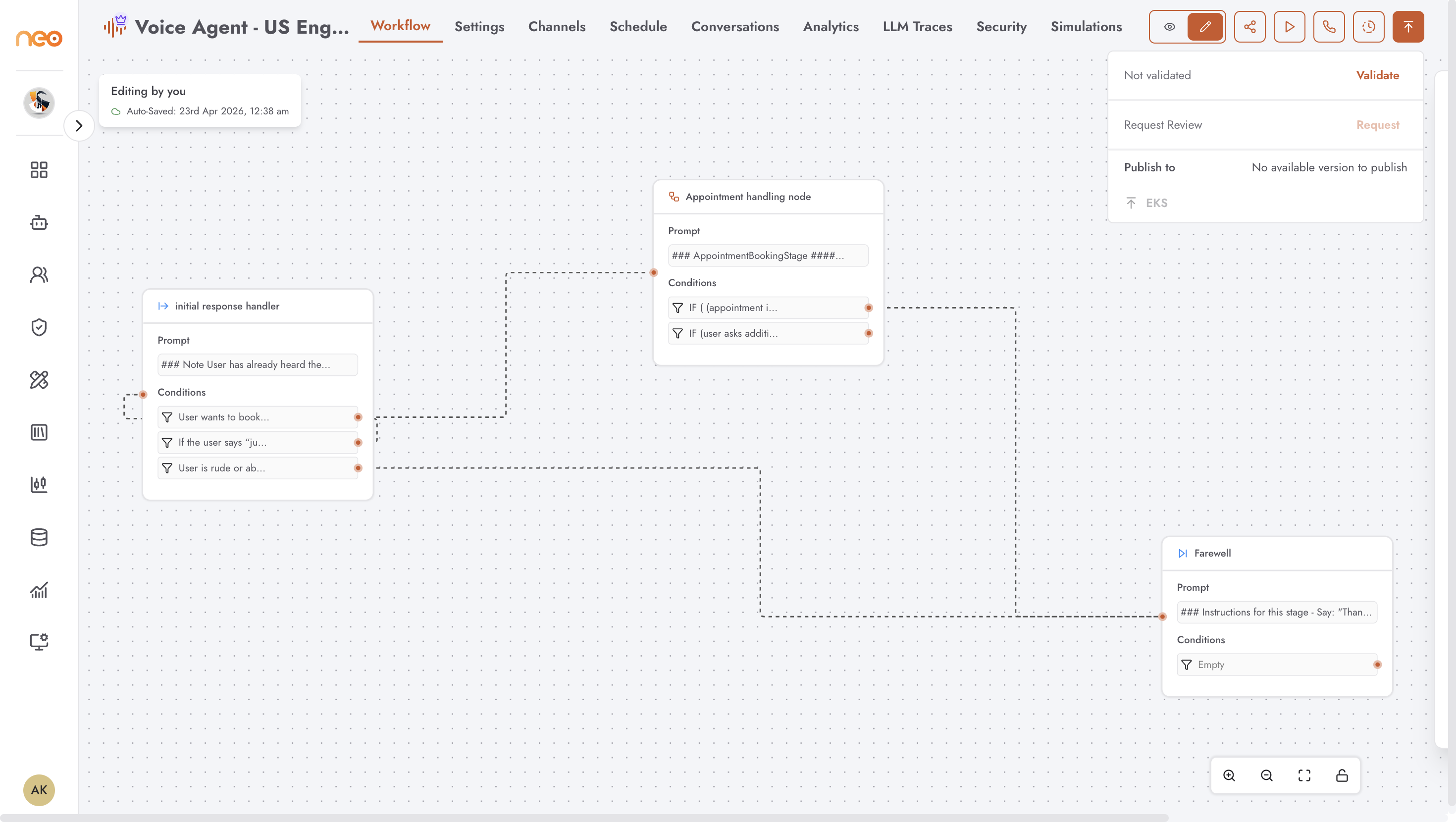
Publish Workflow
The workflow has four stages:
Edit — the agent is in edit mode (locked to the current user). Configuration changes can be saved freely.
Validate — the agent is validated to confirm all required fields are present and the configuration is consistent.
Mark for Review — after a passing validation, submit the agent for approval. The agent moves to Pending Approval status and becomes read-only.
Approve / Reject — a user with approval permissions reviews the agent and either approves (creating a new version and publishing) or rejects (returning it to edit mode with an optional comment).
Accessing the Publish Controls
Click the Publish button (rocket icon) in the header toolbar. A popover opens with the current status and available actions.
The Publish button is disabled when:
The canvas is in read-only mode (not in edit mode)
Another user holds the edit lock
You are viewing a historical version
Step 1: Enable Edit Mode
Click the Edit Mode toggle in the header to take the edit lock. The header updates to show your name as the current editor.
Step 2: Validate
In the Publish popover, click Validate. The platform checks:
All required configuration fields are filled
The Twilio phone number is present
The STT and TTS providers have their required credentials
The LLM configuration is complete
If validation passes, a green checkmark with a timestamp appears. If it fails, an error toast lists the specific issues to resolve.
Step 3: Mark for Review
After a successful validation, click Mark for Review. The agent status changes to Pending Approval and the form becomes read-only. A notification is sent to workspace users with approval permissions.
Step 4: Approve or Reject
A user with the Approve Voice Agents permission sees Approve and Reject buttons in the Publish popover.
Approve — marks the agent as approved, creates a new version snapshot, and publishes to EKS. The version appears in the version history dropdown.
Reject — returns the agent to Available (edit mode). An optional review comment can be added and is displayed to the agent owner.
Publishing to EKS
After approval, click Publish → EKS to deploy the agent to the Kubernetes cluster. A toast confirms success or reports an error. Once published, the agent is live and will handle calls routed to its configured phone number.
Phone Number Setup
For an inbound agent, configure your Twilio phone number’s Voice webhook to point at the platform’s inbound call endpoint. The endpoint URL is available in the API Access tab.
For an outbound agent, the platform dials numbers from a contact list uploaded via the Schedule tab. No webhook configuration is required for outbound.
Versioning
Every approval creates a new numbered version (e.g. v1.0, v2.0). The version dropdown in the header lists all approved versions. Selecting a past version loads it in read-only mode. Click Restore to copy it back as the working draft.