Uploading and Managing Documents
After a knowledge base is created, the detail view is where you manage documents. Click a knowledge base card on the list page to open it.
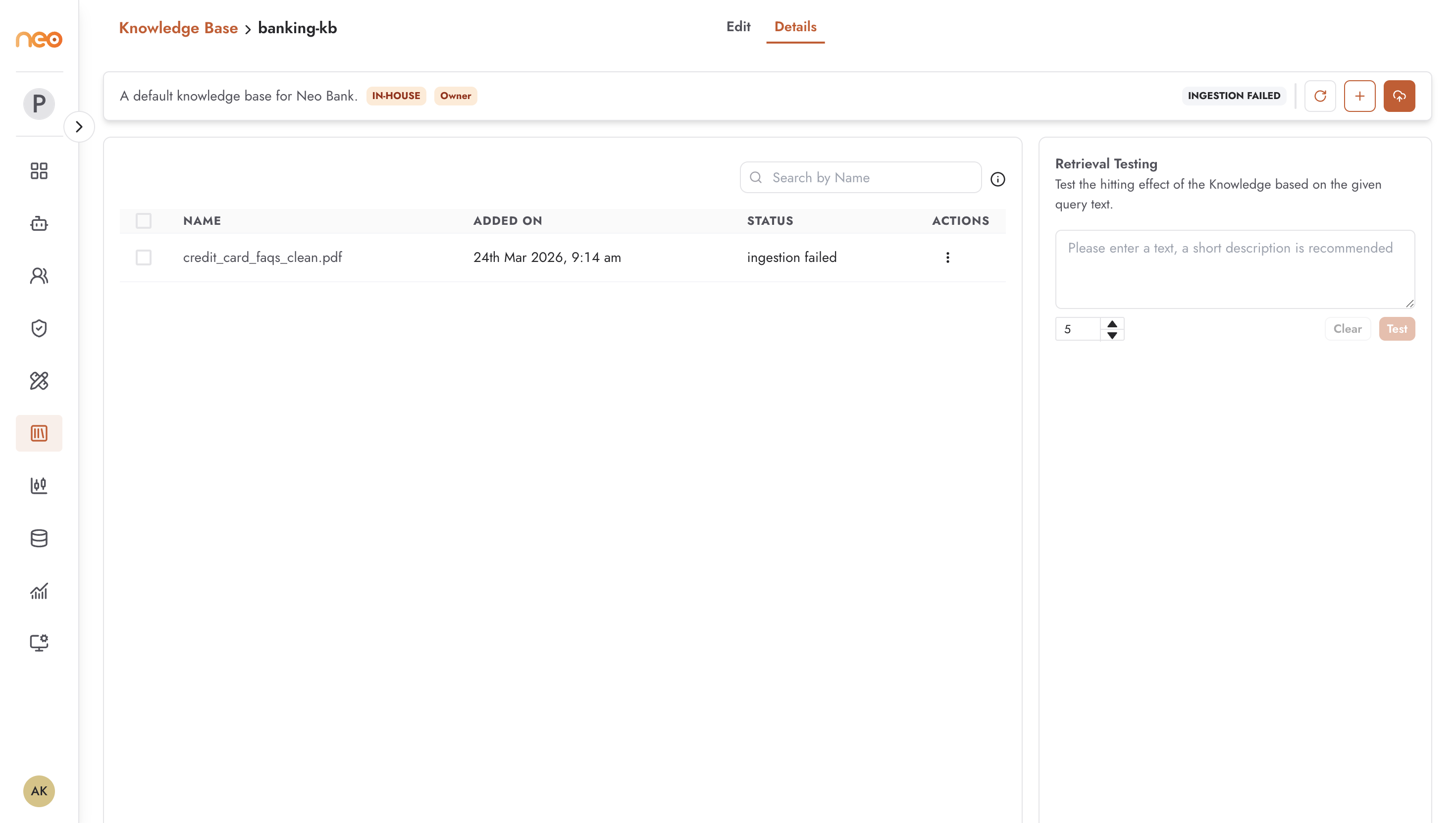
The detail view shows:
Name and description of the knowledge base.
Type badge —
IN-HOUSEorAWS-BEDROCK.Ingestion status — overall status of the last ingestion run (e.g.
ingestion success,ingestion failed).Documents table — all documents in the knowledge base, with columns for document name, upload date, and availability status.
For Bedrock knowledge bases, the detail view also shows the configured data source and sync status.
Uploading Documents (In-House)
Click Add Document to open the upload dialog.
Supported file formats: .pdf, .docx, .pptx, .xlsx, .md, .json
Upload limits: maximum 10 files per upload, 10 MB per file.
Select your files and confirm. Uploaded files appear in the documents table with a pending or processing status.
Ingesting Documents (In-House)
Uploading a file does not immediately make it searchable. You must trigger ingestion to parse, chunk, and embed the documents into the vector store.
After uploading, click Ingest to start the ingestion process. The ingestion status indicator at the top of the detail view updates as the process runs. Once ingestion completes successfully, the documents are available for retrieval by agents.
Re-ingest after adding or removing documents to keep the vector store current.
Managing Documents
The documents table supports the following operations:
View chunks — click the action menu on any document row to navigate to the Chunks view, where you can inspect how the document was split and preview retrieval results. See Chunking and Parsing for details.
Delete — removes the document from the knowledge base. After deletion, re-ingest to update the vector index.
Note
Documents deleted from the knowledge base are removed from the platform. Re-ingestion after deletion ensures the vector store no longer returns chunks from the deleted document.
Updating the Knowledge Base
To update a knowledge base with new or revised content:
Open the knowledge base detail view.
Click Add Document and upload the new or updated files.
If replacing a document, delete the old version first.
Click Ingest to process all changes.
Verify that the ingestion status shows success before relying on the updated content in production agents.