Creating a Knowledge Base
Both knowledge base types are created from the Knowledge Bases page in the Foundry. Click the + button at the top right — the label reflects the active tab: Create In-House Knowledge Base or Create Bedrock Knowledge Base.
Creating an In-House Knowledge Base
In-House knowledge bases are backed by OpenSearch. The creation form has four sections.
Basic Information
Name — unique name for the knowledge base. Choose something descriptive:
hr-policies-2025orproduct-docs-en.Description — a short explanation of what the knowledge base contains. Shown on the card in the list view.
Logo — optional emoji or image icon used on the card.
Parsing Strategy
Controls how uploaded documents are parsed before chunking:
With LLM — uses an LLM to parse document content, better at handling complex layouts, tables, and scanned PDFs.
Without LLM — plain text extraction, faster and lower cost, suitable for clean text documents.
The parsing strategy cannot be changed after the knowledge base is created, as changing it would invalidate existing vector embeddings.
Embedding Model
Select the model used to convert document chunks into vector representations. The available models are fetched from the platform’s embedding model registry. Once set, the embedding model cannot be changed — switching models requires creating a new knowledge base, because existing vectors are not re-embedded automatically.
The selected model determines the Max Tokens per Chunk upper limit. The form auto-fills max tokens when you change the model, but you can adjust it manually.
Chunking Configuration
Max Tokens per Chunk — maximum number of tokens in a single chunk. Range is 100 to the model’s token limit. Smaller chunks yield more precise retrieval; larger chunks preserve more context per result.
Overlap Percentage — percentage of content shared between consecutive chunks (range 5–50%). Overlap helps prevent information at chunk boundaries from being missed during retrieval.
After filling the form, click Create to create the knowledge base. You are taken to the document management view where you can start uploading files.
Creating a Bedrock Knowledge Base
Bedrock knowledge bases delegate storage, embedding, and retrieval to AWS Bedrock. The creation form has four sections.
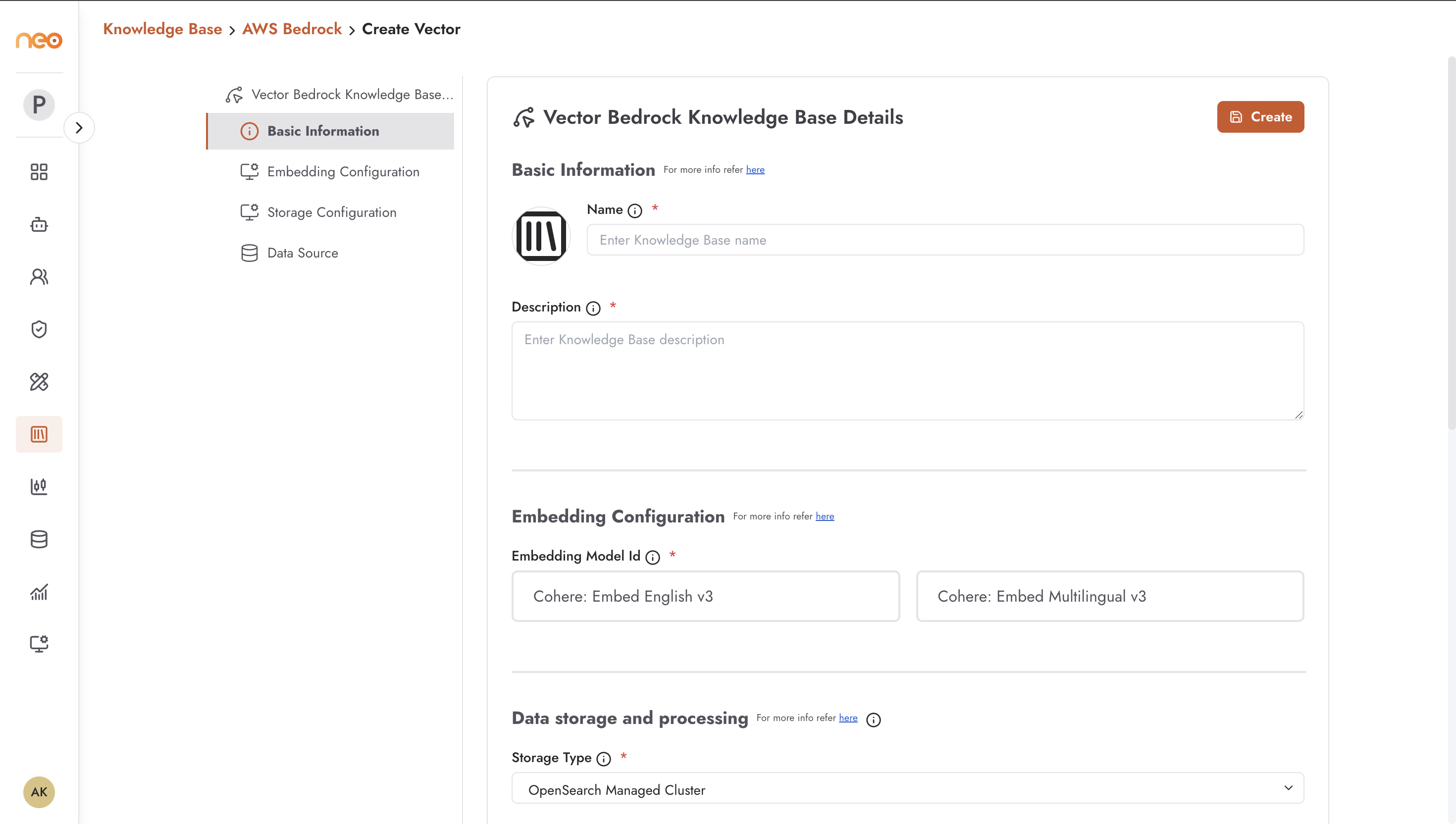
Basic Information
Name — unique name for the knowledge base.
Description — description of the knowledge base.
Embedding Configuration
Select the Embedding Model Id — the Bedrock embedding model that will convert your documents into vectors. Options are fetched from the Bedrock service and vary by region and account configuration.
Data Storage and Processing
Select the Storage Type — the vector store backend where embeddings are persisted. The available options depend on what is enabled for your AWS account. For non-S3 data sources, only OpenSearch Serverless is available.
Data Source
Configure where the knowledge base will pull source documents from. Amazon S3 is the supported data source type — sync files from an S3 bucket by specifying the bucket URI, optional prefix, and syncing behaviour.
You can also supply a metadata file alongside each document. The metadata file must follow the naming convention <filename>.metadata.json. Metadata is associated with each chunk in the vector store, enabling filtered retrieval and document categorisation.
After completing all sections, click Create to provision the Bedrock knowledge base.
Best Practices
Name knowledge bases by domain and audience —
support-kb-en,legal-docs-internal— so agents and team members can identify the right knowledge base quickly.For In-House knowledge bases, choose With LLM parsing only when your documents have complex layouts (PDFs with tables, scanned documents). It adds latency and cost to ingestion.
Keep chunking tokens conservative (500–1000) when you expect users to ask specific, narrow questions. Use larger values (1500–2000) when preserving paragraph context matters more than precision.