Integrations
Integrations are a fundamental component of the OneByZero Neo Foundry that enable your AI agents to connect with external services, enterprise systems, and data sources. By providing agents with access to tools and integrations, you transform them from simple conversational interfaces into powerful assistants capable of taking real actions, retrieving live data, and interacting with your organization’s technology ecosystem.
OneByZero Neo supports three types of integrations, each designed to address different connectivity needs:
In-House Tools - Prebuilt integrations to popular third-party services that are ready to use with minimal configuration
Custom Tools - Flexible integrations with your existing enterprise systems using OpenAPI specifications
MCP (Model Context Protocol) - Support for the emerging MCP standard that enables standardized tool connectivity
Like other Foundry resources, integrations are designed to be created once and reused across multiple agents. This centralized approach to integration management ensures consistency, simplifies maintenance, and enables your organization to establish standardized connectivity patterns that can be leveraged by any agent in your workspaces.
In-House Tools
In-House tools are prebuilt integrations that OneByZero Neo provides out of the box. These integrations connect your agents to popular third-party services and utilities, enabling common capabilities without requiring you to build custom integrations from scratch.
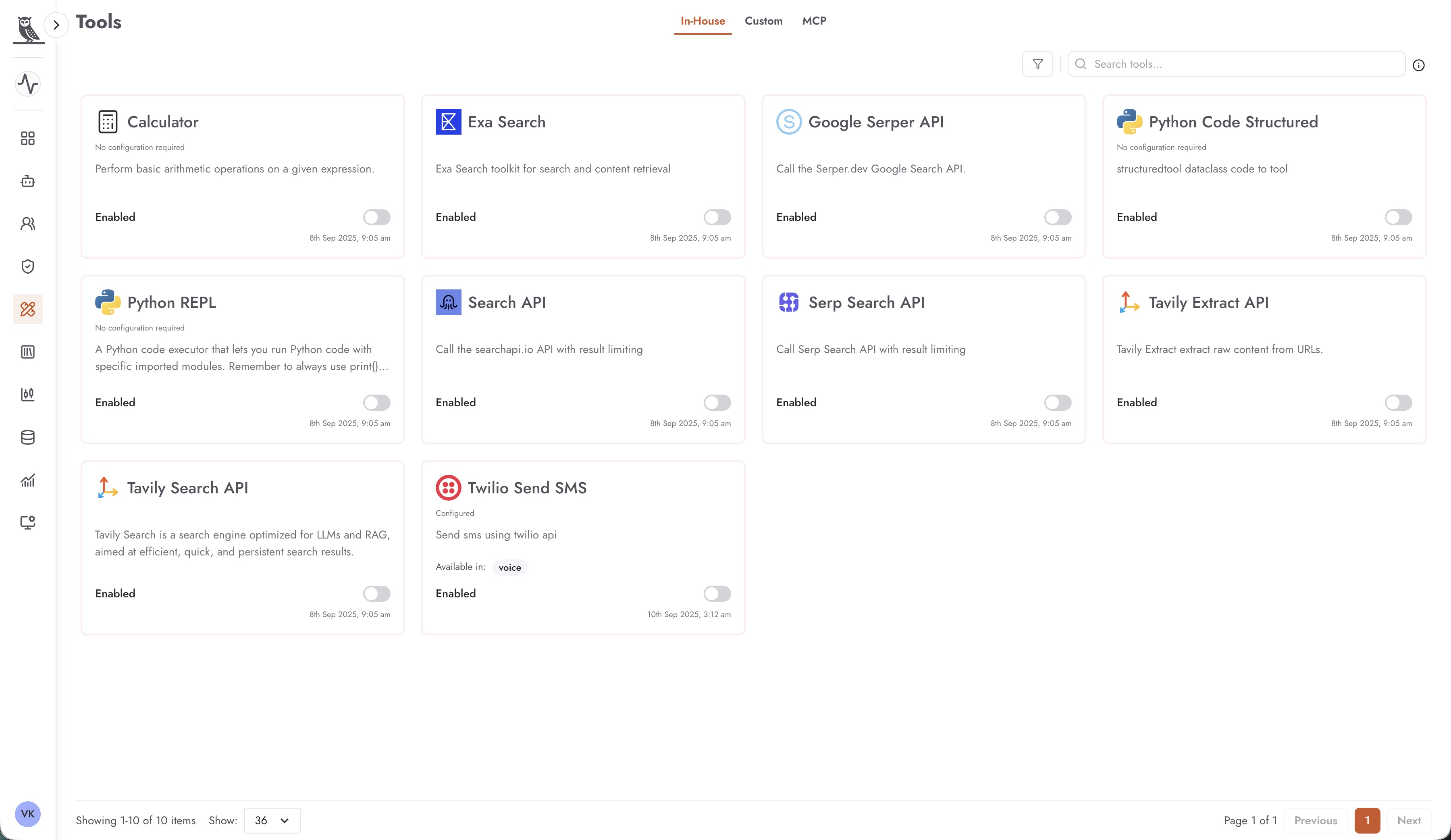
Available In-House Tools
OneByZero Neo includes a growing library of prebuilt integrations to help you get started quickly. The following are examples of In-House tools available in the platform:
Search and Research Tools
Google Serper API - Call the Serper.dev Google Search API to give your agents the ability to search the web and retrieve current information. This is essential for agents that need to answer questions about recent events or find information not contained in their training data.
Exa Search - Exa Search toolkit for search and content retrieval, providing an alternative search capability optimized for AI applications.
Search API - Call the searchapi.io API with result limiting, enabling agents to perform web searches with controlled output.
Serp Search API - Call Serp Search API with result limiting for structured search engine results page data.
Tavily Search API - Tavily Search is a search engine optimized for LLMs and RAG (Retrieval-Augmented Generation), aimed at efficient, quick, and persistent search results. This tool is particularly useful for agents that need to augment their responses with current web information.
Tavily Extract API - Tavily Extract extracts raw content from URLs, allowing agents to retrieve and process the content of specific web pages.
Code Execution Tools
Calculator - Perform basic arithmetic operations on a given expression. This simple but essential tool ensures agents can perform accurate mathematical calculations rather than attempting to compute results using language model inference.
Python REPL - A Python code executor that lets you run Python code with specific imported modules. This powerful tool enables agents to perform complex data processing, analysis, and computations by writing and executing Python code.
Python Code Structured - Structured tool for converting dataclass code to executable tools, enabling more sophisticated code-based operations.
Communication Tools
Twilio Send SMS - Send SMS messages using the Twilio API. This integration enables your agents to send text message notifications, alerts, or responses directly to users’ mobile phones. Particularly valuable for voice agents and notification-based workflows.
Configuration Status
Each In-House tool displays its configuration status:
No configuration required - The tool works out of the box without any additional setup. Examples include Calculator and Python REPL.
Configured - The tool has been set up with the necessary credentials and settings. For example, Twilio Send SMS requires API credentials to be configured before use.
Enabled/Disabled - Toggle to control whether the tool is available for use by agents.
Using In-House Tools
To use an In-House tool with your agents:
Navigate to the Tools section in the Foundry
Browse the In-House tab to find the tool you need
If the tool requires configuration (such as API keys), click on the tool card to access its settings
Configure any required credentials or parameters
Enable the tool to make it available
In your agent’s workflow, you can now add this tool as a capability
In-House tools that show “Available in:” followed by agent type tags (such as “voice”) indicate which types of agents can utilize that particular tool.
Custom Tools
Custom tools provide the flexibility to integrate OneByZero Neo with your existing enterprise systems, internal APIs, and proprietary services. Unlike In-House tools which are prebuilt, custom tools allow you to define integrations tailored to your organization’s specific technology landscape.
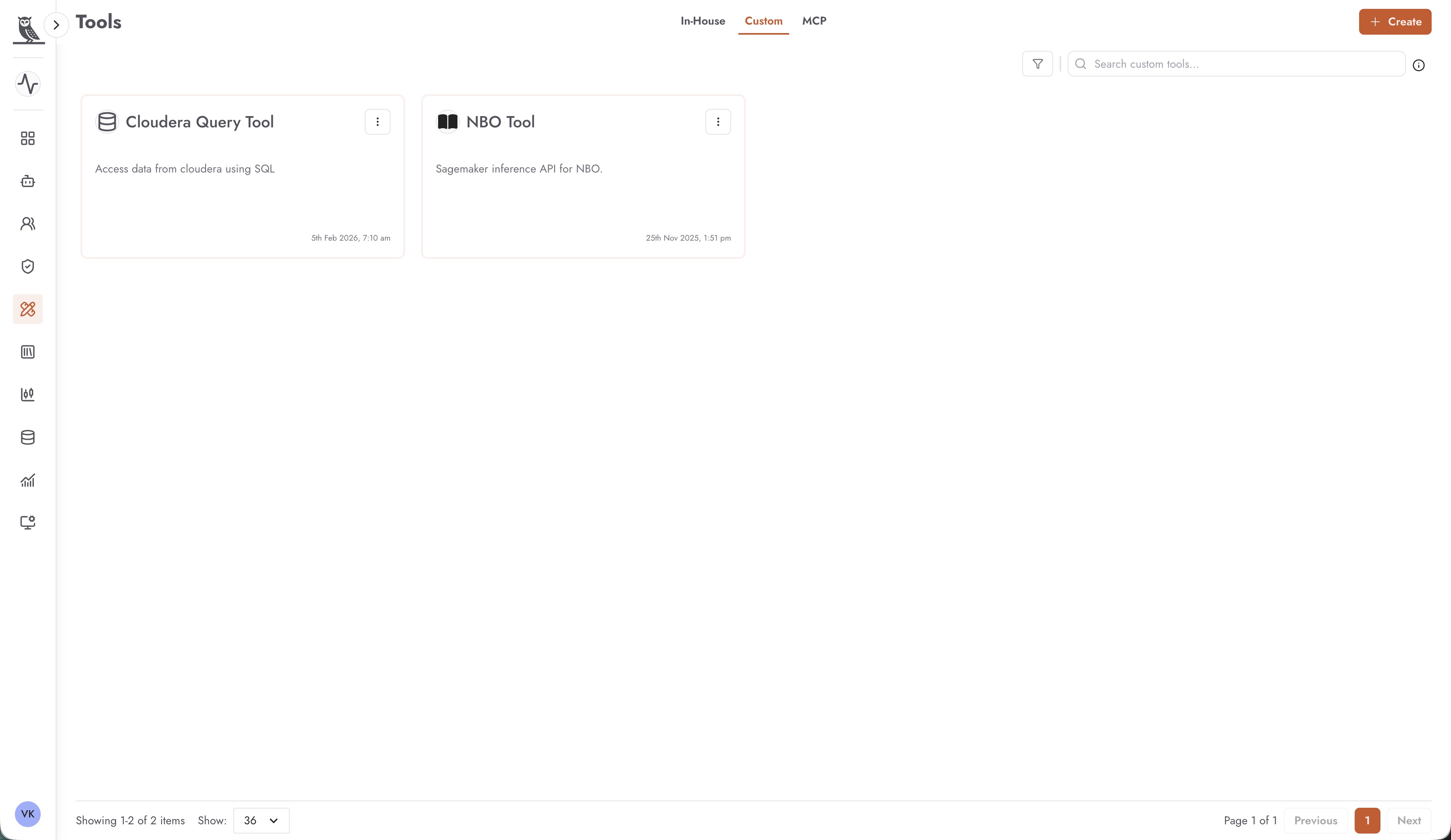
Why Custom Tools Matter
Every enterprise has unique systems and workflows. Your organization might have:
Internal databases that agents need to query
Proprietary APIs that power your business processes
Legacy systems that need to be accessible to AI agents
Third-party services specific to your industry
Custom microservices that handle specialized business logic
Custom tools bridge the gap between OneByZero Neo and these enterprise systems, enabling your agents to become truly integrated participants in your business processes rather than isolated conversational interfaces.
Creating a Custom Tool
To create a custom tool, click the + Create button on the Custom tab. You will need to provide the following:
API Specification (OpenAPI Format)
The foundation of a custom tool is its API specification, which must be provided in OpenAPI format (formerly known as Swagger). The OpenAPI specification is an industry-standard format for describing RESTful APIs that includes:
Available endpoints and operations
Input parameters and their types
Response formats and schemas
Authentication requirements
OneByZero Neo uses this specification to understand how to interact with your API, what parameters to pass, and how to interpret responses. If your enterprise system already has an OpenAPI specification, you can import it directly. If not, you may need to create one that describes your API’s capabilities.
API Endpoint
You must specify the base URL endpoint where your API is accessible. This could be:
An internal API gateway URL
A cloud-hosted service endpoint
A microservice URL within your infrastructure
An external third-party API endpoint
Ensure that the endpoint is accessible from the OneByZero Neo environment. For internal systems, this may require network configuration or the use of secure tunnels.
Authentication Configuration
Most enterprise APIs require authentication to ensure secure access. OneByZero Neo supports various authentication mechanisms for custom tools:
API Key Authentication - Simple key-based authentication passed in headers or query parameters
Bearer Token Authentication - OAuth 2.0 bearer tokens for secure API access
Basic Authentication - Username and password-based authentication
Custom Headers - Additional headers required by your API for authentication or identification
When configuring authentication, you can securely store credentials that will be used when agents invoke the tool. This ensures that sensitive authentication details are managed centrally and not exposed in agent configurations.
Examples of Custom Tools
The Custom Tools section might include integrations such as:
Cloudera Query Tool - Access data from Cloudera using SQL, enabling agents to query enterprise data warehouses and retrieve business intelligence.
NBO Tool - Sagemaker inference API for NBO (Next Best Offer), allowing agents to leverage machine learning models for personalized recommendations.
These examples illustrate how custom tools can connect agents to sophisticated enterprise capabilities, from data querying to machine learning inference.
Best Practices for Custom Tools
Design clear API contracts - Ensure your OpenAPI specifications are well-documented with clear descriptions of what each operation does, what parameters it expects, and what responses it returns.
Implement proper error handling - Your APIs should return meaningful error messages that help agents understand and communicate when operations fail.
Consider rate limiting - Protect your backend systems by implementing appropriate rate limits and communicating these limits in your API responses.
Secure your endpoints - Use HTTPS and appropriate authentication to protect data in transit and ensure only authorized access.
Version your APIs - Include versioning in your API design to allow for future updates without breaking existing integrations.
MCP (Model Context Protocol)
MCP (Model Context Protocol) is an emerging open standard that provides a standardized way for AI models to interact with external tools and data sources. OneByZero Neo’s support for MCP enables you to leverage the growing ecosystem of MCP-compatible servers and tools, providing yet another pathway for extending your agents’ capabilities.
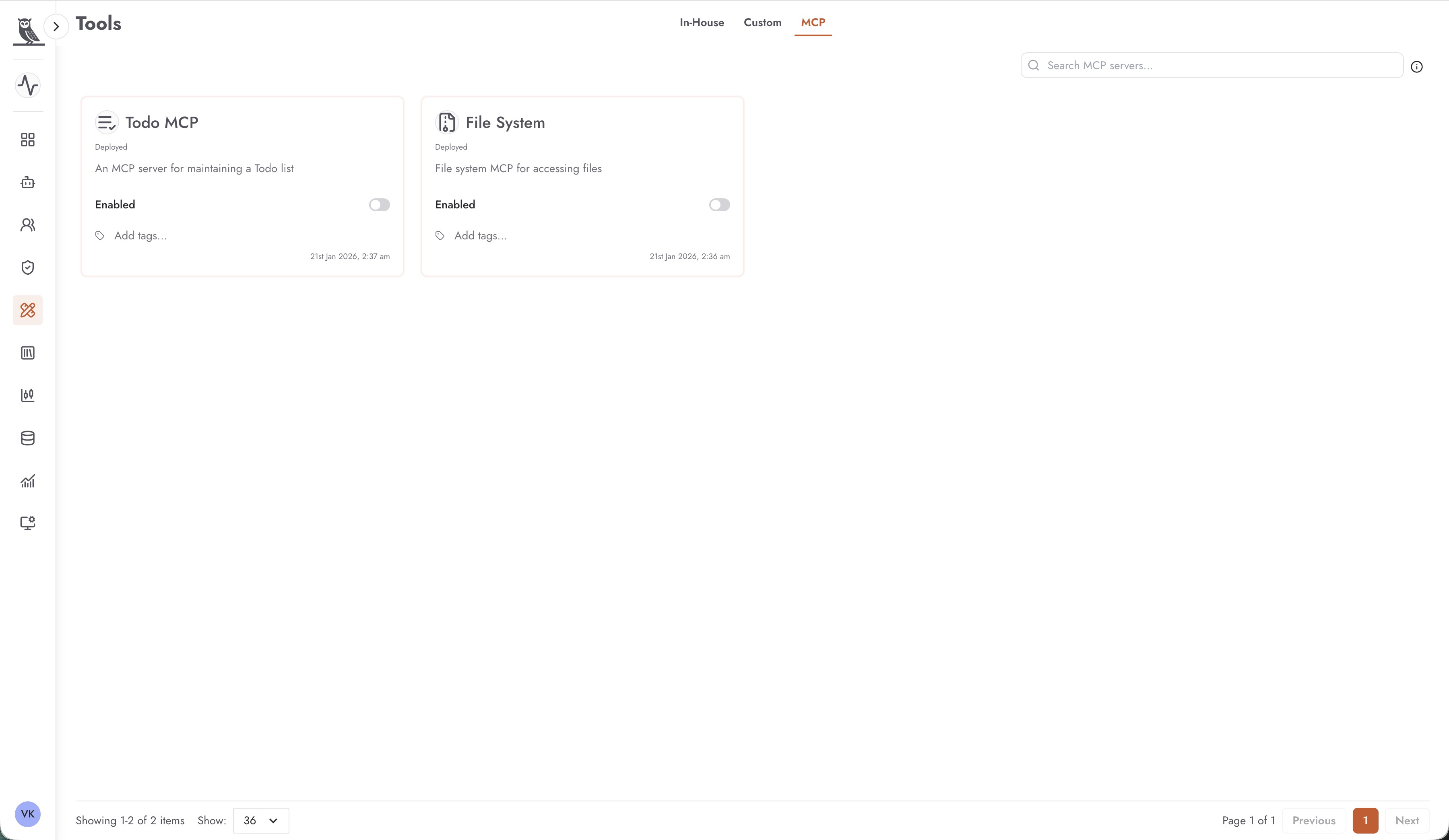
What is MCP?
The Model Context Protocol is designed to solve the challenge of connecting AI models to the external world in a standardized, secure, and extensible way. Rather than each AI platform implementing proprietary integration mechanisms, MCP provides a common protocol that allows:
Standardized Tool Discovery - AI systems can discover what tools are available and what they can do
Consistent Invocation Patterns - Tools are invoked using a common interface regardless of what they do
Secure Context Sharing - Information is shared between AI models and tools in a controlled manner
Ecosystem Interoperability - Tools built for MCP work across different AI platforms that support the protocol
MCP Servers in Neo
In OneByZero Neo, MCP tools are provided by MCP servers that you deploy or connect to. Each MCP server can expose one or more tools that agents can use. The MCP tab in the Tools section shows all configured MCP servers and their status.
MCP Server Properties
Each MCP server card displays:
Name - The identifier for the MCP server (e.g., “Todo MCP”, “File System”)
Status - Shows “Deployed” when the server is running and available
Description - A brief explanation of what capabilities the MCP server provides
Enabled/Disabled - Toggle to control whether the MCP server’s tools are available to agents
Tags - Organizational tags for categorizing and filtering MCP servers
Timestamp - When the MCP server was last updated or deployed
Example MCP Servers
OneByZero Neo can work with various MCP servers, such as:
Todo MCP - An MCP server for maintaining a Todo list, demonstrating how MCP can provide simple but useful organizational capabilities to agents.
File System - File system MCP for accessing files, enabling agents to read, write, and manage files in controlled directories.
These examples represent just a small sample of what’s possible. The MCP ecosystem is growing rapidly, with servers being developed for databases, communication platforms, development tools, and many other use cases.
Benefits of MCP Integration
Future-Proof Architecture - As MCP adoption grows, your Neo deployment can leverage new MCP servers without requiring custom integration work.
Community-Driven Tools - Benefit from MCP servers developed by the broader AI community, not just those built specifically for OneByZero Neo.
Standardized Security Model - MCP includes security considerations in its design, providing a consistent approach to authentication and authorization across tools.
Simplified Development - If you need to build custom integrations, developing an MCP server provides a tool that can work with Neo and potentially other AI platforms.
Deploying MCP Servers
To use MCP tools in OneByZero Neo:
Deploy an MCP server that provides the capabilities you need (either a pre-built server or one you develop)
Configure the MCP server connection in the Neo Foundry
Enable the MCP server to make its tools available
Add the MCP tools to your agents’ available tool sets
Managing Integrations
The Tools page provides a unified interface for managing all three types of integrations:
Search and Discovery
Use the search box at the top of each tab to find specific tools by name. As your library of integrations grows, search becomes essential for quickly locating the tool you need.
Filtering and Organization
Apply tags to your custom tools and MCP servers to organize them by category, department, use case, or any other taxonomy that makes sense for your organization.
Enabling and Disabling
Each tool has an Enabled/Disabled toggle that controls whether it’s available for agents to use. This allows you to:
Temporarily disable tools during maintenance
Control which tools are available in different environments
Quickly revoke access to a tool if issues are discovered
Tool Availability
Once tools are enabled in the Foundry, they become available for use in agent workflows. When configuring an agent, you can select which tools the agent should have access to, allowing you to create agents with precisely the capabilities they need for their specific use cases.
Governance and Compliance
By centralizing integration management in the Foundry, organizations can:
Maintain visibility into what external systems agents can access
Enforce approval processes for new integrations
Audit tool usage across agents
Ensure compliance with data access policies
Standardize authentication and credential management