Command Center
The Command Center is the place where you can see all the agents available in a workspace.
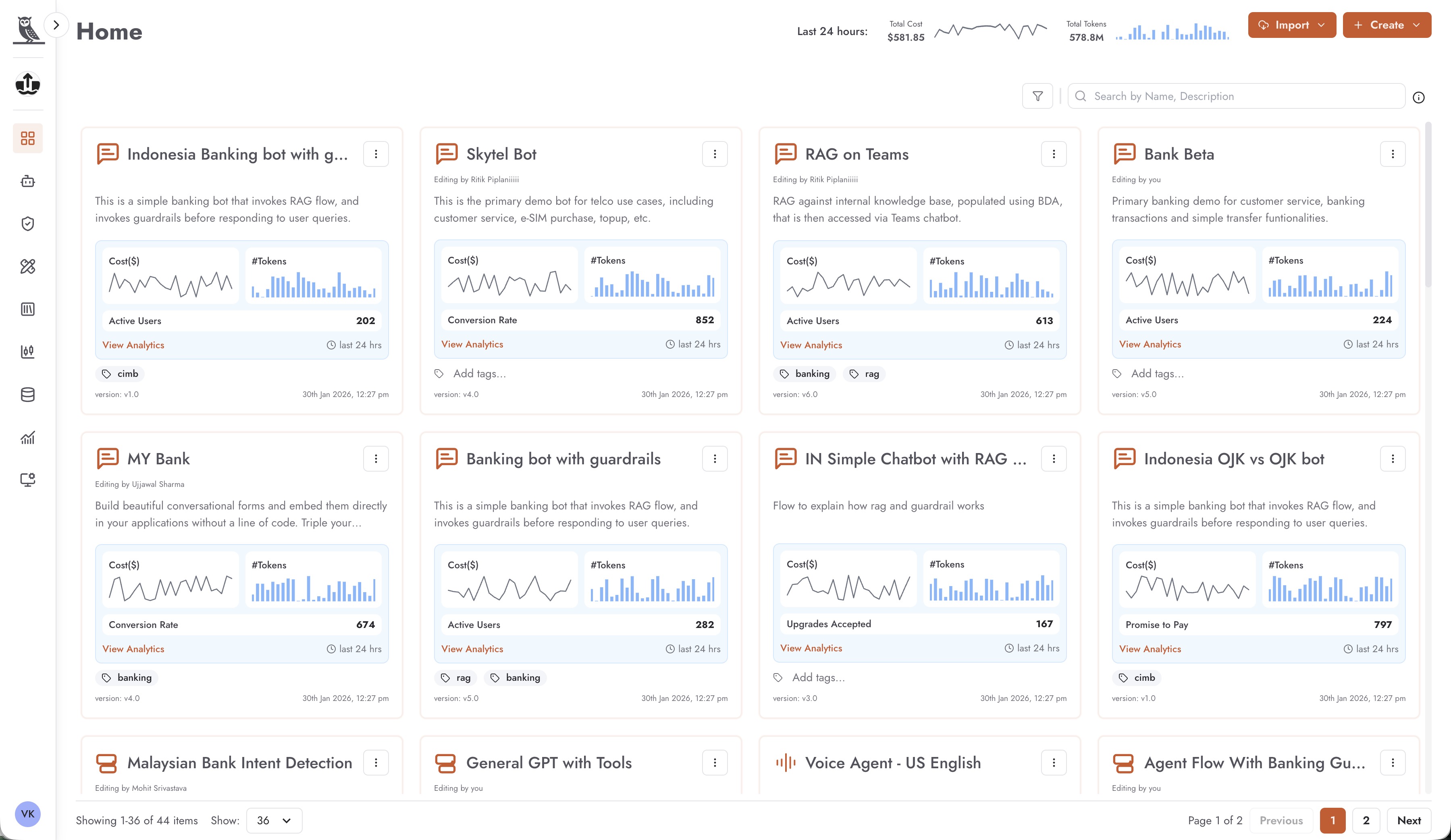
At the top-right corner of the Command Center, you will find two important sections that provide valuable insights and quick actions.
Usage Overview Charts
Two charts display real-time usage metrics for all agents within the workspace:
Total Cost Incurred - This chart shows the cumulative cost incurred by all agents in the workspace over the last 2 hours. This helps you monitor spending and keep track of resource consumption in near real-time.
Total Tokens Consumed - This chart displays the total number of tokens consumed by all agents in the workspace during the last 2 hours. Token consumption is a key metric for understanding agent activity levels and optimizing performance.
These charts provide a quick snapshot of workspace activity, allowing you to identify usage patterns and detect any unexpected spikes in cost or token consumption.
Import and Create Actions
Two action buttons are available to help you manage agents in your workspace:
Import - The Import button allows you to import an agent manifest from another Neo instance or workspace into the current workspace. This is useful when you want to replicate an agent configuration from a different environment, share agents across teams, or migrate agents between workspaces. The import process brings in the agent’s configuration, settings, and associated metadata.
Create - The Create button allows you to create new agents from scratch. Clicking this button presents you with options to create different types of agents:
Chat Agents - Conversational agents designed for text-based interactions
Voice Agents - Agents optimized for voice-based conversations and audio interactions
Flow Agents - Agents that follow structured workflows and decision trees for more complex, multi-step processes
Filtering and Search
The filters available on the top-right enable you to filter the view by type of agents or by tags. Additionally, the search box can be used to search across the names of the agents.
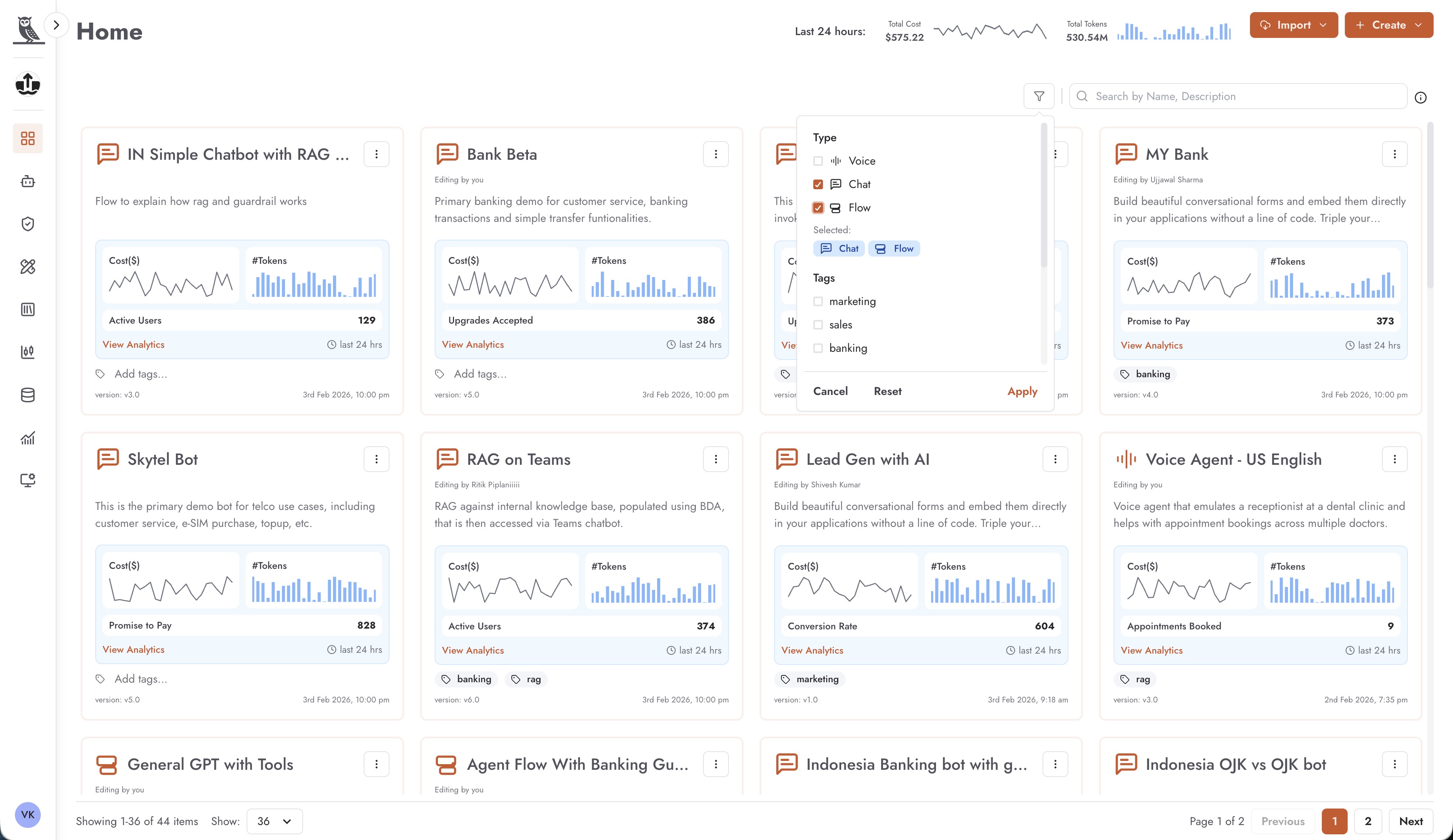
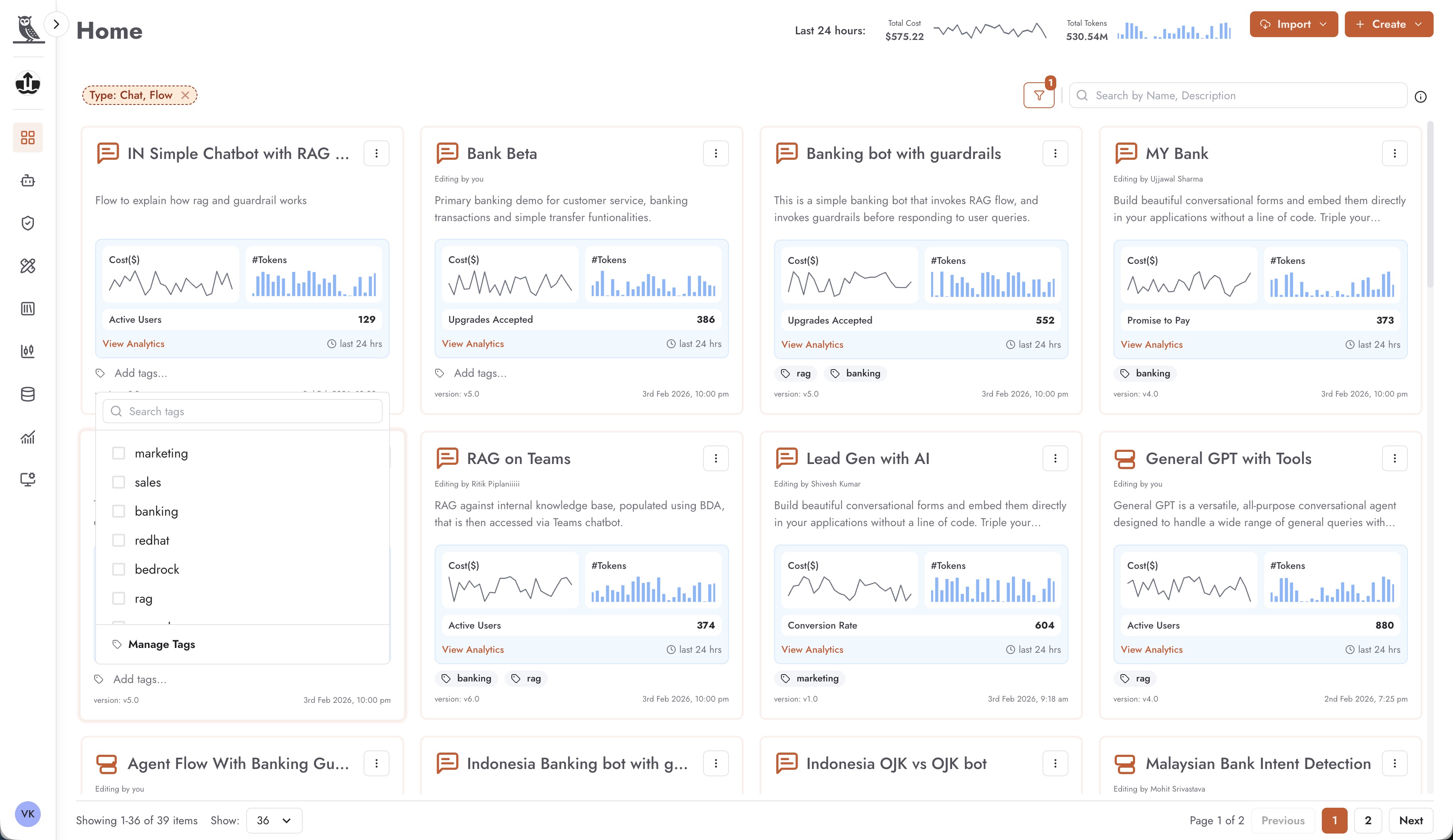
Tags can be associated with any agent. To add a tag, click on an existing tag on the agent card or the “Add tags” text. You can then select the existing tags you want to add. Use “Manage tags” in the same popup to add or delete tags.
Agent Cards
Each agent in the Command Center is represented by an agent card, which provides a comprehensive overview of the agent at a glance. Agent cards are designed to give you quick access to essential information without needing to navigate into the agent’s detailed configuration.
Each agent card displays the following information:
Agent Name - The name of the agent, prominently displayed at the top of the card for easy identification.
Description - A brief description of what the agent does, helping you quickly understand the agent’s purpose and functionality.
Cost and Token Usage Charts - Each agent card includes small charts that visualize the cost incurred and tokens consumed by that specific agent. These charts help you monitor individual agent performance and resource consumption directly from the Command Center.
Key Performance Indicators (KPIs) - If configured, agent cards can display custom KPIs that are relevant to the agent’s function. These KPIs provide meaningful metrics specific to what the agent is designed to accomplish. KPIs can be custom configured for any agent, allowing you to track the metrics that matter most for your use case. For example, a customer support agent might display metrics like resolution rate or average response time, while a sales agent might show conversion rates or lead qualification scores.
Clicking on any agent card takes you directly to the agent’s underlying workflow and configuration editor. From there, you can view and modify the agent’s behavior, adjust its settings, update its knowledge sources, configure guardrails, and manage all other aspects of the agent’s configuration. This seamless navigation allows you to quickly move from monitoring your agents in the Command Center to making detailed adjustments in the editor.
Creating a Chat Agent
When you create a new chat agent or click on an existing chat agent card, you are taken to the agent editor interface. This interface is organized into multiple tabs, each serving a specific purpose in configuring, deploying, and monitoring your chat agent.
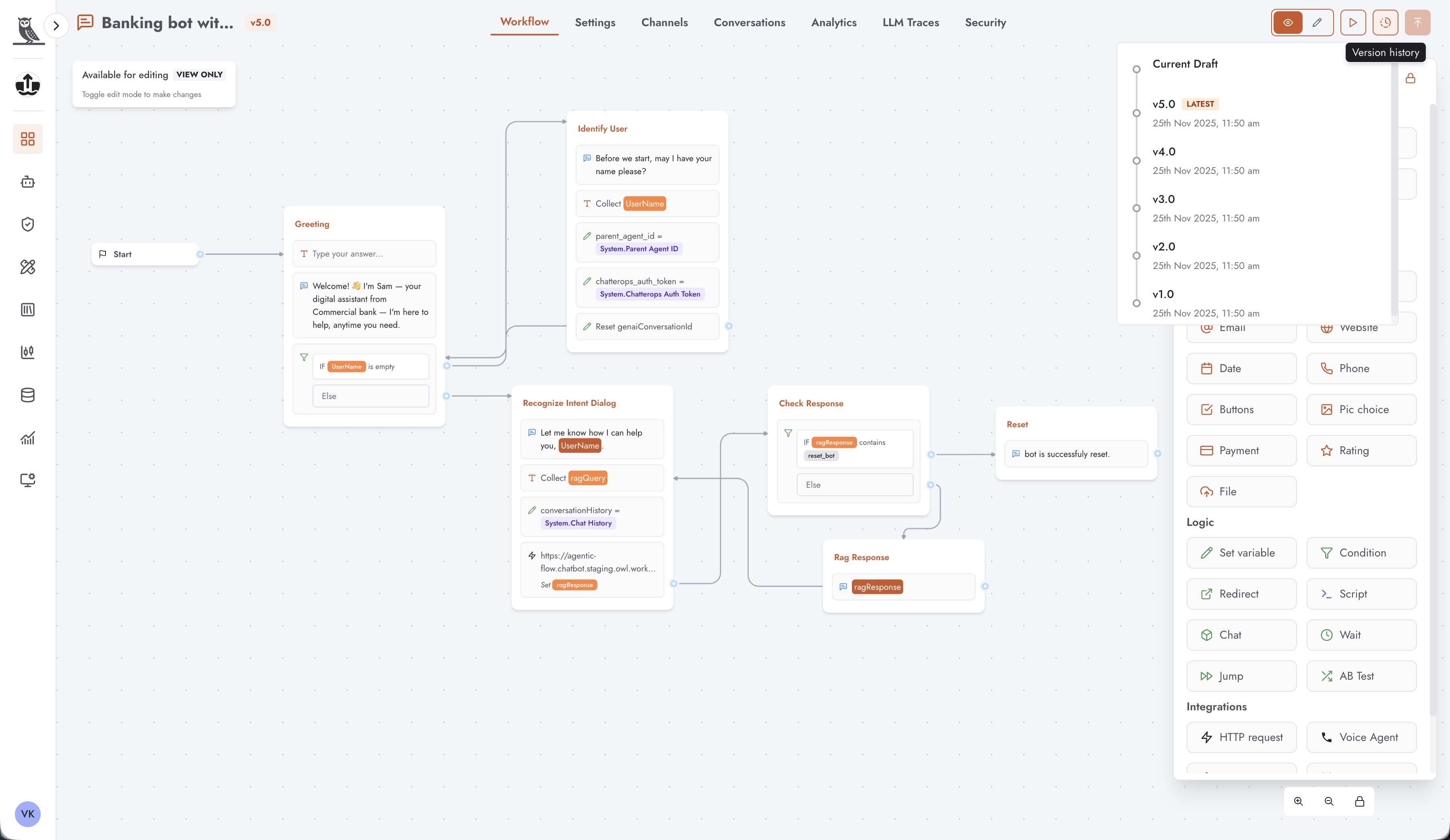
The following tabs are available in the chat agent editor:
- Workflow
The Workflow tab provides a Low-Code/No-Code (LCNC) interface for designing and building your chat agent. This visual editor allows you to create conversational flows, define agent behavior, configure prompts, connect to knowledge bases, and set up integrations without writing complex code. The intuitive drag-and-drop interface makes it easy to build sophisticated conversational experiences by connecting different components and defining the logic that governs how your agent responds to user inputs.
- Settings
The Settings tab contains a variety of configuration options for your agent. Here you can define the agent’s name, description, and other metadata. You can also configure behavioral settings, response parameters, model selection, temperature settings, and other options that control how your agent operates. This tab serves as the central location for managing all the core settings that define your agent’s identity and behavior.
- Channels
The Channels tab is where you select and configure the endpoints where your agent will be available to users. OneByZero Neo supports multiple communication channels, allowing you to deploy your agent across various platforms including:
Viber - Deploy your agent on the Viber messaging platform
Telegram - Make your agent available through Telegram
Webchat - Embed your agent as a web chat widget on your website or application
Each channel can be configured independently, allowing you to customize the agent’s behavior and appearance for different platforms while maintaining a single underlying agent configuration.
- Conversations
The Conversations tab provides access to transcripts of all conversations that have taken place with your agent. This comprehensive log allows you to review how users are interacting with your agent, identify common questions or issues, and understand the quality of responses being provided. Conversation transcripts are invaluable for debugging, quality assurance, and continuous improvement of your agent’s performance.
- Analytics
The Analytics tab displays metrics and insights specific to this agent. Here you can view detailed statistics about usage patterns, response times, user satisfaction, and other performance indicators. These agent-specific analytics help you understand how well your agent is performing and identify opportunities for optimization and improvement.
- LLM Traces
The LLM Traces tab provides detailed traces of all Large Language Model (LLM) calls made by your agent. This includes information about the prompts sent to the model, the responses received, token usage, latency, and other technical details. LLM traces are essential for debugging complex agent behaviors, optimizing prompt engineering, and understanding the underlying mechanics of your agent’s responses.
- Security
The Security tab is where you configure API-based access to your agent. Here you can manage authentication settings, generate and revoke API keys, set up access controls, and define security policies that govern how external systems can interact with your agent programmatically. This tab ensures that your agent can be securely integrated into your broader technology ecosystem while maintaining appropriate access controls.
Creating a Voice Agent
Voice agents are specialized agents designed for voice-based conversations and audio interactions. Unlike traditional chat agents that rely on text-based communication, voice agents are optimized for spoken dialogue, making them ideal for phone-based customer service, automated calling campaigns, interactive voice response (IVR) systems, and other telephony applications.
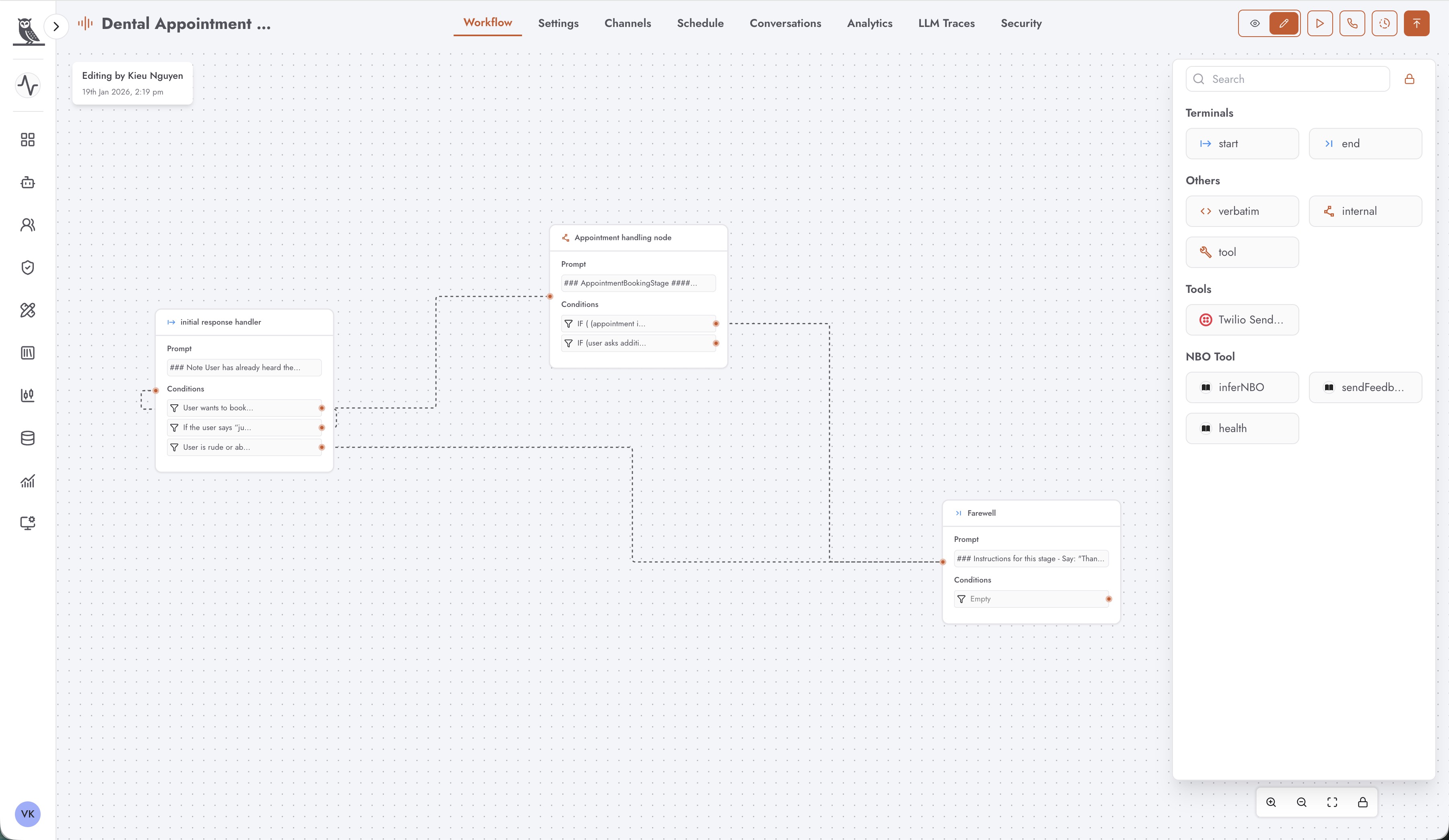
The voice agent architecture is built around the concept of conversational stages. Each voice agent workflow consists of multiple conversational stages that are stitched together to form a complete voice interaction experience. This stage-based approach allows you to design natural, flowing conversations that guide callers through specific processes while maintaining flexibility to handle unexpected user responses.
Conversational Stages
At the heart of every voice agent is a series of conversational stages. Each stage represents a distinct phase of the conversation with a specific purpose and goal. For example, a dental appointment booking voice agent might have stages for:
Initial Response Handler - The opening stage that greets the caller and identifies the purpose of their call
Appointment Handling Node - A stage dedicated to collecting appointment details, checking availability, and confirming bookings
Farewell - The closing stage that summarizes the interaction and provides a professional conclusion to the call
Each stage contains its own prompt instructions that guide the voice agent’s behavior during that phase of the conversation. The prompts define what the agent should say, what information it should collect, and how it should respond to various user inputs. Stages also include conditions that determine how the conversation should progress based on what the user says or what information has been gathered.
Dynamic Routing Between Stages
One of the most powerful features of voice agents is the intelligent routing between conversational stages. Unlike rigid IVR systems that follow predetermined paths, voice agents use dynamic routing that is determined by the actual conversation happening in each stage. This means the flow of the conversation adapts in real-time based on:
What the caller says and the intent detected from their speech
Information collected during the conversation
Conditions defined within each stage that evaluate the current conversation context
External data retrieved from integrated systems
For instance, if a caller mentions they want to reschedule an existing appointment rather than book a new one, the voice agent can automatically route to an appointment modification stage instead of the new booking stage, even if the caller initially entered through a general inquiry path.
Voice Agent Editor Tabs
When you create a new voice agent or click on an existing voice agent card, you are taken to the voice agent editor interface. This interface includes several tabs that are common to other agent types, plus a specialized tab for voice-specific functionality:
- Workflow
The Workflow tab provides the visual canvas where you design your voice agent’s conversational flow. Here you can create and configure conversational stages, define the prompts and instructions for each stage, set up conditions for routing between stages, and connect to tools and external systems. The workflow editor displays your stages as connected nodes, making it easy to visualize and manage the entire conversation flow.
- Settings
The Settings tab contains configuration options for your voice agent, including the agent’s name, description, voice selection, speech recognition settings, and other parameters that control how your agent handles voice interactions. You can configure aspects such as the voice persona, speaking rate, language settings, and timeout behaviors.
- Channels
The Channels tab is where you configure the telephony endpoints for your voice agent. This includes setting up phone numbers, SIP trunks, or other voice communication channels through which users can interact with your agent.
- Schedule
The Schedule tab is unique to voice agents and provides functionality for scheduling outbound calls. This powerful feature allows you to configure your voice agent to proactively place calls to customers or contacts at specified times. Use cases for scheduled outbound calls include:
Appointment Reminders - Automatically call patients or customers to remind them of upcoming appointments
Follow-up Calls - Schedule calls to follow up with customers after a service interaction or purchase
Survey and Feedback Collection - Reach out to customers to collect feedback or conduct satisfaction surveys
Proactive Notifications - Alert customers about important updates, changes, or time-sensitive information
Outbound Sales Campaigns - Conduct scheduled outreach for sales or marketing purposes
The scheduling interface allows you to define when calls should be placed, manage call lists, set retry policies for unanswered calls, and configure the behavior of your voice agent during these outbound interactions.
- Conversations
The Conversations tab provides access to transcripts and recordings of all voice conversations that have taken place with your agent. You can review call details, listen to recordings, read transcriptions, and analyze how callers are interacting with your voice agent.
- Analytics
The Analytics tab displays voice-specific metrics and insights, including call duration, completion rates, stage progression analysis, and other performance indicators that help you understand and optimize your voice agent’s effectiveness.
- LLM Traces
The LLM Traces tab provides detailed traces of all Large Language Model calls made during voice conversations, helping you debug and optimize your agent’s behavior.
- Security
The Security tab allows you to configure API-based access to your voice agent and manage authentication settings for programmatic integrations.
Building Effective Voice Workflows
When designing voice agent workflows, consider the following best practices:
Keep stages focused - Each conversational stage should have a clear, single purpose. This makes the workflow easier to understand and maintain.
Plan for the unexpected - Voice conversations can be unpredictable. Include conditions that handle off-topic responses or requests to speak with a human agent.
Use appropriate prompts - Voice prompts should be conversational and natural-sounding. Avoid overly formal or robotic language.
Consider timing - Voice interactions have different timing expectations than text. Configure appropriate pauses and allow sufficient time for callers to respond.
Test thoroughly - Voice agents should be tested with real voice interactions to ensure they handle various accents, speaking styles, and background noise appropriately.
Creating a Flow Agent
Flow agents provide a powerful way to build custom agentic flows that can be invoked by other agents or external systems. Unlike chat agents which are designed primarily for direct user interactions, flow agents are purpose-built to encapsulate specific capabilities and workflows that can be reused across your agent ecosystem.
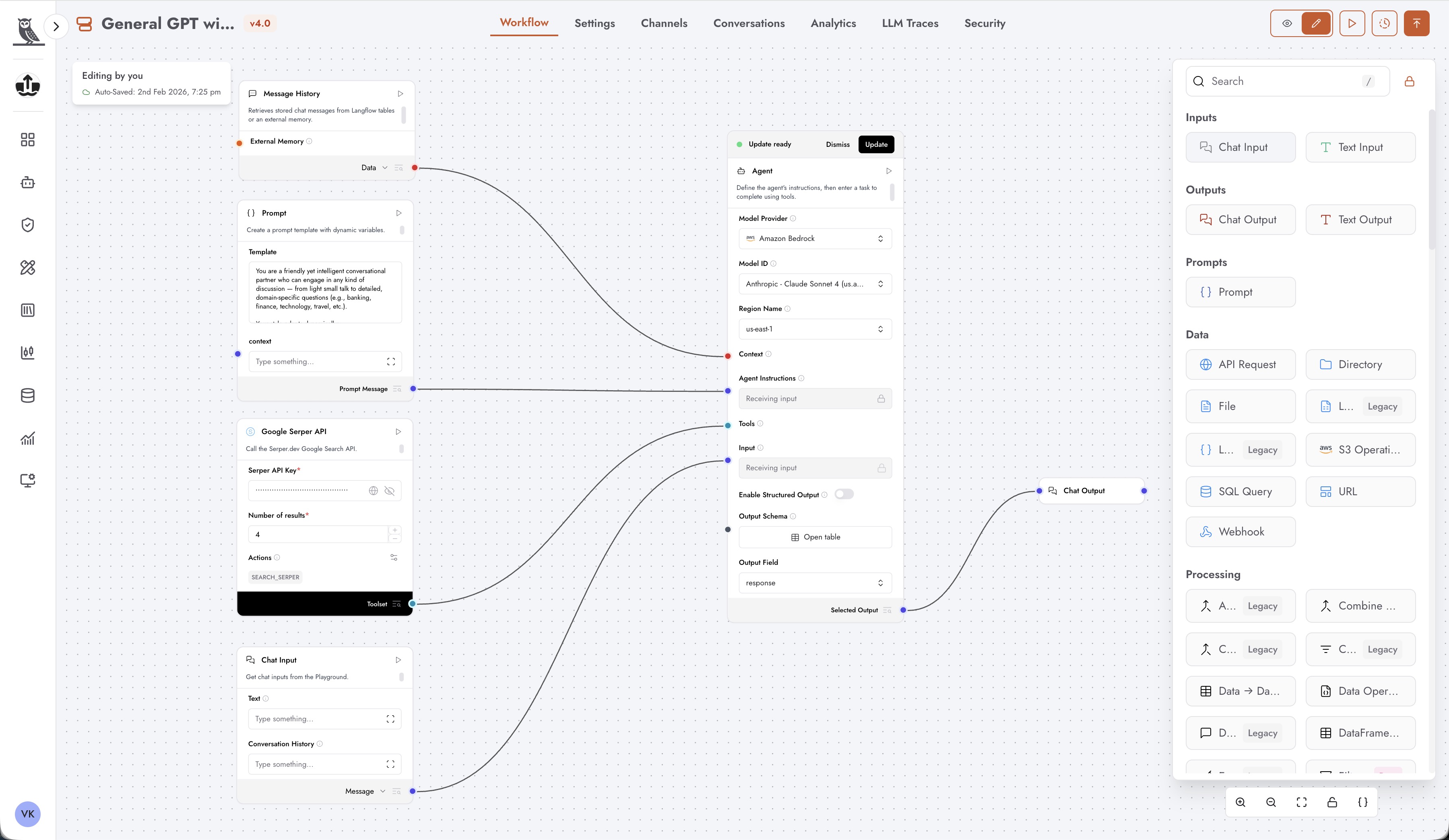
The flow agent editor interface includes tabs similar to those found in the chat agent editor, including Workflow, Settings, Analytics, LLM Traces, and Security. These tabs function in the same way, allowing you to design workflows, configure settings, monitor performance, debug LLM calls, and manage API access.
Use Cases for Flow Agents
Flow agents are particularly useful for building modular, reusable capabilities that can be shared across multiple agents. Common use cases include:
Intent Recognition - Create a specialized flow agent that analyzes user input and determines the user’s intent. Chat agents can invoke this flow agent to understand what the user is trying to accomplish before deciding how to respond.
RAG (Retrieval-Augmented Generation) - Build a flow agent dedicated to retrieving relevant information from knowledge bases and augmenting LLM responses with factual, up-to-date information. This allows multiple chat agents to leverage the same RAG capabilities without duplicating configuration.
Custom Business Logic - Encapsulate complex business processes, calculations, or decision trees in a flow agent that can be called by other agents when needed.
Data Processing Pipelines - Create flow agents that handle data transformation, validation, or enrichment tasks as part of a larger conversational workflow.
API Invocation
Flow agents can be invoked directly using APIs, making them accessible to external systems and applications. This enables you to integrate your flow agents into existing business processes, trigger them from external events, or incorporate them into custom applications. The Security tab allows you to configure authentication and access controls for API-based invocations.
Agent Composability
One of the most powerful features of flow agents is their support for agent composability through the “Agent as a Tool” capability. This feature allows the capabilities of one agent to be made available to another agent as a tool. With agent composability, you can:
Build Specialized Agents - Create focused agents that excel at specific tasks, such as document analysis, sentiment detection, or language translation.
Combine Capabilities - Allow a primary agent to leverage the specialized capabilities of multiple flow agents, effectively combining their strengths into a more powerful composite agent.
Maintain Modularity - Keep your agent architecture clean and maintainable by separating concerns into distinct flow agents that can be developed, tested, and updated independently.
Enable Reusability - Design flow agents once and reuse them across multiple chat agents or other flow agents, reducing duplication and ensuring consistency.
This composable architecture allows you to build sophisticated, multi-agent systems where each agent contributes its specialized capabilities to achieve complex goals that would be difficult to accomplish with a single monolithic agent.