Managing Dataset Items
Viewing and Editing an Item
Click the action menu on any item row and select Edit to open the Edit Item dialog.
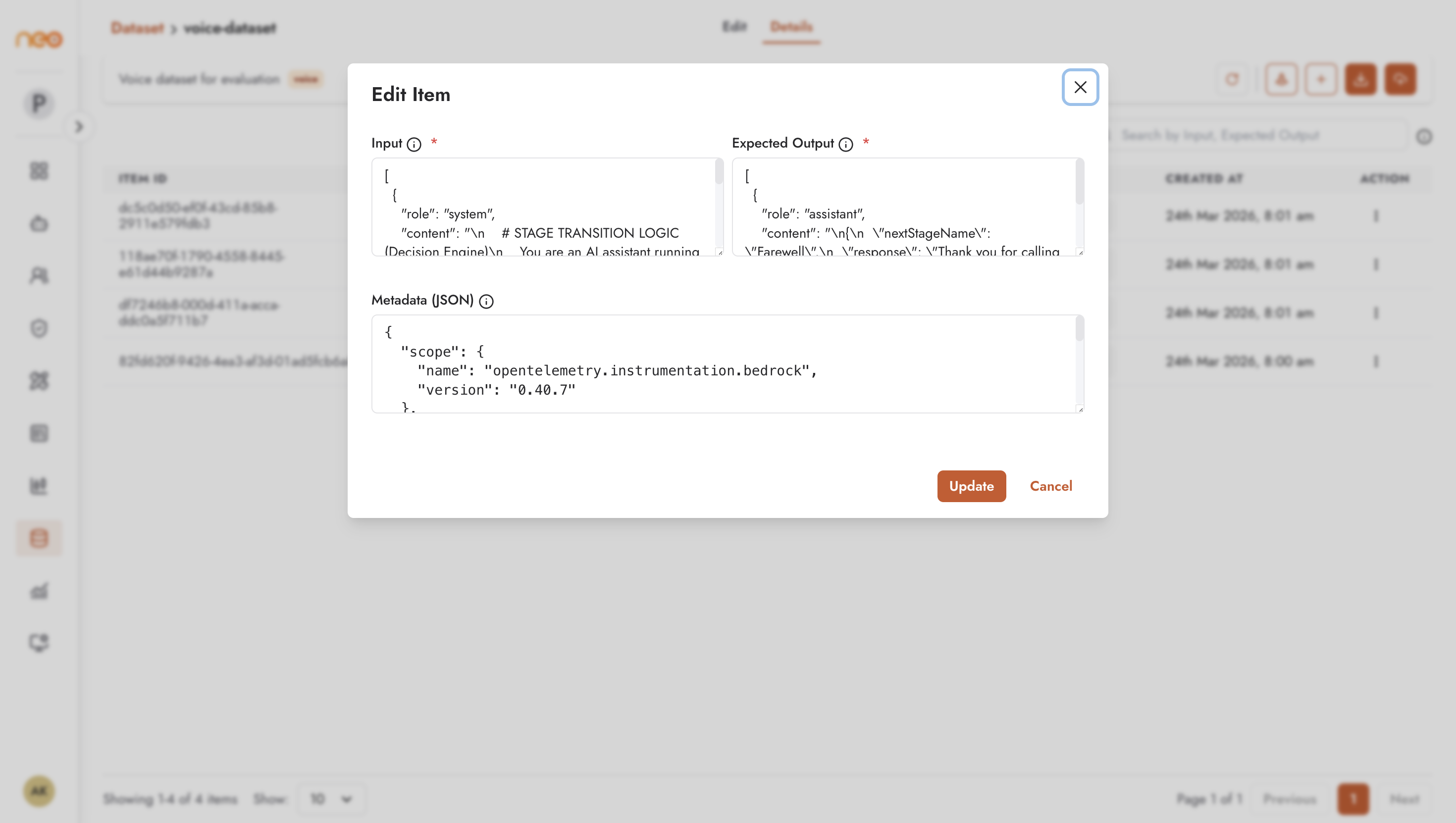
The dialog contains three fields:
Input
The input that will be provided to the agent during evaluation. This is typically a JSON array representing the conversation messages, following the role/content format:
[
  {
    "role": "system",
    "content": "Answer the question: how to recharge your account using the app?"
  }
]
Edit the input to fix errors, add context, or adjust the phrasing. Inputs must match the format your agent expects.
Expected Output
The reference response the agent should produce. Write this as the ideal answer — the evaluator will compare the agent’s actual output against this text.
A well-written expected output:
Directly answers the question asked.
Uses the tone and style appropriate for the agent’s persona.
Is complete enough that a partial match is clearly a lower-quality response.
Avoid expected outputs that are too specific (word-for-word requirements fail legitimate paraphrases) or too vague (making it impossible to meaningfully evaluate quality).
Metadata (JSON)
Optional structured information about the item. Stored as a JSON object:
{
  "scope": {
    "name": "opentelemetry.instrumentation.langchain",
    "version": "0.40.7"
  },
  "category": "billing",
  "source": "production-trace"
}
Use metadata to:
Record where the item came from (e.g. which trace, which user session).
Categorise items so you can filter and analyse evaluation results by category.
Store version information to track which agent configuration the trace came from.
Click Update to save changes or Cancel to discard them.
Deleting Items
Select Delete from the item’s action menu to permanently remove it from the dataset. Deleted items cannot be recovered.
Before deleting, consider whether the item is used in any active evaluation run. Deleting items from a dataset that is currently being evaluated does not interrupt the running evaluation, but it will affect future runs.
Dataset Details Card
The dataset’s Details card at the top of the detail view shows a summary:
Dataset name.
Total item count.
Tags and description.
Last modified timestamp.
Exporting a Dataset
Click Export to download the dataset. The export file contains all items including their inputs, expected outputs, and metadata. Use exports for:
Backup before making bulk changes.
Sharing datasets across workspaces.
External analysis or reporting.
Reviewing Dataset Quality
Before running an evaluation, do a spot-check review of your dataset:
Page through the items table and read a sample of expected outputs.
Look for items where the expected output is incomplete, incorrect, or phrased ambiguously.
Check that the input format is consistent across all items.
Verify that edge cases and failure scenarios are represented, not just common happy-path queries.
Poor dataset quality is the most common cause of misleading evaluation results. An evaluation score of 1.0 on a dataset of trivially easy test cases tells you nothing useful about real-world agent quality.