Home
The Home page is the default landing page after logging into a workspace. It lists every agent in the workspace as a card and provides controls for searching, filtering, creating, and managing agents.
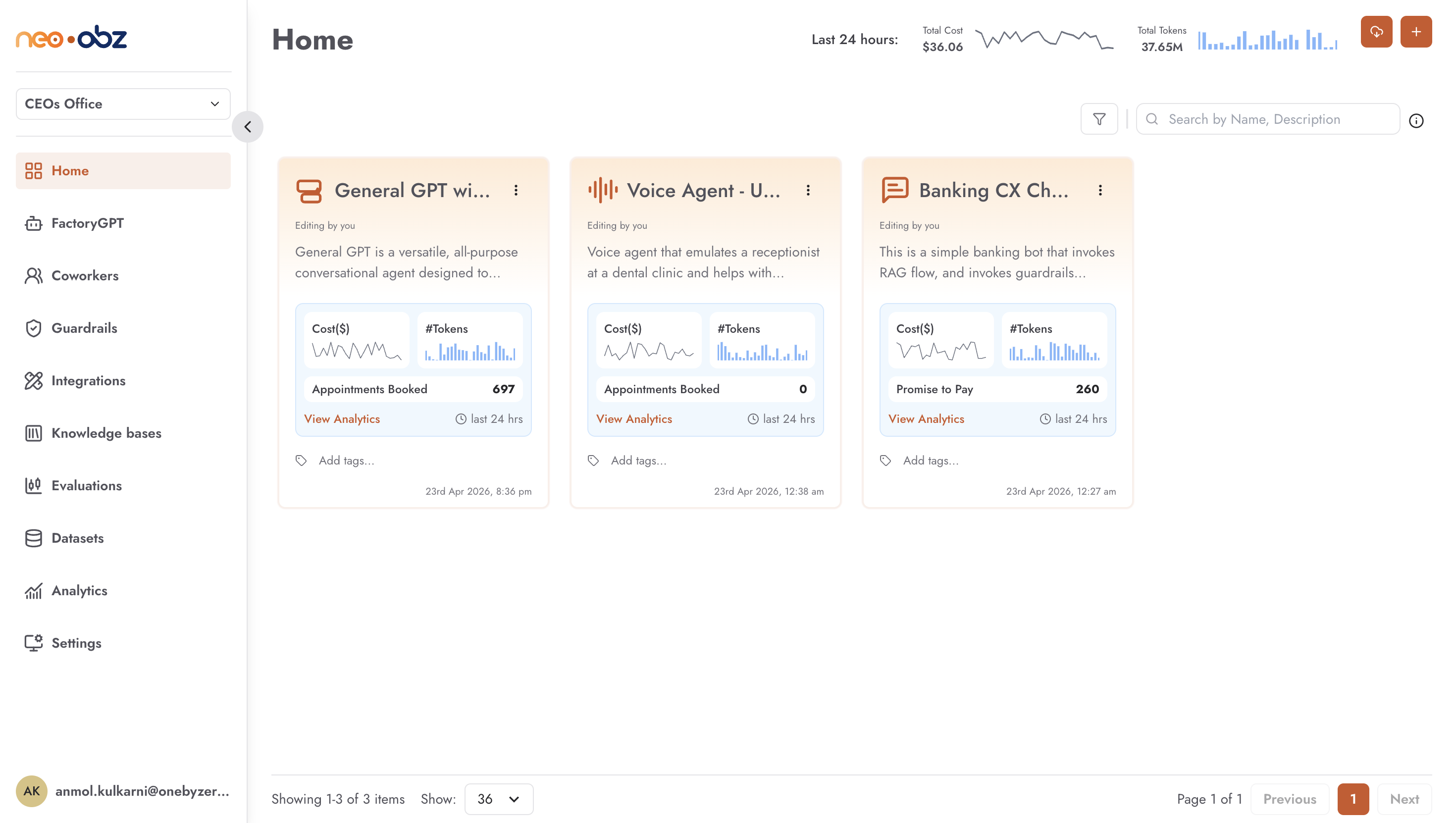
Last 24 Hours Usage Summary
At the top right of the Home page, a usage summary shows aggregate activity across all agents in the workspace over the last 24 hours:
Total Cost — combined spend across all agents, displayed as a compact number with a sparkline chart showing cost trend over the period.
Total Tokens — total token consumption across all agents, with a bar sparkline showing consumption trend.
These figures update in real time as agents handle conversations. Use them to spot unexpected spikes before opening the full Analytics page.
Agent Cards
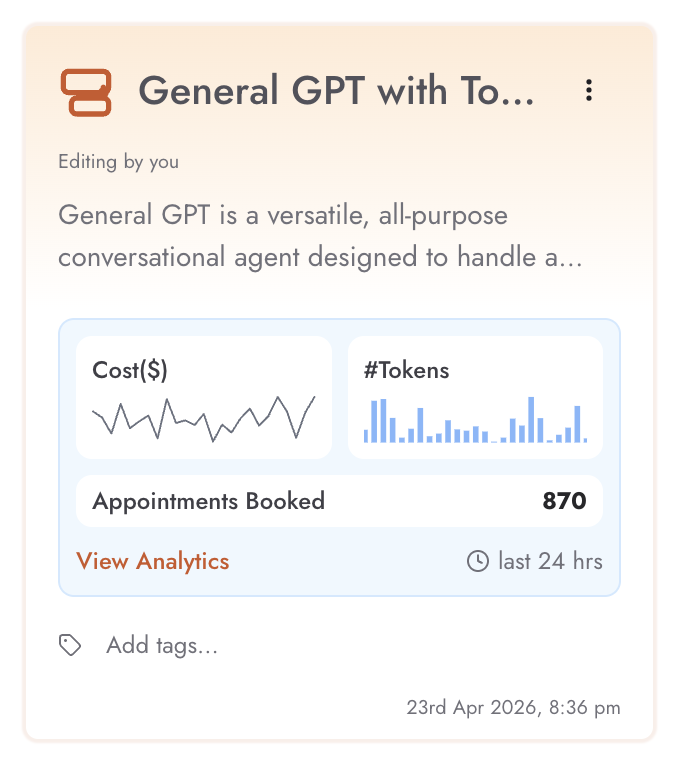
Each agent is represented by a card. Cards display at a glance:
Agent type — labelled as Chat Agent, Flow Agent, or Voice Agent, with a corresponding icon.
Name and description — the agent’s display name and brief description.
Version — the currently active published version.
Status — shown when the agent is in a non-default state:
Editing by you,Editing by <name>,Sent for approval,Approved and ready to publish, orDisabled.Owner — shown when the agent is shared and you are not the owner.
KPI — if KPIs are configured for the agent, the first KPI name and its current value are displayed on the card.
Metrics sparklines — small cost and token usage charts embedded in the card, showing recent activity for that specific agent.
Tags — any tags associated with the agent.
Clicking a card opens the agent’s workflow editor (or settings page for Custom Agents).
Searching and Filtering
The search bar and filter controls at the top of the agent grid let you narrow the visible agents:
Search — searches across agent name and description.
Type filter — filter by agent type: Chat Agent, Flow Agent, Voice Agent. Only agent types enabled for the workspace appear as options.
Tags filter — filter by one or more tags.
Ownership filter — show all agents, only agents you own, or only agents shared with you.
All filters can be combined. The grid updates immediately as filters are applied.
Card Actions
Each agent card has a context menu (three-dot button) with actions available based on your role and permissions:
Settings — opens the agent’s Settings tab directly.
Share — opens the sharing dialog to grant other workspace members view or edit access to this agent. Available to the agent owner only.
Export — downloads the agent configuration as a JSON file. You can choose whether to include credentials in the export.
Duplicate — creates a copy of the agent in the same workspace.
Enable Agent / Disable Agent — toggles the agent’s disabled state. Disabled agents appear faded on the card and cannot receive conversations.
Delete — permanently removes the agent. Only available to the owner when the agent is not pending approval, approved, or being edited by another user.
Note
Agents in Pending Approval or Approved status cannot be deleted. Agents being edited by another user (status: Locked) can only be deleted by the user who has it locked.
Creating and Importing Agents
Two buttons appear at the top right of the Home page (visible to users with the canCreateAgents permission):
Import — imports an agent from a JSON manifest file previously exported from this or another OneByZero Neo workspace. The import brings in the agent’s full configuration, settings, and associated metadata. Useful for migrating agents between environments, replicating configurations across workspaces, or promoting a tested agent from staging to production.
Create — opens the agent creation flow. Presents options to create a Chat Agent, Flow Agent, or Voice Agent.
Best Practices
Use tags consistently across your team — agree on a tagging convention (e.g. by department, use case, or environment) before agents proliferate.
Monitor the Last 24 Hours sparklines regularly. A sudden spike in cost or tokens on a specific card is often the first visible signal of a misconfigured prompt or a loop.
Disable rather than delete agents you no longer need but may want to restore — deletion is permanent and removes all conversation history.
Use the Ownership filter to audit which agents are shared with you versus owned by you, especially when managing access for offboarding team members.